
📘 What it is
On WhatsApp, the first message to a contact is sent with a template that Meta must approve before it can be used. Templates are created in the Template Library of Creative Hub and submitted for review from there.
Each template has one of these statuses:
- Not submitted
- Pending Meta
- Approved by Meta
- Rejected by Meta (with the reason)
Only approved templates can be used in a WhatsApp sequence.
📍 Where to find it
- Side menu → Demand Gen → Creative Hub → Template Library → WhatsApp tab.
- Requirement: have at least one WhatsApp Business account connected in Setup → Integrations → WhatsApp.
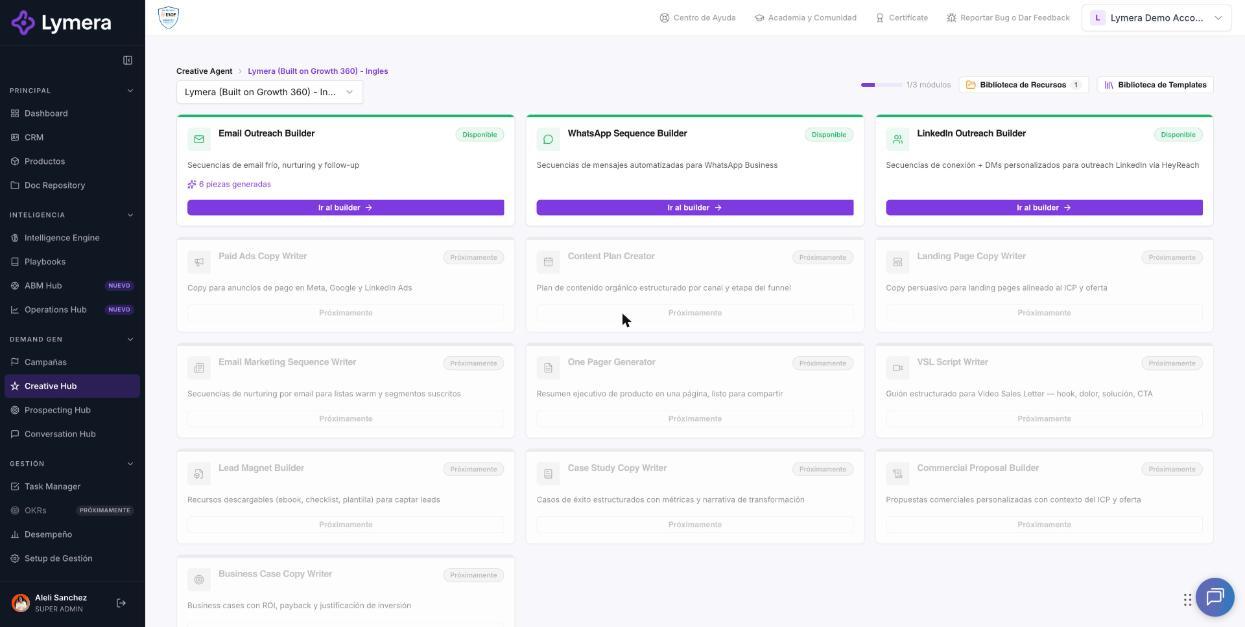
Screen: 4.5 How to set up WhatsApp templates and submit them to Meta
🛠️ How to do it
Create the template
- Go to the Template Library and open the WhatsApp tab. Check the product in the top filter.
- Click New template.
- Choose the Template product and enter the Template name. Lymera converts it to lowercase with underscores.
- Write the Message body. If you need to, add a header and a footer.
- Choose the Meta category (Marketing, Utility or Authentication) and the exact language.
- Under Dynamic variables, map each Meta variable to a Lymera field (or to a fixed value) and enter an example for Meta.
- Check Available for manual sending from the Conversation Hub if your team will use it in one-to-one conversations.
- Click Create template.
Submit it to Meta
- On the template card, click Send to Meta →. If you have several WhatsApp Business accounts, choose which one to send it to.
- You will see "Template sent to Meta. Status: Pending".
- When Meta responds, the status changes to Approved by Meta or Rejected by Meta.
Bring in templates that already exist in Meta
- In the library, click Sync from WABA.
- If you have several accounts, choose the right one.
- Lymera shows you how many templates it imported, updated or skipped.
❓ Frequently asked questions
❓ Why don't I see the Send to Meta button?
Check that the WhatsApp Business account is connected in Integrations and that the template has not already been submitted for review.
❓ Why doesn't my template appear when I build the sequence?
Only templates approved by Meta are listed. Check its status in the Template Library.
❓ What do I do if Meta rejects my template?
Read the reason on the card, adjust the content or the category and submit it again.
❓ Can I delete an approved template?
No. A template approved by Meta can't be deleted, because it could be in active campaigns.
❓ How long does Meta take to respond?
It depends on Meta. The status updates on its own when Meta responds.
🔧 If something doesn't work
| What you see | Likely cause | What to do |
|---|---|---|
| "No WABA accounts are connected" | No WhatsApp Business account is connected | Connect it in Integrations → WhatsApp |
| "Unmapped variables" | Variables haven't been mapped to Lymera fields | Edit the template and map each variable |
| "Could not send to Meta" | Problems with the content, category or language | Check those details and try again |
| Error when syncing | Wrong account or a temporary failure | Click Sync from WABA again and choose the right account |
| The template has been in Pending Meta for a long time or is rejected with no clear reason | Meta review | Check with your Customer Success, providing the template name and the WhatsApp Business account |