
📘 What it is
The Handoff Playbook is the guide that Lymera generates with AI from your product's Intelligence Engine (IE). It governs the handover of a qualified prospect from the person who prepares them (SDR, BDR or Setter) to the person who closes (AE or Closer), so they receive a complete file with no information gaps.
It has a Human version (readable) and a YAML version (structured, for the agents).
When it is used
- When an already qualified prospect moves to the closing team.
- To define which data is required before handing them over.
- To set who notifies, who confirms and what happens if information is missing.
📍 Where to find it
- In the side menu, go to Intelligence → Playbooks.
- Open the product card.
- Choose the Handoff tab, between Qualification and Sales.
If a version already exists, click ⚙ Inputs to open the form.
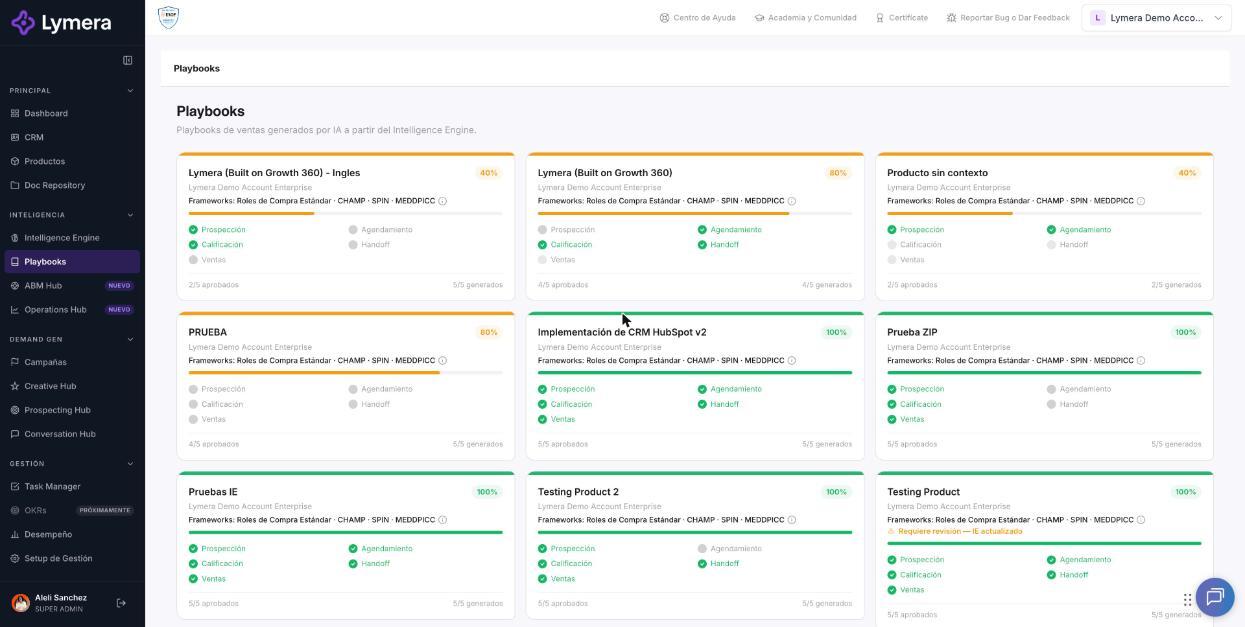
Screen: 3.4 How to set up, generate and approve the Handoff Playbook
🛠️ How to do it
1. Complete the inputs
The form is pre-filled from your IE and saves automatically as you type. The Handoff sections are:
- Product identity: average monthly ticket and one-line value proposition.
- Roles involved: who hands over the prospect, who receives them, who supervises and what triggers the handover.
- Handoff checklist: distinguishes the blocking fields (they prevent the handover if missing) from the recommended ones. For example, you can mark as blocking the name and job title, the company and its size, the main pain with a verbatim quote, the confirmed date and time, and the meeting link.
- Internal notification protocol: channel, message fields and sending and confirmation deadlines.
- Closer preparation: steps before the meeting with their timing and criteria for choosing the presentation according to the profile.
- Repository and folders: where the note and materials are stored in Google Drive and how the folders are named.
- Escalation rules: who steps in if a confirmation is missing, a reschedule is requested or the prospect doesn't attend.
- Handoff KPIs: for example, the percentage of handovers with complete data or notified on time.
- Handoff note settings: the sections of the AI → SDR note (profile, relevant interactions and suggested next step) and of the SDR → AE note (main pain with quote, previous attempts, who decides and open questions). The Product context for the AE field lets you add information or instructions for that note.
2. Generate the playbook
- Click ✦ Generate playbook.
- You will see "Preparing your playbook…" and then "Generating your playbook (Ns)… this can take 1-3 minutes." The tabs are temporarily disabled, but you can go to another menu and come back.
- When you come back, open Handoff and check that Draft appears with its version number.
3. Review the document
In the Human tab, verify what each role must do before the meeting, which data blocks the handover, who is notified and what happens if information is missing. Also check that both notes indicate who receives them. Check the ✓ Valid YAML indicator.
With the buttons in the bar you can switch between Human and YAML, go back to ⚙ Inputs, use ↺ Regenerate YAML, ↺ Regenerate Human or ↺ Regenerate both, and download with ⬇ Word.
4. Send to review and approve
- Click Send to review. The status changes to In review.
- Click Approve. To go back before approving, use Back to draft.
- The status changes to Approved next to the version number and the date.
Example of a complete handover
- AI → SDR: the Operations manager of a logistics company replied by email. Her interest is reducing manual workload. The note includes the relevant interactions and suggests confirming who decides.
- SDR → AE: the SDR adds the quote "We consolidate the reports by hand every Friday", the previous attempts, who approves the budget, and the date and link of the meeting.
❓ Frequently asked questions
❓ What do I do if a blocking field is missing?
Follow the escalation rule you defined. For example, if the verbatim quote of the main pain is missing, the Closer asks the Setter to complete it before considering the handover ready.
❓ What does ↺ Load from IE do?
It refills the inputs with the current IE data and discards what you wrote by hand in the form. Use it only if you want to start over.
❓ Does generating and regenerating consume credits?
Yes. If the generation fails, you are not charged. Check with your Customer Success contact how it is billed on your plan.
❓ Who can generate and approve?
Account Admin, Revenue Strategy Owner and Marketing Strategy Owner. Other roles can only view the playbooks or can't see them.
❓ What happens if I see "Needs review — IE updated"?
An IE module was approved after your playbook was approved. Review the content, regenerate if needed, or click Mark as reviewed.
🔧 If something doesn't work
| What you see | Likely cause | What to do |
|---|---|---|
| Send to review doesn't appear | There is no draft, or you are on another product or tab | Confirm that you are in Handoff of the right product and that the status is Draft |
| In review and you don't see Approve | Your role can't approve | Ask who approves on your team |
| "Generate playbook" disabled | The form is still loading or there is a notice | Wait for it to load and read the notice about the fields |
| Dimmed card with "IE incomplete — set up the IE first" | The product's IE is not at 100% | Approve the 4 IE modules |
| "The playbook has an incomplete structure" | Blocks are missing in the YAML | Click ↺ Regenerate YAML automatically before approving |
| "An APPROVED playbook cannot be modified" | You are trying to edit an approved one | Regenerate to create a new draft version |
If the error happens twice, contact support with: company, user, product, playbook type, time and a screenshot.