
📘 What it is
The Qualification Playbook is the guide that Lymera generates with AI from your product's Intelligence Engine (IE). It defines what a prospect must meet to move forward and how your team (SDR or BDR) makes a clean diagnosis before the handoff to the closing team.
It has a Human version (readable) and a YAML version (structured, for the agents).
When it is used
- To unify the qualification criteria across your whole company.
- To protect your closers' time: only leads with a good fit move forward.
- To define the minimum data the assignment agent captures from prospects who arrive through WhatsApp.
📍 Where to find it
- In the side menu, go to Intelligence → Playbooks.
- Open the product card.
- Choose the Qualification tab.
If it doesn't exist yet, you will see the status Not generated.
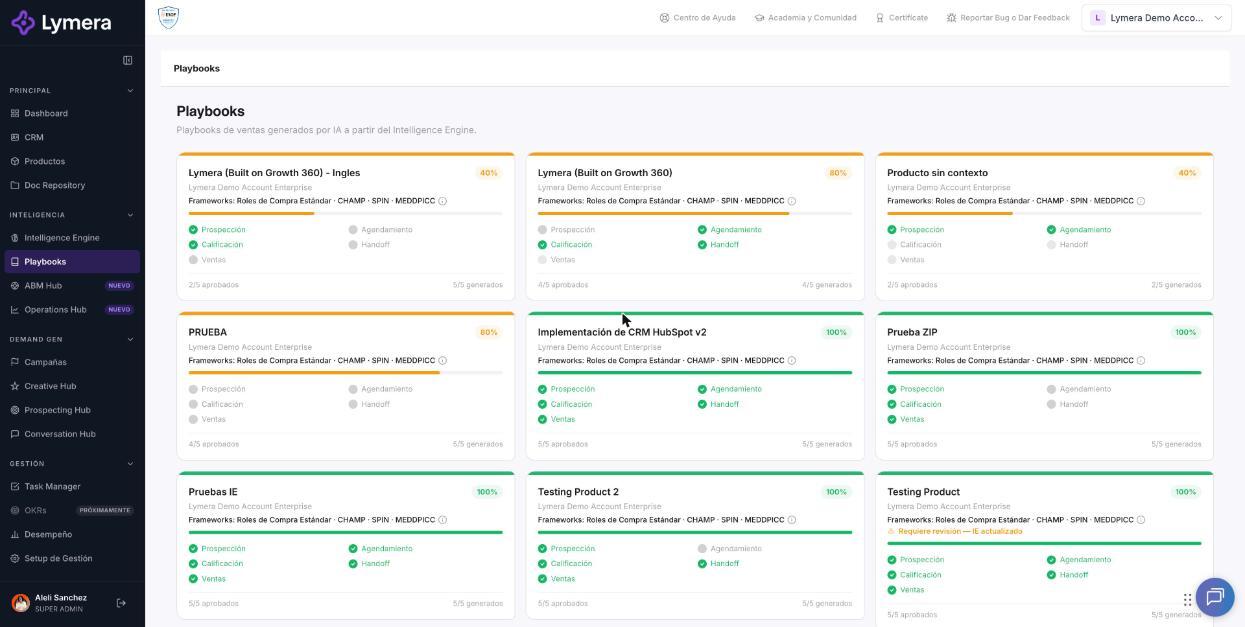
Screen: 3.3 How to set up, generate and approve the Qualification Playbook
🛠️ How to do it
1. Complete the inputs
Click ⚙ Inputs. The form is pre-filled from your IE and saves automatically as you type. The Qualification sections are:
- Identity and call specs: average monthly ticket, call duration, owner (SDR, BDR or AE), next step if the prospect qualifies, and calling tool. It includes the required fields to assign a campaign (inbound WhatsApp), which are written separated by commas (for example: name, company_or_website, email, job title).
- ICP by market with scoring tiers: describe your ideal customer by market. Tier 1 is the perfect fit (score 10) and Tier 2 is a viable opportunity with less maturity (score 5-6).
- Qualification signals with scoring: pain signals (Pain Signals) and structure signals (Structure Signals), each with a verbatim quote and a score from 1 (weak) to 3 (strong), plus the minimum thresholds to pass.
- Alternative solutions: what to offer someone who doesn't fit the main product.
- Discovery pillars: guiding questions according to your company's methodology (SPIN, CHAMP, BANT, etc.).
- Post-MQL materials: what to send between qualification and the diagnostic meeting.
- MQL KPIs: your team's goals.
There is also a block of disqualifiers: what immediately rules out a contact (for example, lack of budget or decision-making authority).
2. Generate the playbook
- Click ✦ Generate playbook.
- You will see "Generating your playbook (Ns)… this can take 1-3 minutes." You can go to another menu and come back.
- When it finishes, the playbook is left in Draft with the ✓ Valid YAML indicator.
3. Review the document
In the Human tab, review:
- The qualification signals and their scores.
- The qualification thresholds. For example, a minimum ICP score of 5/10, and minimums of 4 points for pain and for structure; the lead qualifies if it exceeds at least 2 of the 3 dimensions. These are example values: adjust them to your business.
- The alternative paths for leads that don't qualify.
- The discovery pillars with their questions.
With the buttons in the bar you can switch between Human and YAML, go back to ⚙ Inputs, use ↺ Regenerate YAML, ↺ Regenerate Human or ↺ Regenerate both, and download with ⬇ Word.
4. Send to review and approve
- Click Send to review. The status changes to In review.
- Click Approve. To go back before approving, use Back to draft.
- The status changes to Approved and the product counter is updated.
How to change an already approved playbook
An approved playbook is not edited. Adjust the ⚙ Inputs and regenerate: a new version is created in Draft that you must review and approve again.
❓ Frequently asked questions
❓ Does the AI agent use all the sections of this playbook?
Not all of them. The agent mainly uses the required fields to assign a campaign for WhatsApp prospects and the pain signals to detect information gaps, which it summarizes in the handoff note. The rest (discovery pillars, alternative paths) mainly guides your human team. Check with your Customer Success contact for the current scope.
❓ If my model is B2C, what changes?
In the required fields to assign a campaign you can remove the company variable to avoid unnecessary friction.
❓ Does generating and regenerating consume credits?
Yes. If the generation fails, you are not charged. Check with your Customer Success contact how it is billed on your plan.
❓ Who can generate and approve?
Account Admin, Revenue Strategy Owner and Marketing Strategy Owner. Other roles can only view the playbooks or can't see them.
❓ What happens if I see "Needs review — IE updated"?
An IE module was approved after your playbook was approved. Review the content, regenerate if needed, or click Mark as reviewed.
🔧 If something doesn't work
| What you see | Likely cause | What to do |
|---|---|---|
| Dimmed card with "IE incomplete — set up the IE first" | The product's IE is not at 100% | Approve the 4 IE modules and go back to Playbooks |
| "Your current plan does not include the Playbooks engine" | Your plan doesn't include playbooks or your role is read-only | Check with your Customer Success contact |
| "The playbook has an incomplete structure" | Blocks are missing in the YAML | Click ↺ Regenerate YAML automatically before approving |
| "The generation is taking longer than usual. Reload the page" | Slow process | Reload and check whether it has already finished before generating again |
| "An APPROVED playbook cannot be modified" | You are trying to edit an approved one | Regenerate to create a new draft version |
| "We are already generating this playbook" | A generation is in progress | Wait for it to finish |
If the error happens twice, contact support with: company, user, product, playbook type, time and a screenshot.