
📘 What it is
In Lymera, a product is the good, service or solution your company sells. Each product has its own Intelligence Engine, playbooks, sequences and campaigns.
A product can be in one of these statuses:
- In setup: newly created, or with its Intelligence Engine below 100%.
- Active: its Intelligence Engine has reached 100%.
- Archived: it is kept with its information, but no longer counts toward your plan's product limit.
📍 Where to find it
Side menu → MAIN group → Products. You'll see the "Products" title and, next to the New product button, how many of your plan's products you are using ("N of M products").
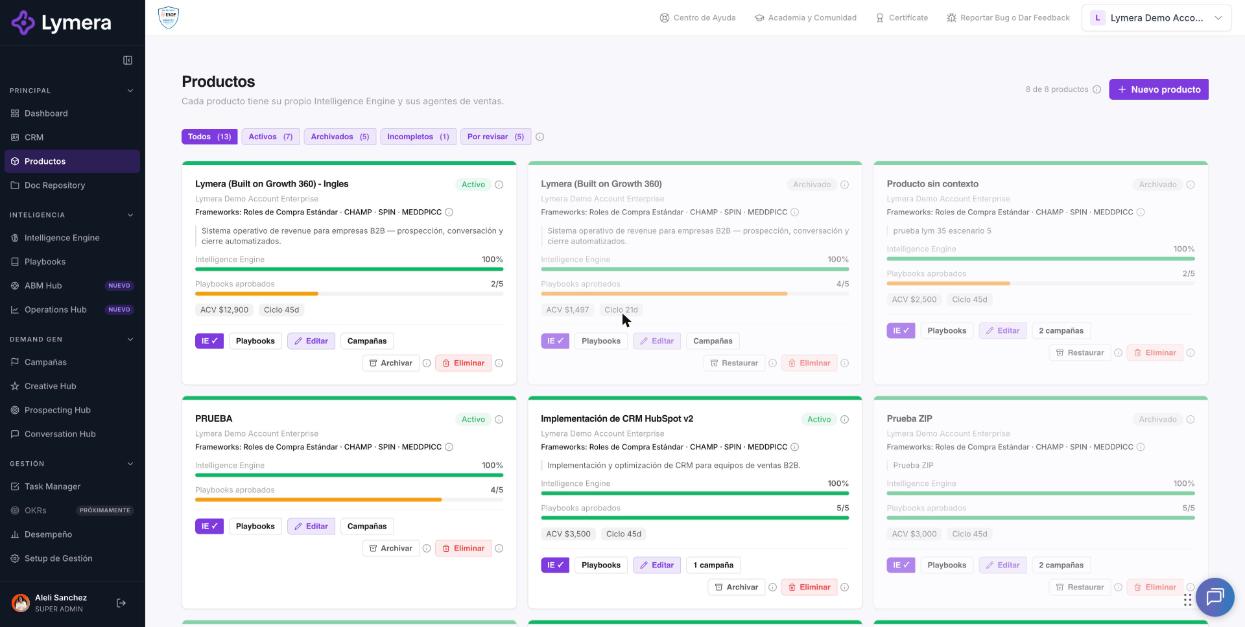
Screen: 2.1 How to create and edit Products in Lymera
🛠️ How to do it
Create a product
- Go to Products.
- Click New product (or the dotted "New product" card).
- Enter the Product / service name. It's the only required field.
- If you want, also fill in: short description, Average ACV (USD), Sales cycle (days) and Document language.
- Click Create product.
Edit a product
- On the product's card, click Edit.
- Change the data you need.
- Click Save changes.
Filter your catalog
At the top you'll see the filters All, Active, Archived, Incomplete (products in setup) and To review (with an Intelligence Engine module or a playbook flagged for review).
Archive, restore or delete
- Archive: click Archive. If the product has active campaigns, first pause or finish those campaigns. An archived product appears dimmed and frees up room in your plan.
- Restore: click Restore. The product counts toward the plan limit again; if your plan is full, you won't be able to restore it. It comes back as "Active" if its Intelligence Engine is at 100%, or as "In setup" if not.
- Delete: click Delete and confirm with Yes, delete. If the product has campaigns it cannot be deleted; archive it instead.
Quick access buttons on each card
- IE: opens the product's Intelligence Engine.
- Playbooks: enabled when the Intelligence Engine is at 100%. Before that you'll see "Complete the IE first".
- Campaigns: opens the campaign list filtered by that product.
❓ Frequently asked questions
❓ Do I need to fill in all the fields to save a product?
No. Only the name is required. Still, we recommend filling in the rest: they help the agents work with a better reference.
❓ How many products can I have?
It depends on your plan. Archived products don't count. If you need more room, talk to your Customer Success contact about upgrading your plan or adding a capacity add-on.
❓ Does creating or editing a product use credits?
No. Creating, editing, archiving or deleting products does not use credits.
❓ Can I recover a deleted product?
Not from the screen. If it's urgent, contact support with the exact name of the product.
❓ Why doesn't my product appear when I create a campaign?
The campaign wizard only offers products with all four Intelligence Engine modules complete and at least one approved playbook. It also doesn't show archived or deleted products.
❓ Who can create or edit products?
The Account Admin and Revenue Strategy Owner roles. Other roles may or may not be able to view the catalog, depending on their configuration.
🔧 If something doesn't work
| What you see | Likely cause | What to do |
|---|---|---|
| "Your plan allows N active product(s). You already have N set up." or the banner "You exceeded your plan's product limit." | You reached your plan's limit | Archive a product you don't use or talk to your Customer Success contact about upgrading your plan |
| "Pause or finish the active campaigns before archiving the product." | The product has active campaigns | Go to Campaigns, pause or finish the product's campaigns and archive it again |
| "Your account cannot perform this action because of the current subscription status." | The subscription is paused or expired | Let your Account Admin or your Customer Success contact know |
| You don't see New product or Edit | Your role is read-only | Ask your Account Admin to review your role |
| The product isn't saved after retrying | Temporary failure | Write to support with: company, user, product name, time, action performed and a screenshot of the message |
🚀 Next steps
With your product created, you can now activate the platform's brain: