
📘 What it is
The CRM's drop-down lists (for example, the reason when discarding a contact, the type of a meeting or the result of a call) come from catalogs that your company manages in Settings. Keeping them up to date helps your team record information consistently and makes reports reliable.
Catalogs are per company. New companies start with initial values you can edit. Changes are reflected in the forms where each catalog is used, with no integrations or extra mappings.
📍 Where to find it
Side menu → Setup group → Settings. You will see cards with a title and a short description. The ones related to reasons, meetings and calls are:
- Disqualification reasons: reasons a contact is discarded before the meeting.
- Qualification reasons: criteria for marking a contact as qualified after the meeting.
- Loss reasons: reasons a deal is lost.
- Closed-won reasons: reasons a deal is won.
- Meeting and call types: formats available when logging meetings or calls.
- Call results: options when logging how a call ended ("Connected", "No answer", etc.).
You will also find cards for Labels, Departments, Currencies and exchange rates, Pipelines and stages and others, depending on your role, your plan and your account's activations.
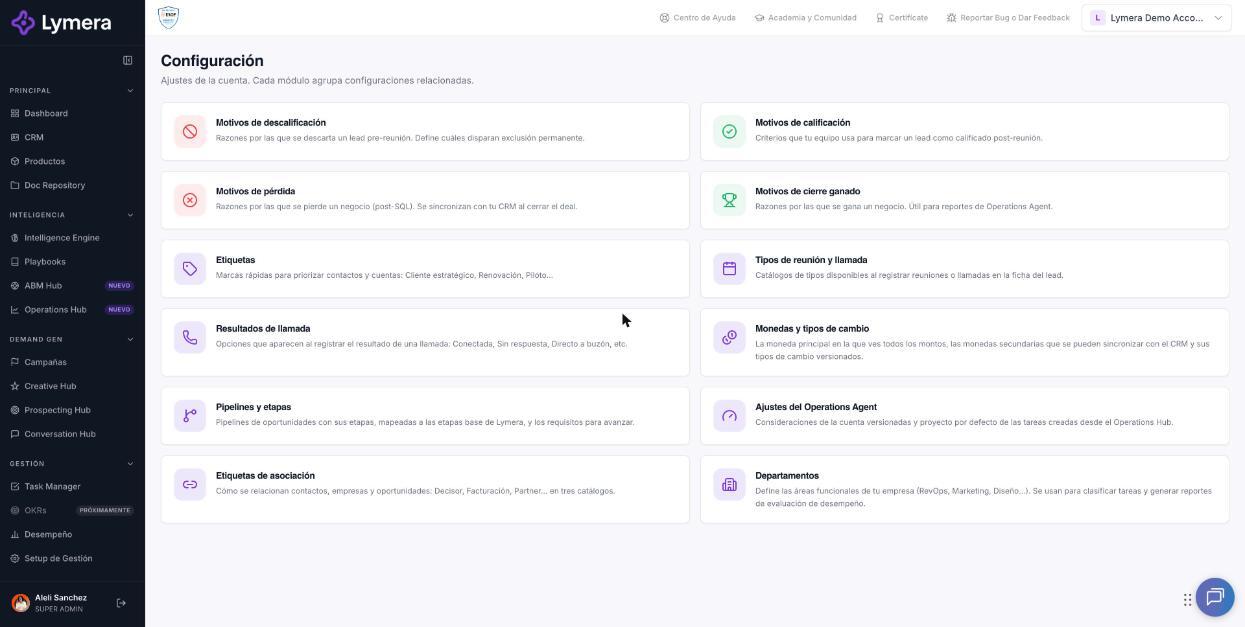
Screen: 1.13 Global settings: Customizing reasons, calls and meetings
🛠️ How to do it
Reasons (disqualification, qualification, loss and closed-won)
- Open the catalog's card. You will see a table with Order, Name, Internal code, CRM code, Uses, Status and Actions.
- Click Create reason, type the Name (for example, "Price out of range"), a description if you want, and the position in Order (empty = at the end).
- In Disqualification reasons you can check Do not contact: when that reason is used, the contact becomes Excluded permanently and receives no more sends.
- If you have a CRM connected, the CRM code is the value sent there; if you leave it empty, the name is sent.
- Click Save. Afterwards you can Edit, Activate/Deactivate or Delete.
Useful rules:
- System reasons can't be renamed; you can edit their description, CRM code, order and status.
- A reason that has already been used can't be deleted: deactivate it. It stops being offered, but it is kept in what was already recorded.
- The internal code can't be changed after it is created.
- There must be at least one active reason to be able to discard contacts or close opportunities.
Meeting and call types
- Open Meeting and call types (Meeting types and Call types tabs).
- Click Add meeting type or Add call type, type the name (for example, "Product demo") and save.
- In the table, adjust Order, Funnel stage, Reminder agent and Active.
What each setting does:
- Funnel stage: which stage the type counts toward in reports (MQL, Discovery meeting, Sales meeting or None). It also determines whether logging a meeting of that type moves the contact to Meeting scheduled. If you change it, activities already logged with that type also change stage.
- Reminder agent (meetings only): if active, meetings of that type trigger the confirmation and reminders to the prospect.
- Active: if you turn it off, the type stops appearing when logging activities, but those already logged keep their type.
Call results
- Open Call results and click Add result.
- Type the Display name. The Key is generated automatically and can't be changed.
- Click Create result. To remove one, deactivate it: it becomes Inactive.
❓ Frequently asked questions
❓ Do I have to set up reasons separately for calls and contacts?
No. Catalogs are centralized: when you save an option, it appears on every screen where it is used.
❓ Can I delete a reason that has already been used?
No. Deactivate it so it stops being offered without affecting what was already recorded.
❓ What happens to my reports if I deactivate or change an option?
Historical records keep their information. Changes apply to what you record from then on.
❓ What is the difference between disqualifying and qualifying?
Disqualifying happens before the meeting; qualifying happens after a completed meeting.
❓ Are loss reasons sent to my CRM?
If you have a CRM connected, the configured CRM code is sent (or the name if you left it empty).
❓ Can I reorder the options?
Yes, with the Order field.
🔧 If something doesn't work
| What you see | Likely cause | What to do |
|---|---|---|
| "There are no active disqualification reasons" when discarding | There are no active reasons | Activate or create at least one. |
| My call result selector is empty | No results have been configured yet | Ask your Account Admin to add them. |
| "The key already exists in your company" | A result with that name already exists | Use another name. |
| I can't edit a catalog | Your role is read-only | Ask an Account Admin to review your role. |
| I don't see a Settings card | Your role, plan or account activation | Consult your Account Admin or your CSM. |
If a change doesn't save after retrying, contact support with: company, user, URL, time, catalog, attempted action and a screenshot of the message.