
📘 What it is
Each person on your team has one or more roles that define what they see and what they can do in Lymera. The Account Admin manages the team from Account & Billing. Here you will learn how to invite people, change their roles, and suspend or remove them from the account.
The roles your company can assign
| Role | What it is for |
|---|---|
| Account Admin | Manages users, products, campaigns, billing and integrations. |
| Revenue Strategy Owner | Full access to Intelligence, Playbooks, Operations, Creative, Conversation and Prospecting. |
| Marketing Strategy Owner | Full access to the Creative Agent and to Operations' marketing modules. |
| Sales Rep | Operational work in Prospecting and Conversation. |
| Creative Rep | Generates and exports content and edits campaigns (without activating or deleting them). |
| Project Manager | Management of projects, modules, tasks and SLAs; no access to other sections. |
| Viewer | Read-only access to dashboards and reports. |
Roles are assigned per company: a person can be Account Admin in one company and Viewer in another.
📍 Where to find it
Side menu → Setup group → Account & Billing → Account & Users tab → Team card.
The table has the columns Name, Email, Roles, Status, Last access and Actions. At the top you will find the search box ("Search by name or email…") and the filters "All roles" and "All statuses".
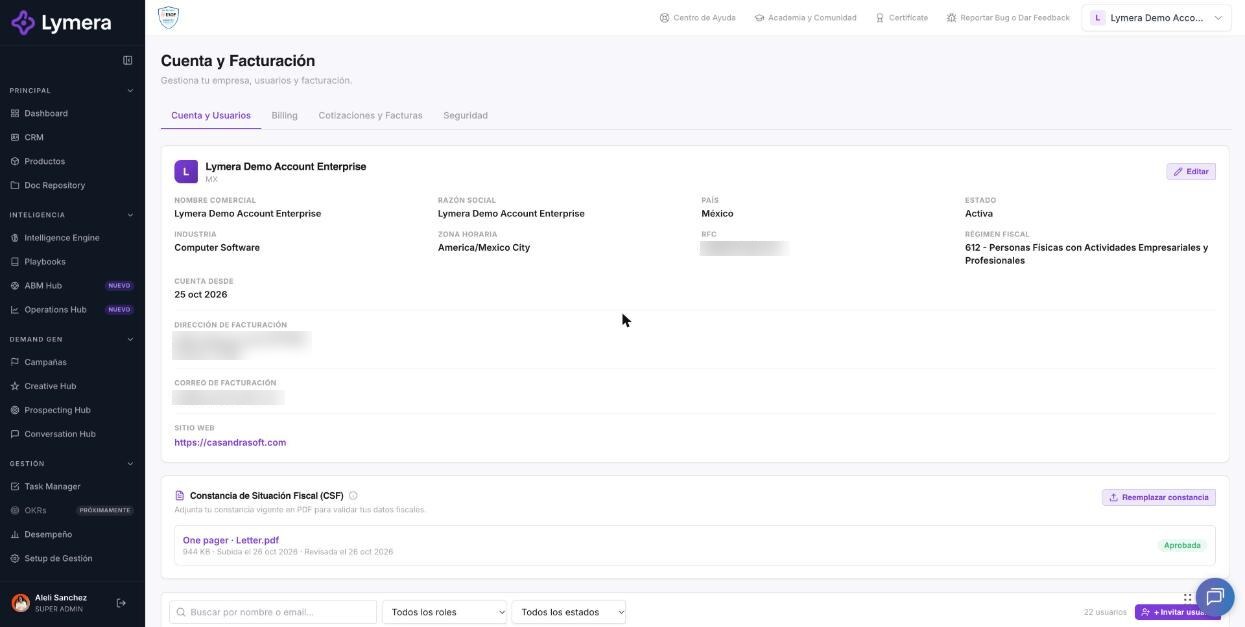
Screen: 1.11 User management: Add users, change roles and remove access
🛠️ How to do it
Add (invite) a person
- Go to Account & Billing → Account & Users tab.
- Click + Invite user.
- Fill in Full name \, Email \ and check at least one role in Roles \*.
- Click Invite user.
The person appears in the table with the status "Pending" and receives an email with a link to create their password. If the email already existed in Lymera (for example, they work at another company that uses the platform), a new user isn't created: access to your company is added to them, and they can switch companies with the same sign-in.
Change someone's roles or details
- In "Team", click Edit in the person's row.
- In "Edit member", check or uncheck the Roles in this account.
- Type your password in "Confirm your password". Changing a role requires confirming it.
- Click Save changes.
From Edit you can also send a link to reset their password: in the "Reset password" section, click "✉ Send link".
Suspend or reactivate someone
- In the person's row, click Suspend (or Activate if they are already suspended).
- Confirm with your password.
The person loses (or regains) access to this account. Their data isn't deleted. It is the ideal option for vacations or temporary absences.
Remove someone from the account
- Click Remove in the person's row.
- Confirm the action.
The person continues to exist in Lymera and keeps access to their other companies; they only lose access to this one.
Review a person's profile
Click View profile in the row. The panel summarizes their identity (status, roles, last access and since when they have been a member), the status of their integrations (Gmail, Google Calendar and Slack), their outreach setup (meeting link, BCC, representative details and email signature) and their notifications. This way you know whether someone has already set up their tools without asking them for screenshots.
❓ Frequently asked questions
❓ What does each role mean, and can I combine them?
Each role is described in the table above. You can combine several, except Viewer, which stands alone.
❓ Who can invite or modify users?
Account Admins (and Lymera's Customer Success team). Other roles don't see the + Invite user button.
❓ A user left the company. What do I do?
Remove them from the account with Remove. If you prefer to keep them on the list, suspend them.
❓ Does a suspended user lose their data?
No. Their data is kept and, when you reactivate them with Activate, they regain their access.
❓ I'm the only Account Admin and I want to leave the company.
It isn't possible while you are the only one. First assign another person as Account Admin.
❓ How do I know whether someone connected their Slack or set up their signature?
Click View profile in their row and check the integrations and outreach setup sections.
🔧 If something doesn't work
| What you see | Likely cause | What to do |
|---|---|---|
| You don't see the "Team" card or "Your current role doesn't have access to the account" appears | Your role isn't Account Admin | Ask an Account Admin to do it or to review your role. |
| "You don't have permission to manage users of this company" | The person trying isn't an Account Admin | Ask an Account Admin to perform the action. |
| I changed a role and it isn't reflected | The session takes a moment to update | Ask the person to sign out and sign back in. |
| I can't change a user's email | It can only be changed while the invitation is pending | See the invitations article. |
| A user appears as "Suspended" and should be active | Manual suspension | Click Activate in their row. |
If the role is correctly assigned and the person still has no access, contact support with: company, affected user's email, the role they should have, the screen's URL, time and a screenshot of the message.