
📘 What it is
The system email is the corporate account from which Lymera sends your company user invitations, password recovery emails and automatic alerts. It is different from each Sales Rep's personal email, which is used to send campaign emails.
You can connect a Gmail account, a Microsoft (Outlook) account, or both. The Microsoft account only asks for permission to send emails; it doesn't read the inbox. If you don't connect either, notifications go out from a Lymera backup account.
The Account Admin manages this setup.
📍 Where to find it
Side menu › Setup group › Integrations › Platform notifications category. There you will find the Gmail — System notifications and Microsoft — System notifications cards, and the Sender of system notifications block.
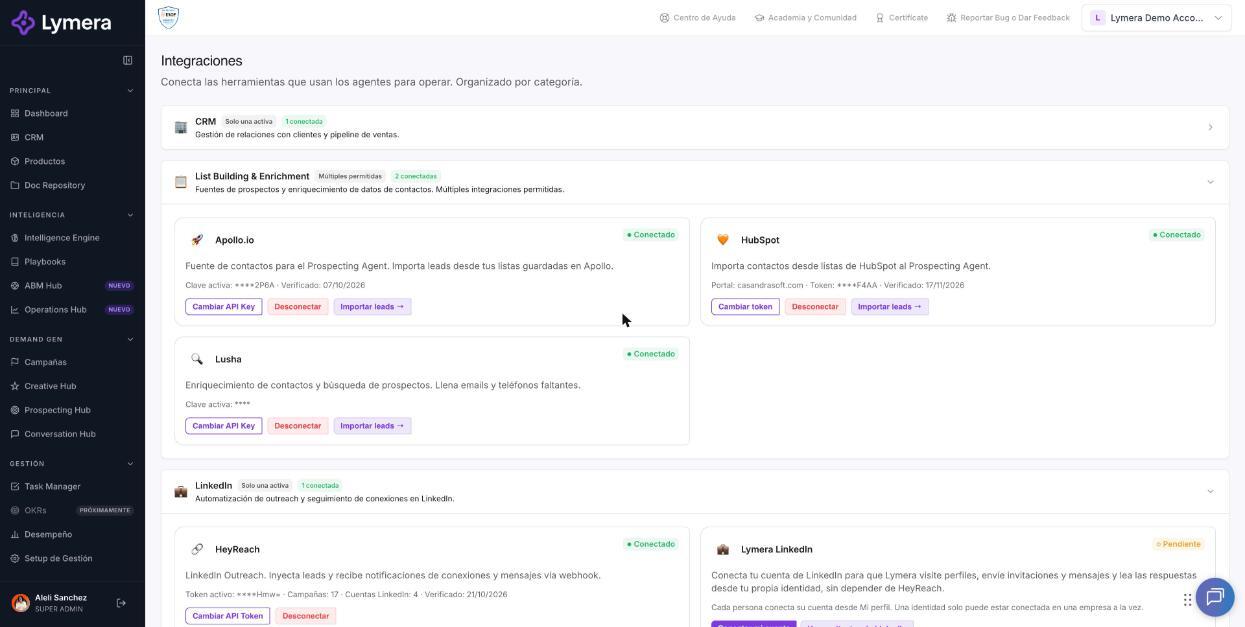
Screen: 1.10 How to connect your Gmail account as an administrator to send notifications
🛠️ How to do it
Connect the system Gmail
- Sign in as Account Admin.
- In the side menu, go to Integrations and scroll down to Platform notifications.
- In the Gmail — System notifications card, click Connect Gmail.
- In the Google window, choose the corporate account you want to use and accept the permissions.
- You will see "System Gmail connected successfully" and "Account: {email}", with the connection date.
To use another account, click Change account and repeat the authorization.
Connect the system Microsoft account (optional)
- In the Microsoft — System notifications card, if you want, enter Your organization's domain (just the domain, like yourcompany.com, without @ or https://).
- Click Connect Microsoft and then Go to Microsoft. Authorize with a corporate account. Personal accounts (Outlook.com, Hotmail) also work, but they have lower daily sending limits.
- If your organization requires administrator approval, the card shows Admin approval required. Click Copy link for my administrator. In the meantime, notifications go out from Gmail or from Lymera's backup account.
Choose the sender if you have Gmail and Microsoft
In Sender of system notifications, choose Gmail · email or Microsoft · email and click Save sender. It applies from the next email. If the chosen one fails, Lymera uses the other so the email isn't lost.
Disconnect
Click Disconnect on the card. The window tells you which account notifications will go out from from then on.
❓ Frequently asked questions
❓ What are the emails sent from this account used for?
Only for system emails: invitations to new members, password recovery and platform alerts. It is not used for sales or prospecting campaigns.
❓ Can I change the linked account later?
Yes. Use Change account, or Disconnect and connect the new one.
❓ Does this sending use my Lymera credits?
No. These are operational platform emails and they don't deduct credits from your monthly Lymera pool.
❓ Do I have to connect both Gmail and Microsoft?
No. One is enough. Having both gives you a backup.
❓ Can they see my inbox?
No. The system Microsoft account only allows sending, keeping the connection alive and reading your profile.
🔧 If something doesn't work
| What you see | Likely cause | What to do |
|---|---|---|
| "The system email ({provider}) lost its authorization" | Password change, revoked access or many days without use | Reconnect in Integrations › Platform notifications |
| "Invalid token — access was revoked in Google. Reconnect the account." | Access was removed in Google | Click Reconnect Gmail or Change account |
| Microsoft card shows Expired or Revoked | Microsoft stopped accepting the connection or an administrator removed the approval | Click Reconnect or ask the administrator to approve again |
| "Enter only the domain, for example yourcompany.com" | You entered an email or a URL | Enter only the domain |
| Invitations don't arrive even though everything is connected | Spam or the invitee's email is incorrect | Check spam and the invitee's address |
| "The platform has no email account configured as sender." | No system account is connected | Connect Gmail or Microsoft here |