
# Two-step verification (2FA)
📘 What it is
Two-step verification adds a layer of security: in addition to your password, Lymera asks you for a 6-digit code generated by an authenticator app on your phone (for example Google Authenticator or Authy). That way, even if someone knows your password, they can't sign in.
When you turn it on you receive backup codes (single-use) to sign in if you lose access to your app. You can also mark a device as a trusted device for 30 days so it doesn't ask for the code every time.
Who must have it: it's always mandatory for the Super Admin role (Lymera team). For other users it's optional, unless the Account Admin of an Enterprise account requires 2FA for the whole team (see the advanced security article). If it's required of you and you don't have it yet, when you sign in you'll be taken to "Set up two-step authentication" and won't be able to open other screens until you finish.
📍 Where to find it
My profile (footer of the side menu) → Profile tab → "Two-step authentication" block. Statuses: "Inactive" with the Enable 2FA button, or "Active since …" with the Regenerate codes and Disable 2FA buttons (the latter doesn't appear if your role requires it). Further down, the "Trusted devices" section with Revoke all.
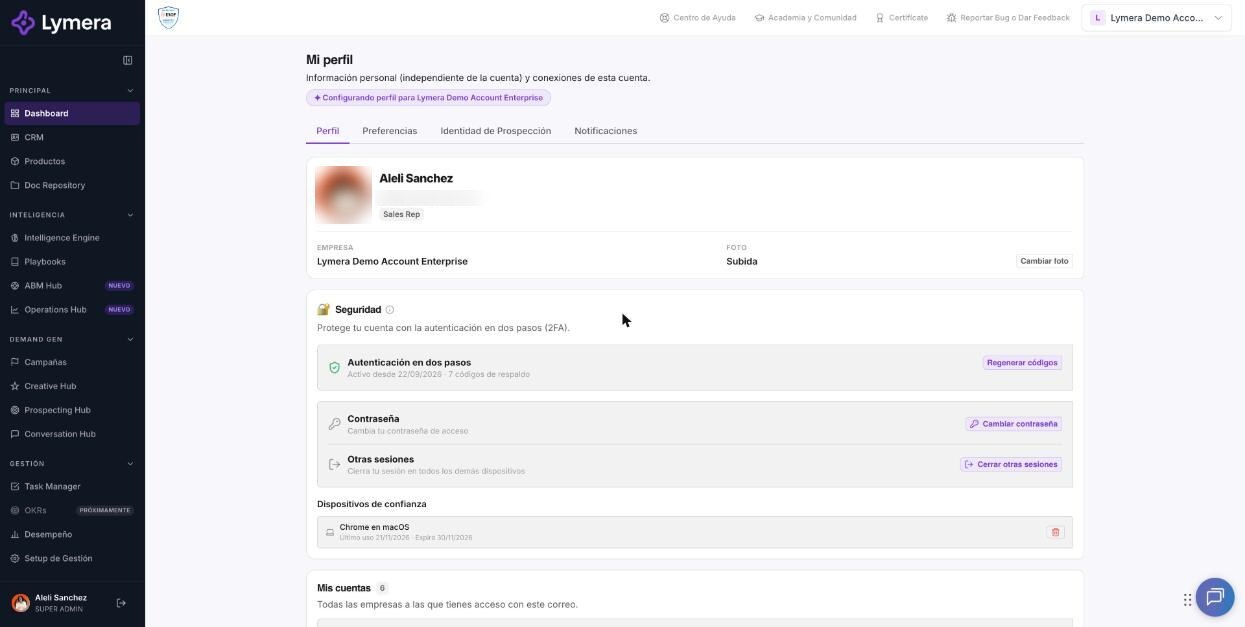
Screen: Two-step verification (2FA)
🛠️ How to do it
Turn it on
- Install an authenticator app on your phone.
- In My profile click Enable 2FA.
- In the "Enable two-step authentication" dialog scan the QR code. If you can't scan it, click "Enter code manually" and type the code shown; then click "I've set it up — Continue".
- Type the 6-digit code shown by your app to confirm.
- Your backup codes appear with the notice "Save these codes now." Copy or download them and keep them somewhere safe: they're single-use and won't be shown again. Click "I saved them — Continue".
Sign in with 2FA
- Sign in with your email and password.
- On "Two-step verification" type the 6-digit code in Authentication code.
- If it's your personal device, check "Remember this device for 30 days".
- Click Verify.
Use a backup code
- On that screen click "Use backup code".
- Type one of your 10-character codes and click Verify. Each code works only once.
Regenerate backup codes
- In My profile click Regenerate codes, confirm with your 6-digit code and save the new ones. The previous ones stop working.
Turn off 2FA (only if your role and account don't require it)
- Click Disable 2FA, type a current or backup code in "TOTP or backup code" and confirm with Disable.
Revoke trusted devices
- Under "Trusted devices" click the trash icon of a device, or Revoke all. Next time the code will be requested.
❓ Frequently asked questions
I changed phones and no longer have my app. How do I sign in? Use one of your backup codes at "Use backup code". Once inside, turn 2FA off and on again (if your role allows it) or regenerate your codes and set up the app on the new phone.
I lost my phone and my backup codes. Escalate to a support person so they can help you recover access.
The code always comes out incorrect. Almost always it's the phone's clock: turn on automatic time on your device. Also check that you scanned the right Lymera account in your app and that the code hasn't expired (it changes about every 30 seconds).
Does it also ask for 2FA if I sign in with Google? Yes, if you have 2FA turned on the code is requested when signing in with Google.
What happens if I make several mistakes? After several failed attempts you'll see "Too many 2FA verification attempts. Wait at least 10 minutes before trying again." There is also a temporary account lock after 5 failures in a row of the password or code.
Why don't I see the "Disable 2FA" button? Your role or your company's security policy requires having 2FA turned on.
🔧 If something doesn't work
| Symptom | Common cause | What to check |
|---|---|---|
| "Incorrect code" | Phone clock out of sync or expired code | Automatic time; type the current code |
| "N attempts remaining" / "Last attempt available" | Several wrong codes | Wait and use the current code or one of the backup codes |
| Redirected to "Set up two-step authentication" | Your role or your company requires 2FA | Complete the three steps: Scan QR, Confirm code, Save backup |
| I can't scan the QR | Camera or app | Use "Enter code manually" |
| I lost access to the authenticator and the backups | There's no way to sign in on your own | Escalate to a person |
When to escalate: total loss of access to the authenticator, persistent lockout or 2FA can't be set up. Ask for: company, user's email, message on screen (screenshot), time of the attempt and whether the customer has any unused backup code.