
# Task Manager - tasks, statuses and Kanban
📘 What it is
The Task Manager is your team's service task management module: each task belongs to a project and a phase, and has an assignee, approvers, priority, deadlines and service level agreements (SLAs). It can be viewed as a List or as a Kanban board.
Task statuses: Backlog, Not Started, In Progress, Blocked, Internal Review, Needs Changes, Ready for Client, Client Review, Changes Requested, On Hold and Done.
Priorities: P0 Critical, P1 High, P2 Medium, P3 Normal (in the SLA guide it appears as "Low") and P4 Low (in the SLA guide "Minimal"). The priority determines the SLA deadlines.
SLA indicator on each task: SLA OK, At risk or Overdue.
📍 Where to find it
Side menu, Management group > Task Manager, with the Projects and Tasks tabs. The module is included in the Growth plan or contracted as an add-on; available depending on your plan and role. If you don't see it, ask your Account Admin to check your access or contact your Customer Success contact.
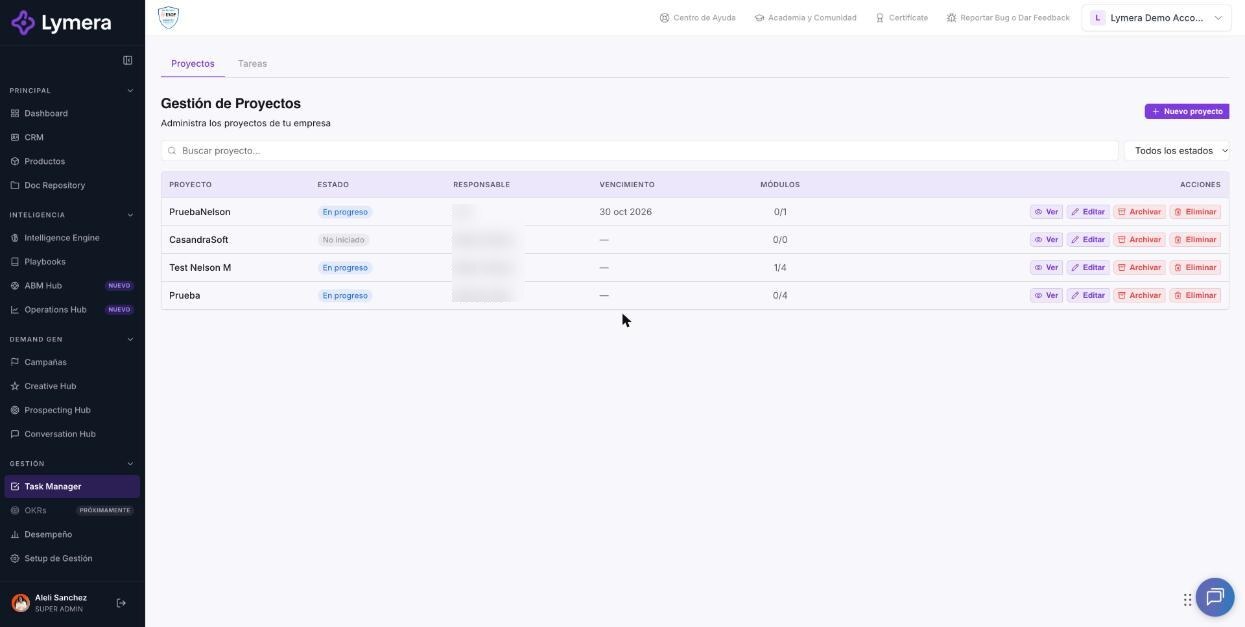
Screen: Task Manager - create tasks, statuses, List and Kanban views
🛠️ How to do it
Create a task
- Go to Management > Task Manager > Tasks and click New Task. (If you don't have permission you will see "No permission to create tasks"; if the project is archived, "The project is archived".)
- Choose Project and Phase (required) and type the Title.
- Complete Description, Priority, Due date, Planned start, Assigned to, Internal approver, Client approver (optional; required to move the task to "Client Review"), Department (classifies the task for the evaluation reports) and Deliverable link.
- You can add Attachments (there is a maximum number of files). If an attachment could not be uploaded, the task is created anyway and you can retry from Attachments in its detail.
- If there is no planned start, the task goes straight to "Not Started"; with a future planned start it will move to "Not Started" on its own on that date.
- Click Create task.
View and filter
- Switch between List and Kanban, and between My tasks and Team. The Team view is read-only unless you have management permissions.
- List columns: Title, Project, Phase, Status, Priority, SLA, Assignee, Due date, Actions. Use search and the status, priority, assignee and project filters; Clear filters resets them.
- In each row: Preview, View detail, Edit task and Delete task.
- A scales icon indicates an appeal pending review (see the article on change requests and appeals).
Change the status
- Open the task detail (or drag the card in Kanban if you have permission).
- Change the status with the selector. Some statuses ask for data: Blocked asks for the block reason; Needs Changes and Changes Requested ask you to describe the required changes.
- The detail shows people, dates (planned start, due date, actual start), SLA, review rounds, delivery (deliverable link, testing instructions, Slack or Teams thread) and attachments. If the task originated in the Operations Hub, it shows its origin.
Stage names
Each company (and each project) can rename the Kanban stages in Management Setup > Kanban stages (see the configuration article).
❓ Frequently asked questions
Who can create or edit tasks? Whoever has the module's permissions. The Team view shows all tasks in read-only mode.
What is the difference between "Blocked" and "On Hold"? Blocked pauses all 4 SLAs; On Hold pauses only SLA 4 (the total closure deadline). See the SLA article.
Can I delete a task? Yes, with Delete task; deletion is permanent and asks for confirmation.
Why can't I move to "Client Review"? The Client approver is missing.
Where do I see the tasks assigned to me? In Tasks > My tasks; also on the Dashboard, My tasks block.
🔧 If something doesn't work
- I don't see the Task Manager menu. Common cause: your plan doesn't include the module or your role has no access.
- Message "Set up SLAs before creating tasks". The module requires active SLAs by priority and a business calendar; ask your Account Admin to configure them in Management Setup > SLAs.
- A task doesn't change status. The data the dialog asks for (block reason, required changes) is missing, or your role can't move it.
- Departments don't appear when creating the task. An administrator must create them in Settings > Departments.
- Escalate to a person with: company, user and role, task URL, time, origin and destination status, steps and a screenshot.