
# Prospecting Hub — lead pipeline, lead statuses, and bulk actions
📘 What it is
The Prospecting Hub is the operations center for your prospecting: in a single place you see all the leads from your campaigns, where they are in the process, their temperature (Cold, Warm, Hot), and who handles them, and from there you can start, pause, cancel, or move leads, one by one or in bulk.
📍 Where to find it
Side menu › Demand Gen group › Prospecting Hub. It has three tabs: Lead pipeline, Marked for review, and Pending tasks (the last two are covered in the ICP review and tasks article).
Availability depends on your role: viewing the hub requires Prospecting read permission and running actions requires execute permission. If you see the restricted access notice, contact your Account Admin. A Sales Rep sees only their own leads; the Account Admin and the Revenue Strategy Owner see all of them.
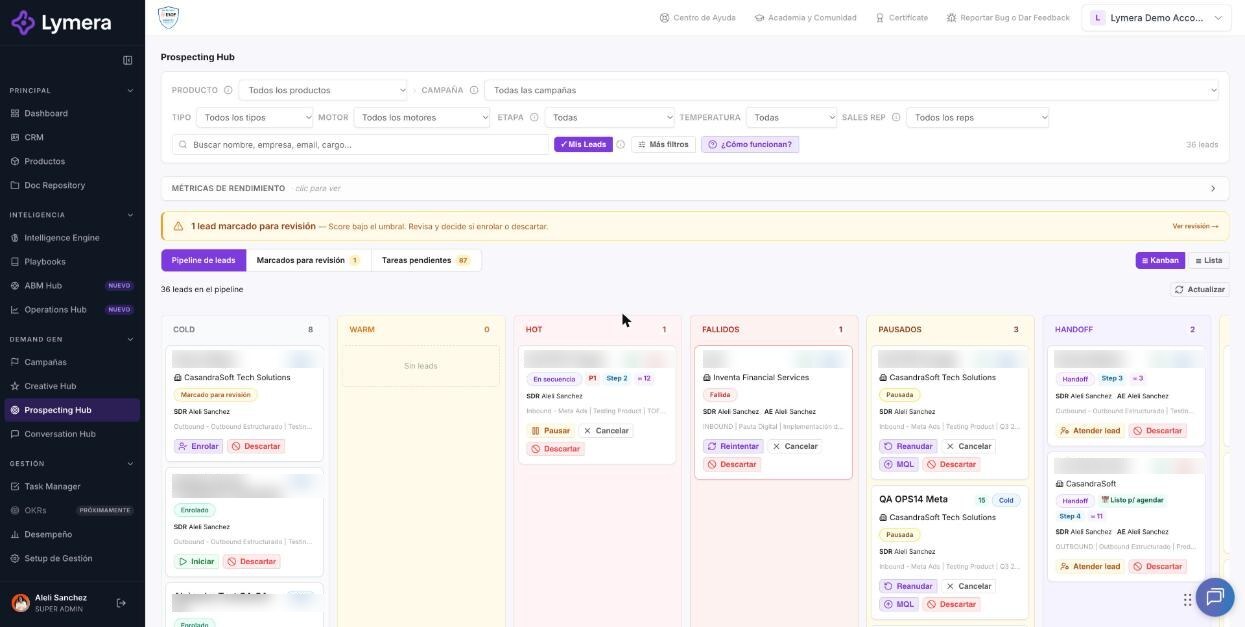
Screen: Prospecting Hub — lead pipeline, lead statuses, and bulk actions
🛠️ How to do it
Choose what you see
- In the context bar, choose Product and then Campaign (you can also see "All campaigns"). With "All campaigns" you can also filter by Type (Inbound/Outbound) and Engine.
- Filter by Stage, Temperature, Sales Rep, status, and search. "More filters" opens Advanced filters (for example Owner, Reply classification, Label, Source, Industry, Country, ICP Score, dates).
- The cards at the top (KPIs) show, among others: Leads in sequence, Email open rate, Click-through, Response rate, Handoffs, MQLs, Manual attention, Meetings scheduled, Meetings completed, and Qualified leads. Click one to filter the pipeline; the active filter appears as a chip you can remove with Clear filter. Each KPI has an ⓘ icon that explains how it is calculated.
Switch views
- Use the ⊞ Kanban / ☰ List selector. Lymera remembers your preference.
- The Kanban groups leads into columns: COLD, WARM, HOT, FAILED, PAUSED, HANDOFF, MANUAL ATTENTION, MQL, MEETING SCHEDULED, MEETING COMPLETED, QUALIFIED, DISQUALIFIED, and NO CAMPAIGN. Drag a card to move it; if the move is not allowed, Lymera tells you which columns it can go to.
- The List shows columns such as Lead, Company, Job title, Temp., ICP, Status, Labels, Sales Rep, Source, and Imported.
Actions on a lead
- Click a lead to open its panel. The buttons change depending on the status: Start, Enroll, Pause, Resume, Cancel sequence, Retry, Re-enroll, Promote to MQL, Attend, Schedule meeting, Confirm, Completed, Reschedule, No-show, Cancel meeting, Qualify, Discard.
- View record → opens the contact in the CRM and View in Conversation Hub opens its conversation.
Bulk actions
- In the List, select several leads with the checkboxes. The bar appears: Assign rep, Start, Pause, Resume, Cancel, MQL, Move status, Escalate temperature, Remove from campaign, and Discard, each with the number of selected leads.
- Those that change the status ask for confirmation. Move status and Escalate temperature ask for a Reason of at least 10 characters.
- Clear selection undoes the selection.
Lead statuses
| Status | Meaning |
|---|---|
| No campaign | Does not belong to a campaign yet |
| Awaiting score | Pending calculation of its fit (ICP) |
| Marked for review | Its score fell below the minimum; a person decides |
| Enrolled | Ready to start the sequence |
| In sequence | Receiving the campaign's steps |
| Paused | Stopped by hand or because the campaign was paused |
| Classifying response | Lymera is analyzing its reply |
| Handoff | Showed interest: moves to a person |
| Manual attention | Requires human follow-up |
| Failed | A send failed; use Retry |
| Cancelled / Sequence completed | Finished its sequence; it can be Re-enrolled |
| MQL | Marketing-qualified lead |
| Meeting scheduled / Rescheduling / Meeting completed | Meeting cycle |
| Qualified | Positive result after the meeting |
| Discarded / Excluded | Out of the process; "Excluded" is permanent |
❓ Frequently asked questions
What is the difference between Pause and Cancel? Pause keeps the point where it was and can be Resumed. Cancel ends the sequence; the lead is left as "Cancelled" and can be Re-enrolled from scratch.
How does a lead go from Cold to Hot? Automatically through the campaign's signals (reply, clicks, etc.) or by hand with Escalate temperature (a reason is required).
What is a Handoff? It is the transfer of an interested lead to someone on your team, who handles it from that moment on. It can also send an alert or task.
Can I move a lead to any column? Not all transitions are valid; terminal statuses (for example Discarded) cannot be moved by hand.
Why does "Enroll" show me credits? Enrolling a new lead may deduct credits; before confirming you see the balance and the cost. If they are not enough, only the leads your balance allows are enrolled.
I don't see leads. Check the active filters (the list may open filtered) and that the campaign has leads; use Refresh.
🔧 If something doesn't work
| Symptom | Common cause | What to check |
|---|---|---|
| A lead ended up in "Failed" | Bounced email or sender account without a connection | Error message in the panel; reconnect the account and click Retry |
| I can't start a lead | It has no campaign or is already in another status | Lead panel: assign it to a campaign |
| Leads are missing from a column | Active filter or loading cap | Clear filters and Load more |
| The buttons do not appear | Role without execute permission | Check with your Account Admin |
When to escalate to a person: if a lead changes status without explanation or a move fails repeatedly. Ask for: company, user, URL, lead name, campaign, time, action performed, message shown, and a screenshot.