
# Opportunities: create, list, kanban, and record
📘 What it is
An opportunity is a deal you are working with an account: it has a stage within a pipeline, an amount with its currency, an estimated close date, a responsible AE and SDR, and one or more associated contacts (always one primary).
Available depending on your account's activation. If you don't see the Opportunities tab, ask your Account Admin to check with your Customer Success contact.
📍 Where to find it
Side menu → CRM → Opportunities tab. You will see the filters Pipeline, Stage, Account, Owner, Close, the Search opportunity search box, More filters, and the List | Kanban toggle. The New opportunity button is at the top right.
- List: columns Opportunity, Account, Stage, Amount, Close, Contacts, AE · SDR, and Next step.
- Kanban: one column per pipeline stage (including Won and Lost), with cards showing name, account, amount, and close date.
Filters are kept when switching between List and Kanban (the Stage filter applies only to the List; the Kanban shows all stages).
In the Kanban you can drag a card to the adjacent stage (one forward or one back). Moving an opportunity always asks for a reason; Won and Lost open their own dialog. You can't skip stages, and if your account has a connected CRM that manages opportunities, cards can't be dragged.
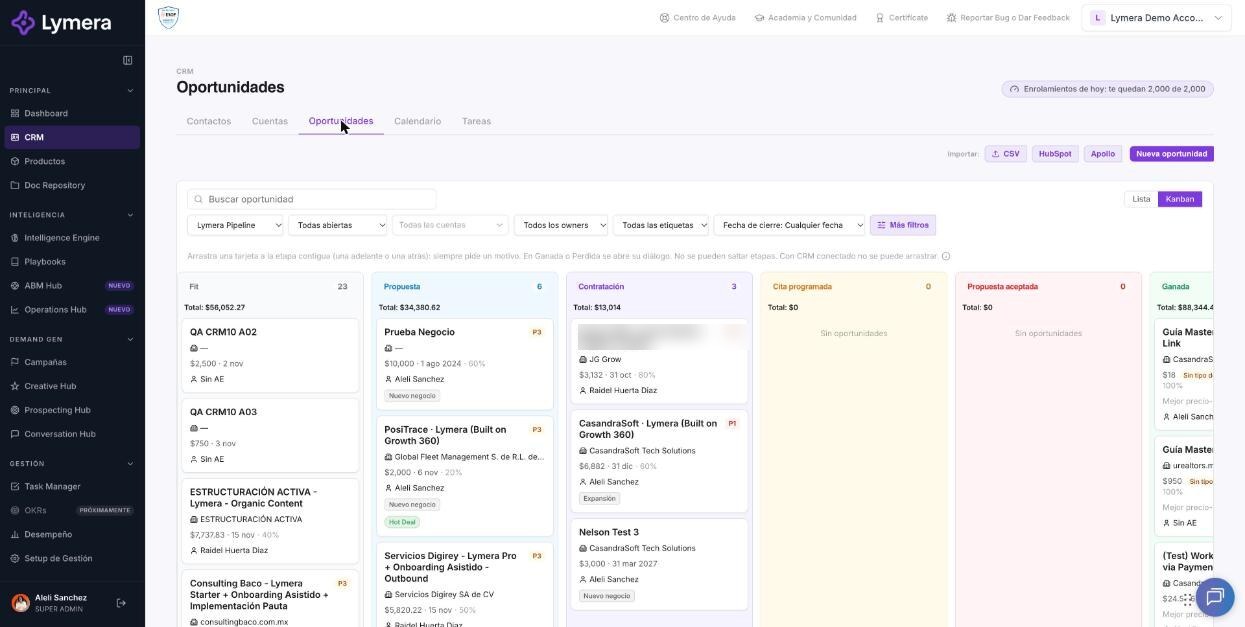
Screen: Opportunities: create, list, kanban, and record
🛠️ How to do it
Create an opportunity
- Click New opportunity (you can also do it from a contact or account record, with Create opportunity or + New).
- Choose the Account (search by name) and the Product. The Name fills in automatically ("Account · Product") and you can change it.
- Review Pipeline (your company's default one) and Stage (the first open one).
- Enter Amount and Currency (if you enter an amount, the currency is required), Estimated close, AE, and SDR.
- In Linked contacts check the contacts from that account. The first one becomes primary; you can use Make primary to change it. You need at least one. If the contacts come from different campaigns, choose the Source campaign.
- Click Create opportunity.
From the record of a contact without an account, the button shows "Associate the contact with an account first" or lets you choose an account in the dialog.
Open and edit
- In the list or kanban, click an opportunity: a side panel opens with Deal, Summary, and Contacts. View full record opens the record.
- On the record, click a Deal value to edit it: Name, Amount, Currency, Estimated close, Probability (0 to 100), Priority, Deal type, Next step, MRR, ARR, TCV, Product, AE, SDR, Pipeline, and Origin note.
- The record includes the Pipeline stages path, Linked contacts (with Make primary, Remove, and a label per contact), Linked account, Summary (days in stage, calls and meetings in the last 30 days, open tasks, last interaction), Deal tasks, and a History with filters.
- In Actions you can add a Note, a Task, or a Call or meeting; there are also Merge opportunities and Delete opportunity. When you log something, Lymera asks Which contact? (it can be No contact, and it stays on the account).
Deal type
On the record, Deal type lets you choose one or several (for example "New business" or "Existing business"). The catalog is managed in Settings → Pipelines and stages → Deal types tab (New type, Rename, Archive, Reactivate).
❓ Frequently asked questions
Does a Sales Rep see all opportunities? No. They see those where they are AE or SDR, or where they own one of its contacts.
How many contacts can an opportunity have? At least one and always one primary. If you remove the primary, the oldest associated contact becomes primary. There is a maximum number of contacts per opportunity; Lymera notifies you when you reach it.
Is the amount counted once even if there are several contacts? Yes: the amount belongs to the opportunity, not to each contact.
Why can't I edit an opportunity? It may be closed, or managed by your connected CRM (read-only). See the connected CRM article.
Can I see a history of changes? Yes: the record's History shows stage changes, field changes, notes, tasks, emails, WhatsApp, LinkedIn, calls, and meetings.
What is the "source campaign"? The prospecting campaign the opportunity came from.
🔧 If something doesn't work
- "This feature is not available for your account.": it is not active; check with your Customer Success contact.
- I can't create: "Choose the currency of the amount.": select a currency; only those enabled in Settings → Currencies and exchange rates are offered.
- An account or contact doesn't appear: a Sales Rep only sees what corresponds to them; contacts must belong to the same account as the opportunity.
- Escalate to a person if the record doesn't load or a change is lost. Provide: company, user, opportunity URL, time, edited field, value, and a screenshot.