
# My profile, language and time zone
📘 What it is
My profile brings together your personal details and individual settings: your name and photo, your language, your time zone, your security (password and 2FA), the list of companies you belong to and your work connections (email, signature, notifications). What you change here affects only you, not the rest of the team.
📍 Where to find it
In the footer of the side menu, click My profile (or your name). At the top you'll see "My profile" and the chip "✦ Configuring profile for {your company}", which shows the active company in that tab.
Tabs:
- Profile: your name, photo, roles, company, security (password, 2FA, sessions and trusted devices) and "My accounts".
- Preferences: Lymera language and Time zone. Available depending on your account; if you don't see this tab, ask your Account Admin to check with their Customer Success Manager.
- Prospecting identity: your connected email accounts, sending aliases, signature, meeting link and Sales Rep details (this is explained in the integrations and email documentation).
- Notifications: which alerts you receive and through which channel.
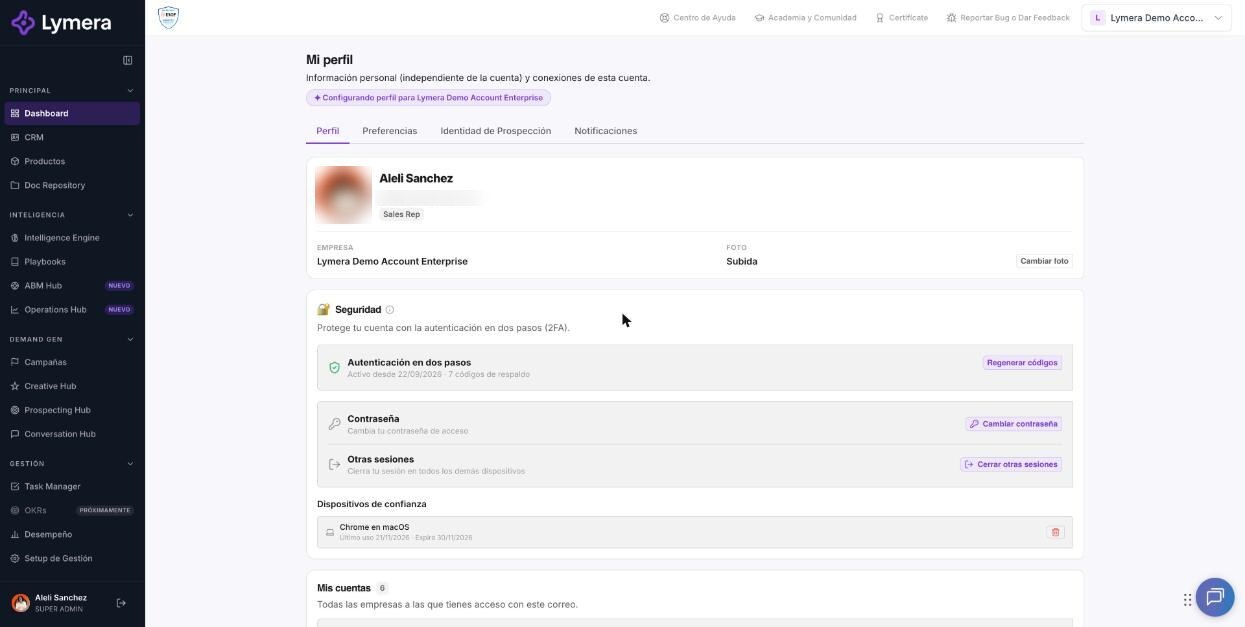
Screen: My profile, language and time zone
🛠️ How to do it
Change your name
- In the Profile tab click "✎ Edit" next to Your name.
- Type the name (up to 120 characters) and click Save. You'll see "Name updated."
Change your photo
- Click Change photo (or your avatar) and choose a PNG, JPG or WEBP image of up to 2 MB.
- While it uploads you'll see "Uploading…"; when it finishes "Photo updated." appears.
Change language and time zone
- Go to the Preferences tab.
- In Lymera language choose Spanish (Mexico) or English (United States).
- In Time zone search with "Search time zone…" and choose yours.
- Click Save. You'll see "Preferences saved".
The language changes everything you see in Lymera (menus, buttons, tables, messages) and also the emails and notifications that you receive. It doesn't translate your data: names of leads, companies, plans, AI-generated texts or release notes stay as they were saved. It also doesn't change the language of your campaigns; new campaigns suggest it by default.
The time zone changes how you see dates, times and period filters, instantly and without changing any saved data. What the system schedules for the company (for example renewals or alerts) follows the account time zone, which may be different from yours.
View or leave your companies
- In the Profile tab, "My accounts" card, you see all the companies you access with that email, your status in each and your roles. The Leave button removes you from that company (see the article on multiple companies).
❓ Frequently asked questions
I changed the language but some texts are still in Spanish. Data that you or the system saved (names, templates, AI texts) isn't translated. The account's initial data is created in the account's language and isn't translated again if you change your personal language.
Does the language I choose affect my teammates? No. Each person has their own. General account notifications (for example the shared Slack channel) use the account's notification language, which is chosen in Integrations.
The times of my meetings and tasks don't match my clock. Check your Time zone in Preferences. It should be the one for your location.
The photo won't upload. Use PNG, JPG or WEBP under 2 MB. If it says storage isn't configured, escalate.
Can I change my email from the profile? No. The email is your sign-in identity. Ask your Account Admin to change it.
I don't see the Preferences tab. Available depending on your account. Ask your Account Admin to check the activation with their Customer Success Manager.
🔧 If something doesn't work
| Symptom | Common cause | What to check |
|---|---|---|
| "We couldn't load your profile" | Temporary connection failure | Click Retry or reload |
| "Preferences could not be saved. Please try again." | Temporary failure | Retry; reload and repeat |
| "This feature is not available for your account." | Preferences not activated on your account | Ask your Account Admin to check with their CSM |
| Notice that system emails aren't being sent | The Gmail or Microsoft account that sends invitations and password recovery lost its authorization | An Account Admin must reconnect it in Integrations → Platform notifications |
| Dates off by one hour | Wrong time zone or daylight saving change | Check Preferences |
When to escalate: if saving preferences fails repeatedly or the texts are still in another language after reloading. Ask for: company, user's email, language and time zone chosen, URL, time and a screenshot.