
# Dashboard - your home screen
📘 What it is
The Dashboard is the first screen you see when you sign in. It summarizes the state of your revenue system: indicators, leads by status, pending handoffs, latest leads, your tasks and your calendar events. It greets you by name ("Hi, ...") and says "Here is the status of your revenue system."
Blocks:
- Alerts (when they apply): pending handoffs ("Leads waiting for human attention"), you exceeded your plan's product limit, Intelligence Engine modules that need review and playbooks that need review, each with a button to go straight there.
- KPIs: Active campaigns, Configured products, Total leads, Pending handoffs and Open pipeline (the sum of the value of your open opportunities in the account's primary currency; it only counts what you can see based on your role, and it tells you how many unconverted opportunities are not included in the sum).
- Leads by status: No campaign, Awaiting score, Marked for review, Enrolled, In sequence, Paused, Classifying response, Handoffs, Manual attention, Failed, Cancelled, Sequence completed, MQL, Rescheduling, Meeting scheduled, Meeting completed, Qualified, Disqualified and Excluded.
- Recent handoffs: the lead, temperature (Hot, Warm, Cold) and how long it has been waiting, with Schedule and Step in buttons.
- Latest leads: Name, Company, Campaign, Temperature, Status and Score, with View all.
- My tasks: Overdue, Due soon (next 3 days) and Upcoming.
- Calendar: your events for today, from Google or Microsoft, with Meet or Teams links.
📍 Where to find it
Side menu, Main group > Dashboard (breadcrumb "Dashboard").
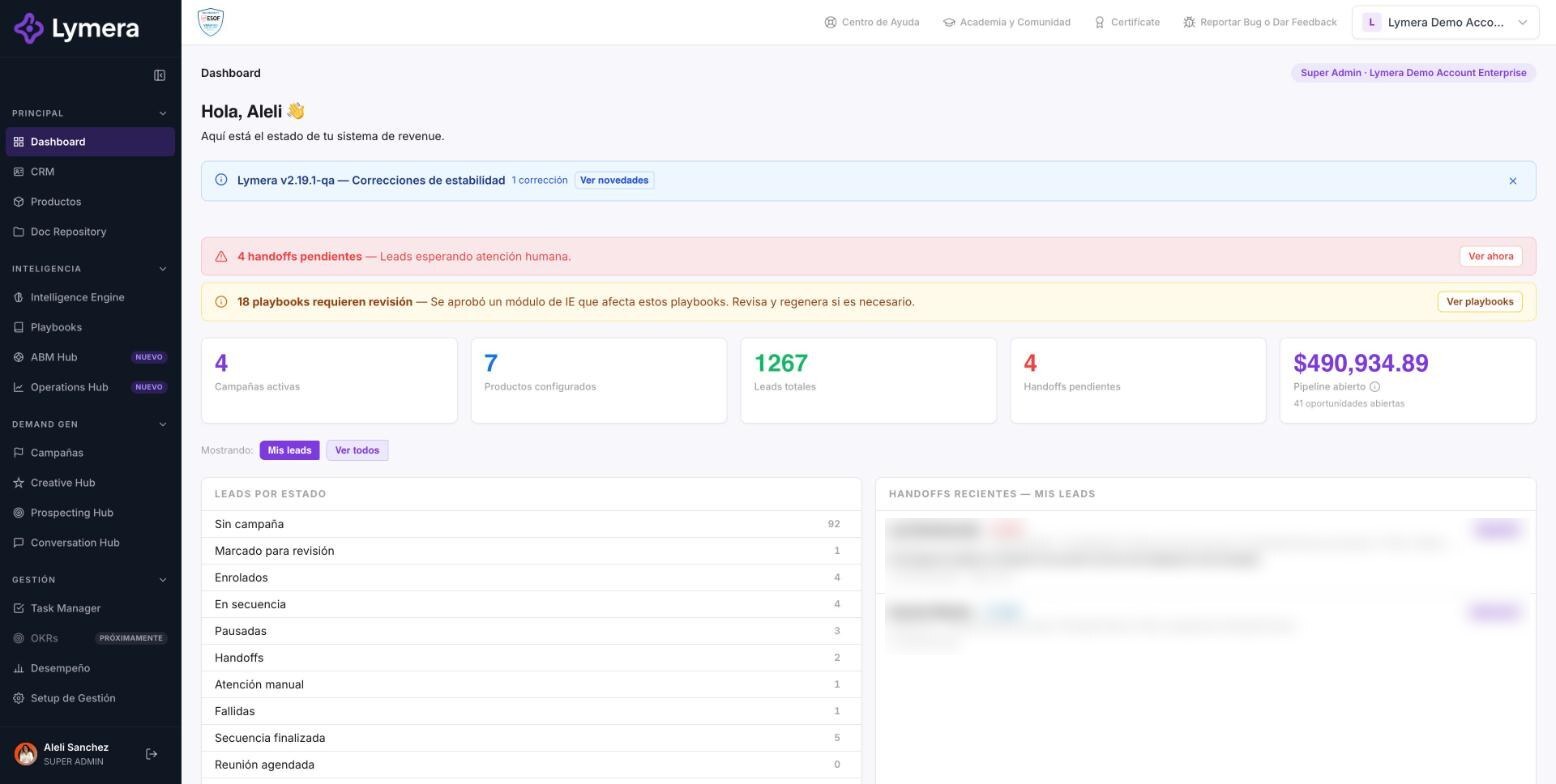
Screen: Dashboard - your home screen (KPIs, handoffs, tasks and calendar)
🛠️ How to do it
- Go to Dashboard.
- If your role allows it, toggle Showing: My leads / View all to see only your own data or the whole account.
- Click a lead to open its record, click Schedule or Step in to handle a handoff, or click View all to go to the task list.
- Calendar: if you see "Calendar not connected." or "Calendar disconnected.", click Connect Calendar or Reconnect. If you have several calendars, use the Calendar selector (All my calendars, Google or Microsoft). To reconnect a calendar, go to My profile > Calendars.
- Sync calendar: imports meetings from your calendars (Google Calendar or Microsoft) and links them to leads by attendee email. You choose a From/To range (maximum 90 days) and you can Exclude recurring meetings. It creates a meeting activity for each match and a task for you to complete the type and status; it does not duplicate meetings that were already imported.
❓ Frequently asked questions
Why are my figures lower than a teammate's? You are on My leads; switch to View all if your role allows it. Also, some roles only see what applies to them.
Why doesn't "Open pipeline" match my CRM? The sum is in the primary currency; opportunities without an exchange rate are not added. Check Settings > Currencies.
Where can I see more detail? In the Operations Hub (reports) and in the Prospecting Hub; the Dashboard numbers match those screens.
Why can't I see the calendar? It is not connected or it was disconnected; use Connect Calendar or Reconnect.
Does the Dashboard update on its own? Reload the page to see recent changes.
🔧 If something doesn't work
- Screen stuck on "Loading dashboard..." or empty. Reload; check your internet connection and that you selected the right company.
- "Your events could not be loaded." Reconnect the calendar in My profile > Calendars.
- Figures that don't add up. Check whether you are on "My leads", your role and the filters. If that doesn't explain it, escalate with: company, user and role, time, figure seen vs. expected, and a screenshot.
- Product limit alert. Archive products you don't use or extend your plan with a capacity add-on; check with your Customer Success contact.