
# Creative Hub — what it is and how to navigate it
📘 What it is
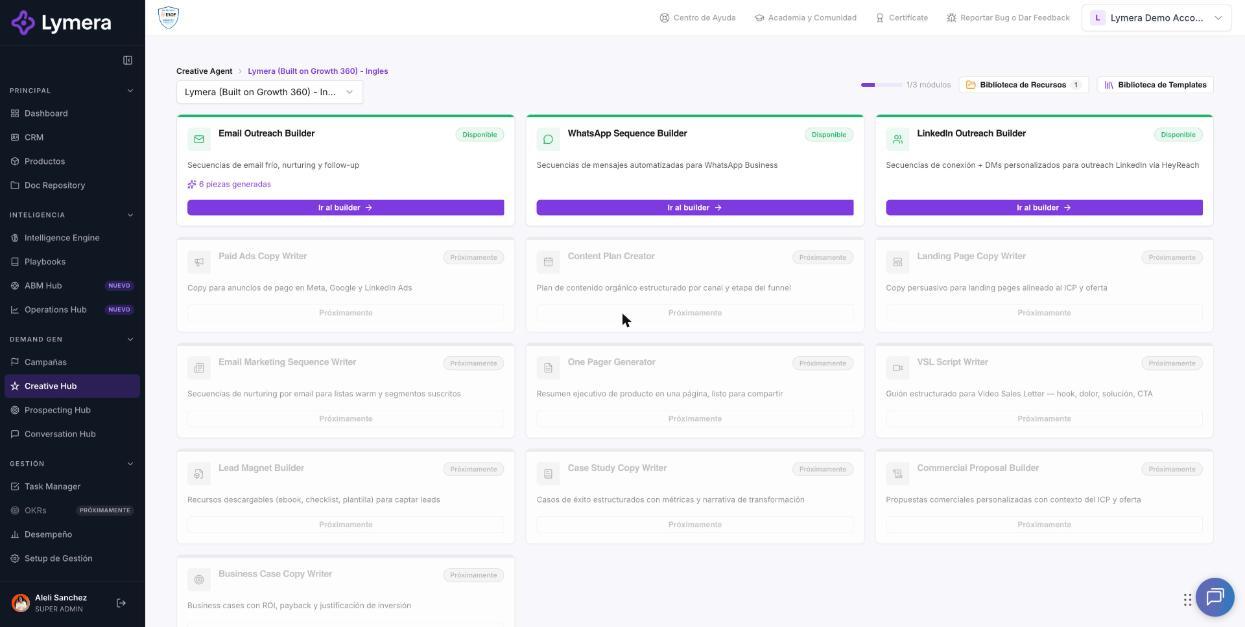
The Creative Hub is the outreach content creation center. It always works in the context of one product: you choose the product and from there you build the message sequences that your campaigns will send. On screen it may appear under the name "Creative Agent".
It includes:
- Email Outreach Builder: cold, nurturing and follow-up email sequences.
- LinkedIn Outreach Builder: connection request and direct message sequences.
- WhatsApp Sequence Builder: WhatsApp Business template sequences.
- Resource Library: brochures, presentations, PDFs and links to share in sequences.
- Template Library: reusable email, LinkedIn and WhatsApp templates.
Other modules you see in the hub (for example ad copy, content plan, landing pages or sales proposals) appear as Coming soon; the button says "Coming soon" until they are available.
📍 Where to find it
Side menu → Demand Gen group → Creative Hub.
Screen: Creative Hub — what it is and how to navigate it
🛠️ How to do it
- Go to Creative Hub. If you see "Select the product you want to generate content for", choose a product.
- If there are no active products you will see "You have no active products…" and the Create product button.
- With the product chosen you will see the module cards with their status: Available (button "Go to builder"), Blocked or Coming soon. At the top there is a module counter, the Change product button, and shortcuts to the Resource Library and the Template Library.
- Open the builder you need: Email Outreach Builder, LinkedIn Outreach Builder or WhatsApp Sequence Builder. Each one has its list of sequences and its templates.
- To go back, use "Back to Creative Hub" (or "Back to Creative Agent", depending on the screen).
Permissions and requirements
- Viewing the Creative Hub: available depending on your role (Account Admin, Revenue Strategy Owner, Marketing Strategy Owner, Creative Rep, Sales Rep and Viewer can view it).
- Creating, editing, approving and linking sequences: Account Admin, Revenue Strategy Owner, Marketing Strategy Owner and Creative Rep. Sales Rep and Viewer can only view.
- Some features use AI and consume credits; your plan must include the Creative Agent. If you see "Your current plan does not include the Creative Agent", ask your Account Admin to review the plan.
- To generate email drafts or send tests you need a Gmail or Microsoft Outlook account connected in your Profile.
❓ Frequently asked questions
Why don't I see my product? Only active products of the company you are in appear. An archived or deleted product is not offered.
Can I use the same content in several products? Each sequence and template belongs to one product. A template can be created as "General (all products)" or cloned to another product.
What is the difference between a sequence and a template? A sequence is the set of steps that gets linked to a campaign; a template is a reusable template of a step or of a sequence.
What does "Blocked" mean? The module requires a prerequisite; the card says which one.
Are changes saved automatically? Sequence editors have auto-save; you will see "Saving…", "Saved" or "Error saving".
🔧 If something doesn't work
- "Your current role does not have permission to view the Creative Agent" → ask your Account Admin to review your role.
- "The module could not be loaded / Check your connection" → reload and try again; if it persists, check your network.
- "The requested product is no longer available. Choose another one." → the product was archived or deleted; choose another.
- The hub looks empty after switching companies → confirm you are in the right company and choose the product again.
- Escalate to a person if an available module won't open. Ask for: company, user, product, module, URL, time and a screenshot.