
# Create and activate a campaign (7-step wizard)
📘 What it is
A campaign is the set of rules Lymera uses to prospect a group of contacts (leads) for a product: which ICP and buyer persona it targets, which channels it goes out on (Email, LinkedIn, WhatsApp), with which message sequences, on what schedule, and who handles the replies. It is created with a 7-step wizard and, until you activate it, it stays as a Draft and sends nothing.
📍 Where to find it
- Side menu › Demand Gen group › Campaigns.
- New campaign button (top right of the "Campaigns" header).
- To edit an existing campaign, use the pencil icon on its row or the Edit general details button inside its detail.
Availability depends on your role: Account Admin, Revenue Strategy Owner, Marketing Strategy Owner, Sales Rep, Viewer, and Creative Rep can view campaigns; Account Admin, Revenue Strategy Owner, Marketing Strategy Owner, and Creative Rep can create and edit them; Account Admin, Revenue Strategy Owner, Marketing Strategy Owner, and CSM can activate or pause them. If you don't see the New campaign button, ask your Account Admin to check your role.
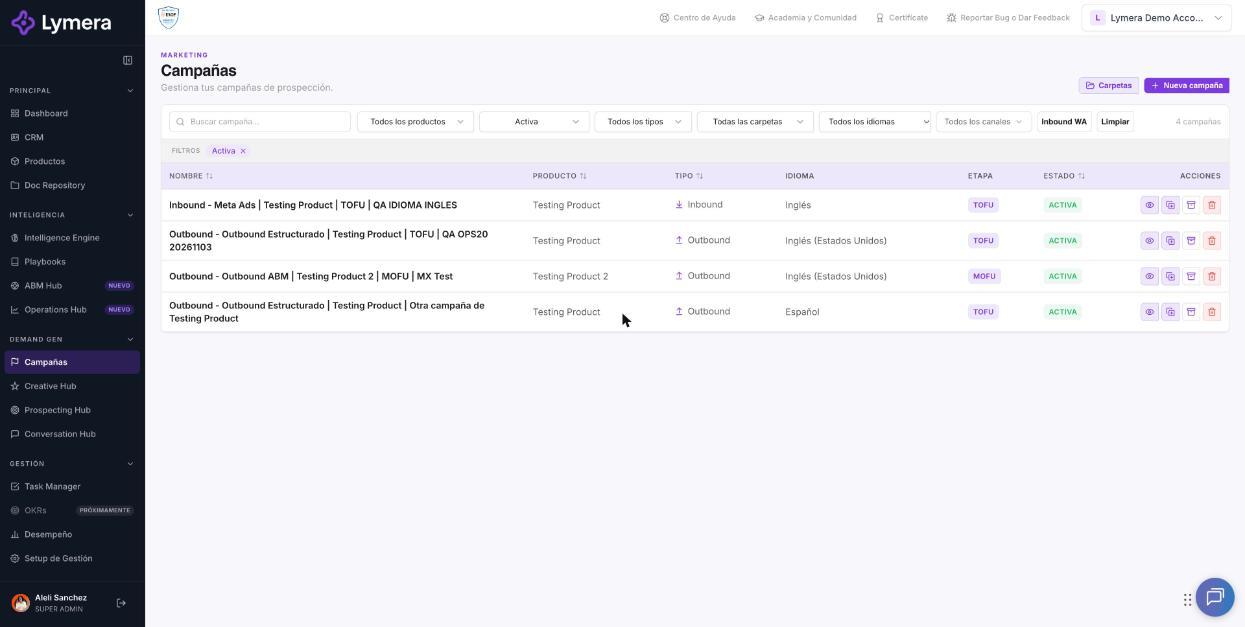
Screen: Create and activate a campaign (7-step wizard)
🛠️ How to do it
Before you start you need: at least one product with its Intelligence Engine and its Playbooks completed, and at least one connected channel integration (a Gmail or Outlook account in My profile, or the LinkedIn/WhatsApp integrations in Integrations). If there is none, the screen shows the notice "Before creating or editing campaigns, connect at least one channel integration" and the button is disabled.
- Click New campaign. The wizard shows the steps: Funnel, Details, Channels, Signals, Sequences, Assignment, and Activate.
- Step 1 — Funnel. Choose the Funnel type (Inbound: "Leads that come to your company"; Outbound: "Leads you go out and find") and the Acquisition engine. Also choose the Campaign language (by default, your account's language). The funnel type and the engine cannot be changed after the campaign is created.
- Step 2 — Details. Write a Short description (it is added to the name Lymera generates automatically), choose the Product, the Target ICP, the Buyer Persona, and the Funnel stage (Attraction, Consideration, or Decision). Optionally set a Start date and an End date. If the ICP selector says "IE-AUDIENCES not approved", first approve the audiences in the product's Intelligence Engine.
- Step 3 — Channels. Turn on the outbound channels you will use (Email, LinkedIn, WhatsApp), choose the Meeting link (Sales Rep's link or Fixed link), set the Minimum ICP Score (leads below it do not enter the sequence) and the Execution calendar: mode (Business days or Calendar days), time zone, operating days, and start and end time. Here you only turn each channel on; its fine configuration is done afterward in the campaign detail.
- Step 4 — Signals. Configure the signals that raise a lead's temperature (see the "Sequences and signals" article). They are optional; it is enough for one to be met.
- Step 5 — Sequences. Link the sequences by temperature. To be able to save this step, first save the campaign as a Draft. The wizard only shows approved sequences.
- Step 6 — Assignment. Choose how leads are distributed among your Sales Reps (see the assignment article).
- Step 7 — Activate. Review the list of requirements (each one appears as Met or Missing). You can click Save draft at any time and come back later.
- When everything is met, click Activate campaign, confirm in "Activate campaign?" with Yes, activate, and that's it: the campaign becomes Active and starts sending to the enrolled leads.
❓ Frequently asked questions
Why is the "Activate campaign" button disabled? Because a requirement is missing. The button says "Complete all the requirements to activate" and the detail panel ("Steps pending to activate") lists what is missing: an outbound channel configured, a connected email account, at least one linked and approved sequence per channel, LinkedIn profiles with a Sales Rep, an assigned WhatsApp number, and the product's Intelligence Engine and Playbooks completed.
Can I change the funnel type or the engine later? No. They are immutable. If you made a mistake, clone the campaign (Clone action in the list) and fix it in the copy, which is created as a draft.
Can I activate a campaign without approved sequences? No. You can link a sequence that is not yet approved, but the campaign is not activated until all the linked ones are approved.
It tells me my plan allows N active campaigns. Your plan limits how many campaigns can be active at the same time. Pause or archive an existing campaign, or check with your Customer Success contact about plan options.
What happens if I save as a Draft? Nothing is sent. You can resume the wizard whenever you want from the pencil on the row.
How is the campaign named automatically? Lymera combines your description with the funnel stage and other data. It is not written by hand; you only write the short description.
🔧 If something doesn't work
| Symptom | Common cause | What to check |
|---|---|---|
| New campaign does not appear | Your role does not have write permission | Ask your Account Admin to review your role |
| New campaign appears disabled | There is no connected channel integration | Connect Gmail/Outlook in My profile or LinkedIn/WhatsApp in Integrations |
| There are no products in the selector | No product has its Intelligence Engine and Playbooks completed | Complete those modules on the product |
| Error on activation: "Turn on at least one channel" | The channel's switch is off even though it has saved configuration | Turn the channel on in Campaign settings › Channels |
| Active campaign quota error | You reached your plan's limit | Pause/archive a campaign or check with your Customer Success contact |
When to escalate to a person: if you meet all the requirements and it still won't activate, or the error message does not match the above. Ask the customer for: company, user, campaign URL, approximate time, the exact error text, the steps they followed, and a screenshot of the requirements list.