
# Conversation Hub — inbox of conversations across WhatsApp, email, and LinkedIn
📘 What it is
The Conversation Hub is the inbox where you see and handle your leads' conversations on WhatsApp, Email, and LinkedIn. On the left is the list of contacts with activity; in the center, the conversation of the selected channel; and on the right, the lead's profile with its quick actions. From there you can reply yourself, or let the AI agent answer (see the AI agents article).
📍 Where to find it
Side menu › Demand Gen group › Conversation Hub ("Leads with multi-channel activity · WhatsApp, Email and LinkedIn"). You can also get there from the Prospecting Hub or the CRM with View in Conversation Hub.
Availability depends on your plan and your role: the module is included in certain plans; if you don't see it or it appears as restricted, ask your Account Admin or your Customer Success contact to review it. A Sales Rep sees only their own leads; the Account Admin and the Revenue Strategy Owner see all of them.
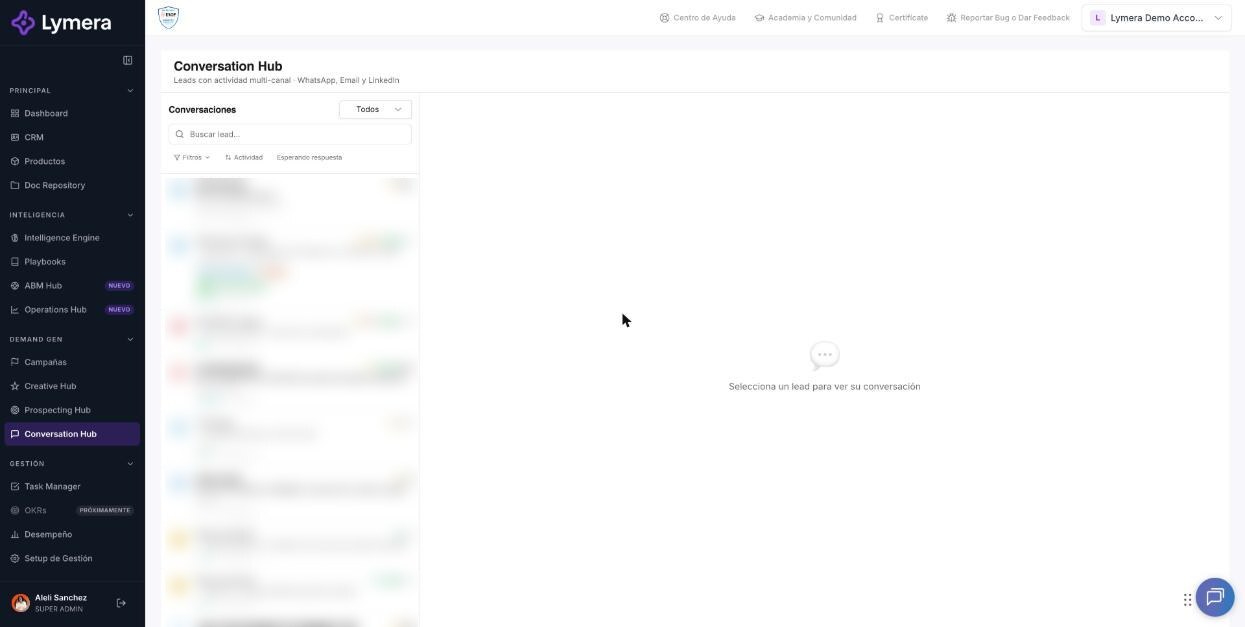
Screen: Conversation Hub — inbox of conversations across WhatsApp, email, and LinkedIn
🛠️ How to do it
Find a conversation
- In the Conversations list, choose My leads or All.
- Search with "Search lead..." and open Filters: Status, Channel, Temperature, Campaign, Label, SDR / Rep, Last msg. (Today, Last 7 days, Last 30 days) and, for LinkedIn, LinkedIn profile. Clear all filters resets them.
- Switch the order between ICP/Score and Activity. The Awaiting reply filter shows those who wrote to you and are still without an answer. Lymera remembers your filters.
- On each card you will see the agent's status ("Agent active" / "Agent paused") and, if applicable, "Meeting confirmed" or "Confirm meeting".
Reply on WhatsApp
- Open the lead and go to the WhatsApp tab. The lead's messages appear on the left and yours on the right.
- With the 24-hour window open, write in Free and send (Ctrl+Enter). You can insert emoji, variables, and resources, or use Generate with AI for a draft.
- With the window closed, switch to Template: choose a template approved by Meta, fill in its variables, and click Send (or Start conversation if there isn't one yet).
- If you have several numbers, the number tabs (for example "Your number", "Shared number") separate the conversations: each number is a different conversation.
Reply by email
- Open the Email tab: New email, or Reply / "Reply in the latest thread" to keep the thread. If you have several accounts (Gmail or Outlook), choose which one you write from; each account is a separate conversation.
Work LinkedIn
- LinkedIn only lets you write to your connections. If the contact is not yet connected, use Send connection request; then Verify connection or, if they already accepted and it did not sync, Mark as connected.
- With the connection active, write your DM and click Send. The message goes out within seconds from the lead's sender account.
- If the request expired without being accepted, Resend request appears; Lymera never resends it on its own.
Lead panel (right)
- Quick buttons: Meeting, Call, Conversation, Note, Task, and the links View in CRM → and View in pipeline →.
- AI agent section with Pause agent / Resume agent.
❓ Frequently asked questions
Why can't I write free text on WhatsApp? More than 24 hours have passed since the lead's last message. You can only send an approved template.
Why does a contact appear only once even though it has two records? Lymera groups contacts with the same phone number and shows the most recent one.
I don't see the message I sent from my phone. Messages sent outside Lymera appear marked as "Manual message" only so you can see the whole conversation. To reply, do it from the account that handles the contact.
How often does it refresh? The inbox refreshes on its own every so often; if you don't see something recent, reload the list.
Are inactive conversations closed? WhatsApp conversations with no activity for several days are closed automatically; the lead can write again.
🔧 If something doesn't work
| Symptom | Common cause | What to check |
|---|---|---|
| The module does not appear | Plan or role without access | Check with your Account Admin |
| "Not sent: this contact is not a connection of that LinkedIn profile" (LinkedIn) | There is no accepted connection | Send a connection request or use another profile |
| "Not delivered" on WhatsApp | Invalid number, closed window, or Meta rejection | Review the error code shown and use a template |
| Email sending fails | Account without a connection or contact without an email | My profile › Prospecting identity |
| "There are no Meta-approved templates to send" | There are no approved templates for that number | Create them in Creative Hub › Templates and wait for approval |
When to escalate to a person: if a message appears as sent but the contact does not receive it, or the inbox does not load. Ask for: company, user, URL, channel, lead name, time, error text, and a screenshot.