
# Contact record and activity history
📘 What it is
The contact record is a person's full page: their data, their status in the sales process, everything that has happened with them (emails, WhatsApp, LinkedIn, notes, calls, meetings, tasks, and changes), and the actions you can run.
📍 Where to find it
Side menu → CRM → Contacts tab → click the person's name. On a computer you will see three columns: Profile (left), the center with the history, and Actions (right). On tablets and phones you will see tabs: Profile, History, and Actions. At the top is the Back to CRM link, which returns you to the list with your filters.
The center has three tabs: Activity history, Learning context, and Origin.
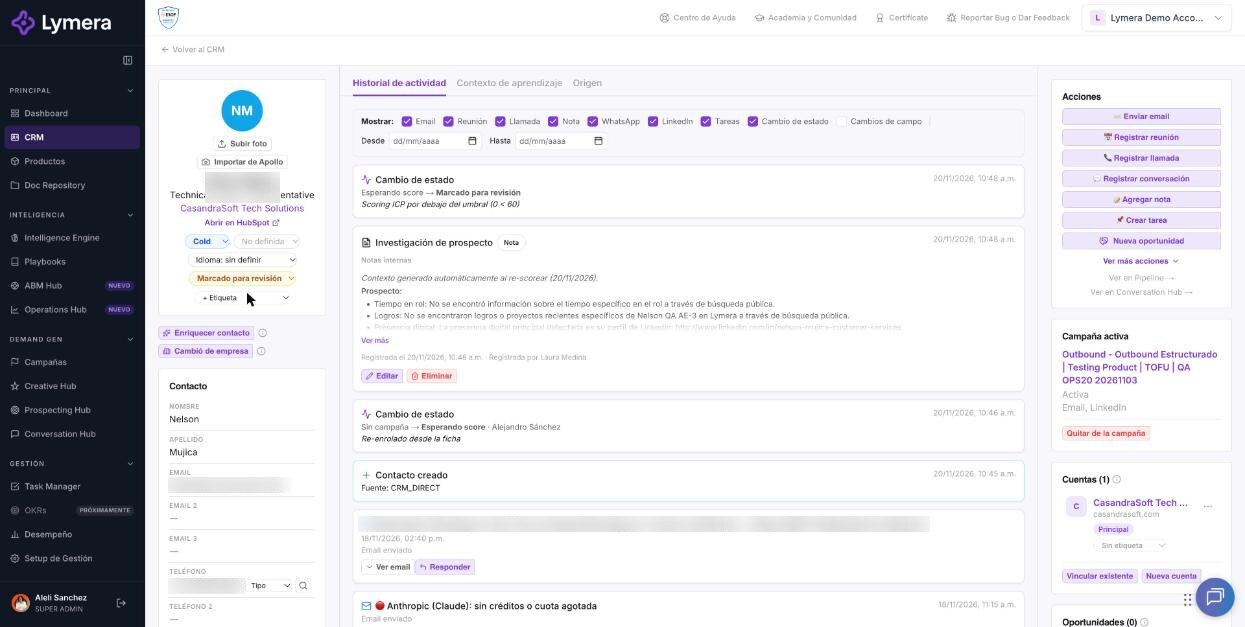
Screen: Contact record and activity history
🛠️ How to do it
Edit contact data
- In the Profile, click the data you want to change (first name, last name, email, phones, WhatsApp, job title, LinkedIn…).
- Enter the new value and press Enter to save (Esc cancels). Saved appears.
- Changes are recorded in the history as Field changes.
You can store up to three emails (Email, Email 2, Email 3) and three phones (Phone, Phone 2, Phone 3), each phone with its type. Only phones of type Mobile are used for WhatsApp.
Near the name are the editable chips Temperature, Priority (1 = highest, 5 = lowest), Status, and Primary language, as well as the Labels.
Company data (company, website, country, city, industry, size, revenue) belongs to the account: it is shown in the Account section of the record, but it is edited on the account and updated for all of its contacts.
Review the history
- In Activity history, use the Show: bar to check what to see: Email, Meeting, Call, Note, WhatsApp, LinkedIn, Tasks, Status change, Field changes, and Creation.
- Filter by dates with From and To; Clear resets.
- Click See more to load earlier items.
- On an email thread you can click Reply to respond within the same thread.
Learning context and origin
- Learning context: the Learning summary (what you know about the contact: pain points, intent signals, what was learned in conversations; edited with Edit), the Account summary, and the Detected signals.
- Origin: where the contact came from and each relevant interaction. See the article "Lead origin and link clicks".
Actions column
In Actions you will see, depending on the contact's status and your role: Qualify lead, Resume sequence, Reclassify reply, Send email, Log meeting, Log call, Log conversation, Add note, Create task, and, under See more actions: Sync Calendar, Re-enroll in sequence, Disqualify lead, Exclude permanently, Remove from campaign, Merge contacts, and Delete contact. There are also links to View in Pipeline and View in Conversation Hub.
Further down you see the Active campaign, the associated Accounts, the Product, the Assigned SDR, the Assigned AE (changed with a selector), and an Activity summary (emails sent, replies, opens, clicks, WhatsApp, and LinkedIn).
Send an email from the record
- Click Send email.
- Enter Subject and message (both required) or use Generate with AI.
- Attach files if needed (up to 10 MB each and 15 MB in total).
- Click Send. The recipient is always one of the contact's emails.
Requires a Gmail or Microsoft Outlook account connected in your profile.
❓ Frequently asked questions
Why can't I edit the contact's company here? Because the company lives on the account. Edit it from the account record and it will be updated for all of its contacts.
What does "Lead not found" mean? The contact doesn't exist or you don't have permission to see it (for example, a Sales Rep doesn't see contacts assigned to another rep).
Do emails I send from the record use credits? Manual sends are only logged. Generate with AI may use credits only if the draft is generated successfully.
Can I change the contact's SDR or AE? Yes, with the Assigned SDR and Assigned AE selectors. A Sales Rep can only reassign their own or those with no owner.
What does "Re-score ICP" do? It recalculates how well the contact fits your ideal customer. It uses credits and is shown before you confirm.
What is "Research" in the prospect's Context? It generates context about the prospect and their company to personalize the message. It uses credits; the button indicates this.
🔧 If something doesn't work
- I can't send email: the usual cause is that you don't have Gmail or Outlook connected in this company, the contact has no email, or it is excluded. Connect your email in your Profile.
- A field doesn't save ("Save failed"): retry; check that the value is valid. If it persists, escalate and provide company, user, contact URL, time, field, and a screenshot.
- The history doesn't show an activity I logged: check the Show filters and the dates; click Clear.
- Escalate to a person if the record doesn't load ("Could not load the contact") after retrying: provide company, user, URL, time, and a screenshot.