
# Advanced account security (Enterprise plan)
📘 What it is
The Security tab in Account & Billing lets the Account Admin define the access rules for the whole team: require two-step verification, single sign-on (SSO), session duration and sign-out on inactivity, allowed networks, emergency accounts, and review the account audit log.
These features are part of the Enterprise plan. On other plans the tab shows "Advanced security: Enterprise plan" with the View plans button. Only the Account Admin manages the account's security.
📍 Where to find it
Side menu → Setup → Account & Billing → Security tab.
Sections: "Two-factor authentication (2FA)", "Single sign-on (SSO)", "Sessions", "Allowed networks (IP)", "Emergency access", "Active sessions", "Trusted devices" and "Account audit log".
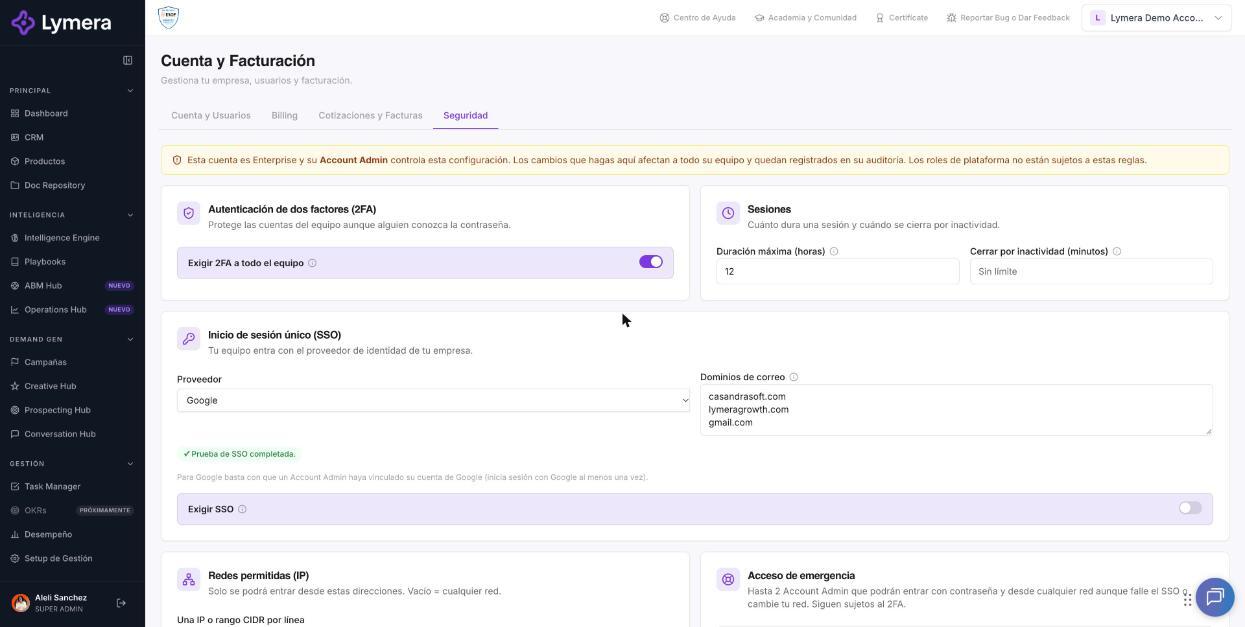
Screen: Advanced account security (Enterprise plan)
🛠️ How to do it
Require 2FA for the whole team
- Turn on "Require 2FA for the whole team" and click Save changes.
- Anyone without 2FA will have to set it up when signing in, before using the platform.
Set up SSO with Okta
- Under "Single sign-on (SSO)" choose the Provider (Okta; Google if your team uses Google).
- Add your company's Email domains (one per line, for example
company.com). - In Okta, create an OIDC (Web) application and register as the "Sign-in redirect URI" the address Lymera shows you on screen.
- Enter the Issuer (
https://your-company.okta.com), the Client ID and the Client Secret, and click Save changes. - Click Test SSO. It should return with "SSO test completed. You can now require SSO for your team." The test must return your same email.
- If you want, turn on Require SSO: anyone signing in with a password or with another provider will be rejected. It can only be turned on after testing SSO, and if you change the issuer, Client ID, secret, provider or domains, you must test it again.
Sessions
- Under "Sessions" define the Maximum duration (hours) and Sign out when idle (minutes). Empty means using the platform's default value, or no sign-out on inactivity.
Allowed networks (IP)
- Type one IP or CIDR range per line in "One IP or CIDR range per line". Empty = any network.
- When you save, your current IP is added automatically so you don't get locked out.
Emergency access
- Choose up to 2 Account Admins who can sign in with a password and from any network even if SSO fails or your network changes. They are still subject to 2FA.
Active sessions and trusted devices
- Under "Active sessions" you can click Sign out on a session or Sign out other sessions.
- Under "Trusted devices" click Revoke to remove a device that skips 2FA.
Account audit log
- Filter by Event, From and To, and click Export CSV (up to 10,000 rows). Events are kept for 90 days; for earlier dates, request it from support.
❓ Frequently asked questions
Does advanced security apply to the Lymera team? No. Platform roles (Super Admin and Customer Success) aren't subject to these rules.
What happens if a person belongs to several Enterprise companies? The most restrictive policy among them applies.
I turned on allowed networks and someone can't sign in. They'll see "Access restricted: your network is not authorized". Add their IP under "Allowed networks (IP)" or ask them to connect from the allowed network.
SSO fails in the test. Check the issuer, Client ID, secret and the redirect address in Okta. If Okta authenticated someone else, sign in to Okta with the same email you use for Lymera.
How many emergency accounts can I have? Up to 2, and they must be active Account Admins of the account.
I can't require SSO. First complete the SSO test (with Google, an Account Admin must have linked their Google account by signing in with Google at least once).
I don't see the tab with options. Your plan isn't Enterprise or your role isn't Account Admin. Check with your CSM.
🔧 If something doesn't work
| Symptom | Common cause | What to check |
|---|---|---|
| "Your company requires signing in with SSO." | Mandatory SSO active | Use the Sign in with SSO button with the company email |
| "Your email does not belong to the domains authorized for the company's SSO." | Domain not added | Add the domain in the settings |
| "Your network is not authorized…" | IP outside the list | Add the IP or use the allowed network |
| Frequent "Your session has expired" | Duration or inactivity set too short | Check "Sessions" |
| Changes that aren't saved | Invalid data (domain or IP with the wrong format) | Check the format examples next to the field |
When to escalate: the team is locked out by a network or SSO setting, or the SSO test fails even though the data is correct. Ask for: company, the Account Admin's email, which option was changed and when, the exact message (screenshot) and, for networks, the public IP they're trying to sign in from. If the whole team is blocked, flag it as urgent.