
📘 What it is
LinkedIn templates are reusable messages your team uses in one-to-one conversations. They are stored in the Template Library, by product, and can be a connection request or a direct message.
📍 Where to find it
Side menu → Demand Gen → Creative Hub → Template Library → LinkedIn tab.
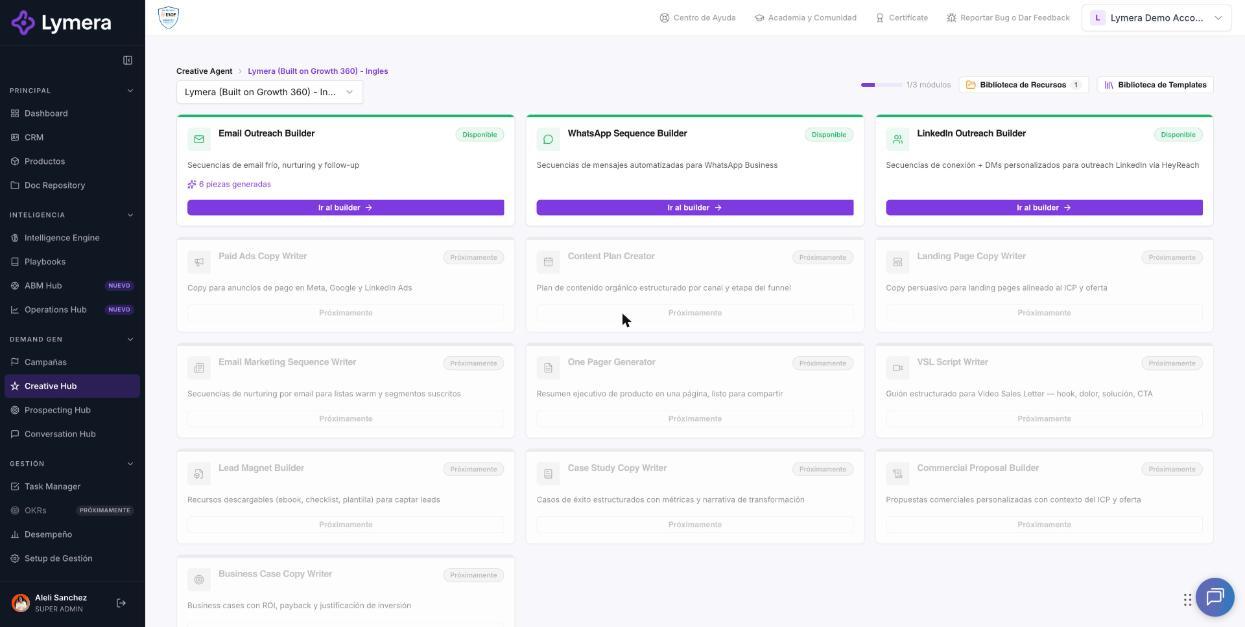
Screen: 4.7 How to create and use templates for manual LinkedIn sending
🛠️ How to do it
Create a template
- Go to the Template Library and open the LinkedIn tab. Check the product in the top filter.
- Click New template.
- Choose the language, enter a descriptive Template name and choose the action type (for example, connection request or direct message).
- Write the message. For a connection request, the editor limits the text to 300 characters.
- Click Personalize to insert contact variables.
- Click Create template.
- Check that the card appears in the LinkedIn tab of your product.
💡 Tip: you can also use Generate with AI, Clone template or Generate version in another language so you don't have to start from scratch.
Use it in a conversation
- Open the contact's conversation in the Conversation Hub and go to the LinkedIn composer.
- Click Templates and choose the one you want.
- Check that the variables show the right data and send.
⚠️ Important: only LinkedIn templates meant for manual sending appear. If you see "There are no LinkedIn templates for manual sending", create one in the library.
✅ Result: your team sends consistent LinkedIn messages without writing them from scratch.
❓ Frequently asked questions
❓ Does the 300-character limit apply to all LinkedIn messages?
No. It applies to connection requests, because of LinkedIn's restrictions. Direct messages have their own limit and the editor tells you how many characters are over.
❓ Can I use the same template in several products?
Yes: mark it as "General (all products)" or clone it to the product you need.
❓ Does using a template use credits?
Loading it without AI doesn't use credits. Generating with AI or translating does.
❓ How do I use it in a sequence?
LinkedIn sequences are built in their own builder. See article 4.3.
🔧 If something doesn't work
| What you see | Likely cause | What to do |
|---|---|---|
| I don't see my template | Wrong product filter or tab | Check the product, the search box and the LinkedIn tab |
| "There are no LinkedIn templates for manual sending" | You don't have templates available for manual use yet | Create one in the library |
| The editor won't let me type more | You reached the 300 characters of a connection request | Shorten the message |
| A variable appears empty | The contact doesn't have that data | Fill it in on their record or type it by hand |