
📘 What it is
The Template Library stores reusable email, LinkedIn and WhatsApp messages. Each template belongs to a product (or you can mark it as "General (all products)"). Email templates have a subject and a body, and support contact variables, such as their name or company.
📍 Where to find it
Side menu → Demand Gen → Creative Hub → Template Library → Email tab. The screen is titled "Template Manager".
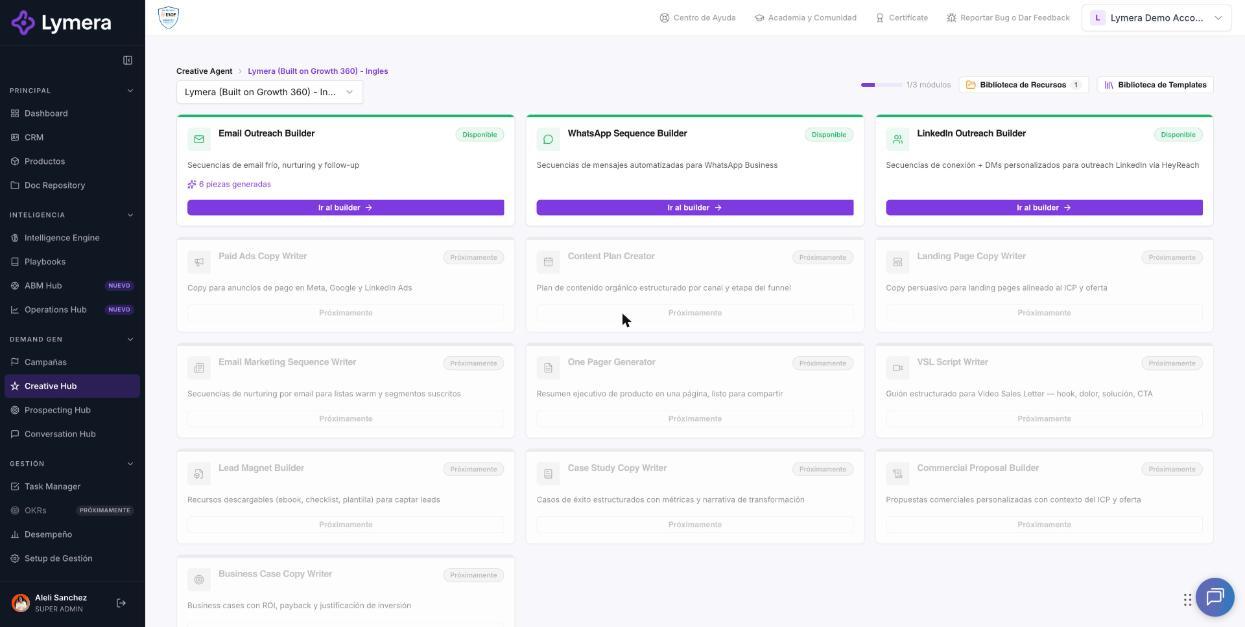
Screen: 4.6 How to create and use templates for manual Email sending
🛠️ How to do it
Create a template
- Go to the Template Library and open the Email tab.
- Choose the product in the top selector. You can use the "Search by name…" search box.
- Click New template.
- Choose the Template product and enter the Template name, the Subject and the email body.
- Click Personalize to insert variables, such as the contact's name or company.
- If you want, fill in the intent and the CTA (call to action).
- Click Create template.
Manage your templates
- Edit template → change what you need → Save changes.
- Clone template creates a copy ("… (copy)") that you can adjust.
- Generate version in another language creates a translated copy; the original doesn't change, and variables and links are kept.
- Delete removes the template from the library after you confirm.
Use a template when writing an email
- Open the contact's record and click to write them an email.
- In the composer, click Template and choose the one you want. The subject and body are loaded.
- Check the recipient, the subject and the values that replaced the variables.
- Send the email.
❓ Frequently asked questions
❓ Why don't I see my template in the library?
Check the product filter, the search box and that you are on the Email tab.
❓ Why doesn't my template appear when I write an email?
If the composer says "There are no email templates yet", you don't have any available to use yet. Create one in the library or check with your Customer Success.
❓ Does a template update itself in the sequences where I already used it?
No. When you load it, the content is copied.
❓ Can I share a template between products?
Yes: mark it as "General (all products)" or clone it to the product you need.
❓ Does using a template use credits?
Loading a template without AI doesn't use credits. Generating with AI or translating does.
🔧 If something doesn't work
| What you see | Likely cause | What to do |
|---|---|---|
| The template doesn't appear in the list | Wrong product filter or tab | Check the product, the search box and the Email tab |
| A variable appears empty | The contact doesn't have that data | Fill it in on their record or type it in the email |
| "The template could not be generated with AI" | Unclear description or insufficient credits | Try again with more detail and check your balance |
| The template doesn't save after retrying | Temporary failure | Check with your Customer Success |