
📘 What it is
The Prospecting Playbook is the guide that Lymera generates with AI from your product's Intelligence Engine (IE). It defines the prospecting protocol: who to look for, which pain points to solve, how to classify replies and which message cadence to follow on each channel.
It has two versions of the same content:
- Human: the readable text for your team.
- YAML: the structured version that Lymera's agents read.
It is the only playbook that also qualifies your leads. When you approve it, the leads in the product's campaigns are re-qualified with the new criteria. That's why it's also the one that requires the complete ICP block to be approved.
When it is used
- So Lymera qualifies leads according to their fit with your ideal customer.
- To define how the AI agent responds when a prospect replies to an email.
- To set the message cadence by day and channel.
📍 Where to find it
- In the side menu, go to INTELLIGENCE → Playbooks.
- Open the product's card.
- Choose the Prospecting tab.
You can also get in from the Playbooks button on the product's card. If the playbook doesn't exist yet, you'll see the Not generated status.
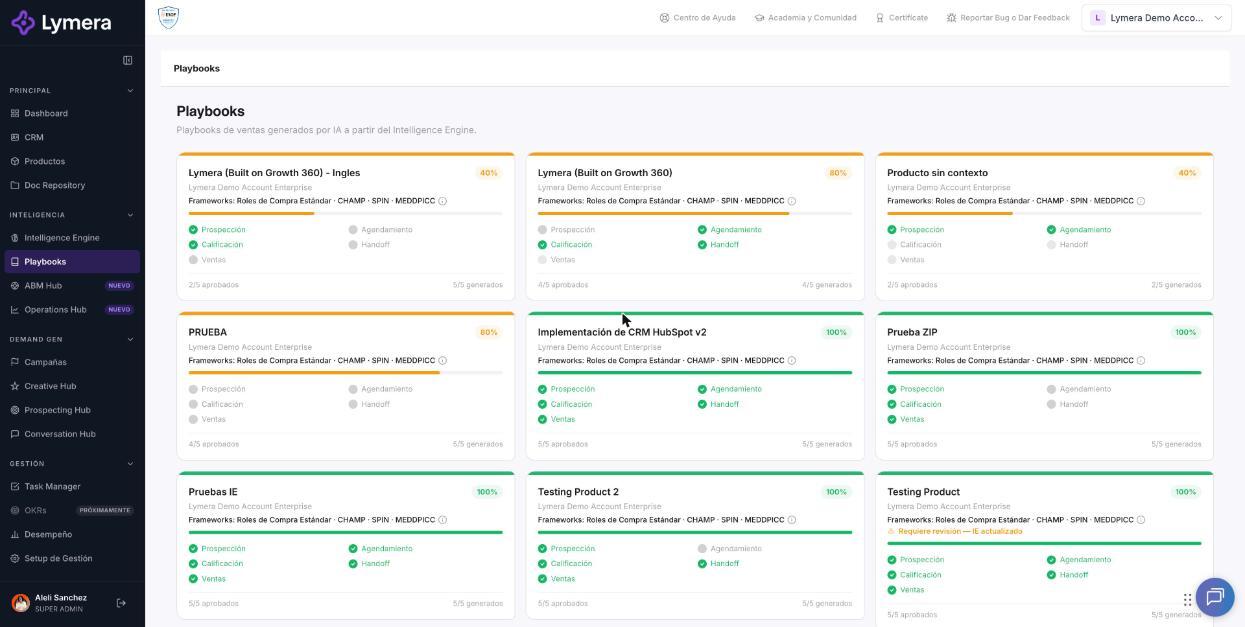
Screen: 3.1 How to set up, generate and approve the Prospecting Playbook
🛠️ How to do it
1. Complete the inputs
Click ⚙ Inputs. The "Playbook inputs" panel opens, pre-filled from your IE. It saves automatically as you type: you'll see "Unsaved…" and then "✓ Inputs saved". Required fields have a red asterisk and almost all have an ⓘ icon with help.
For Prospecting, the sections are:
- Product identity: average monthly ticket, one-line value proposition and sales cycle.
- ICP by market: main market (and an optional one), with industry, size, target job titles and geographies. The disqualifiers and the criteria to identify competitors also go here.
- ICP scoring rubrics (by ICP Level × Buyer Persona): the criteria used to qualify each lead.
- Pain points and objections: validated pain points (with verbatim quotes) and common objections before scheduling, each with its response.
- Channels and tools: your prospecting tools and the warm lead signals per channel.
- KPIs and daily report: your team's goals.
- AI agent settings (AI Reply): how the agent proposes a session when a prospect replies (who leads it, session type, duration and human contact channels). The fallback meeting link is optional.
If required fields are missing, you'll see "{N} required fields are missing (*)". You can still generate, but the AI will have less context.
2. Generate the rubrics with AI (recommended)
- Click ✨ Generate rubrics with AI.
- The AI proposes one rubric for each ICP Level × Buyer Persona combination (up to 9).
- Review and adjust them. Each line follows the format "Dimension | Weight% | Criterion 1 (best) | … | Criterion N (worst)".
- Leave blank the ones that don't apply.
If the IE doesn't have enough data, you'll see a notice to complete the Audiences module of the Intelligence Engine first.
3. Generate the playbook
- Click ✦ Generate playbook.
- You'll see "Generating your playbook (Ns)… this can take 1-3 minutes." You can go to another menu and come back; it keeps running in the background.
- When it finishes, the playbook is left in Draft with the ✓ Valid YAML indicator.
4. Review the document
On the Human tab, review especially:
- AI agent settings: the table that classifies the prospect's replies, what the agent does in each case and when it notifies your sales reps.
- Outreach sequence cadence: the table by day, channel, action and objective.
With the buttons in the bar you can:
- Switch between Human and YAML.
- Go back to ⚙ Inputs.
- Use ↺ Regenerate YAML, ↺ Regenerate Human or ↺ Regenerate both.
- Download with ⬇ Word.
5. Submit for review and approve
- Click Send to review. The status changes to In review.
- Click Approve. If you need to go back before approving, use Back to draft.
- The status changes to Approved and the product's counter updates (for example, 1/5 approved).
To approve, the playbook must include the complete ICP block: markets, industries, geographies, company size and target roles. If something is missing, Lymera tells you what to complete in Audiences of the Intelligence Engine, and then you must regenerate.
How to change an already approved playbook
An approved playbook is not edited. Adjust the ⚙ Inputs and regenerate: a new version is created in Draft that you must submit for review and approve again.
❓ Frequently asked questions
❓ Why is there a YAML button?
Because Lymera works in a dual format. Your team reads the Human version and the AI agents use the YAML to apply your criteria and rules exactly when processing leads.
❓ Does generating and regenerating use credits?
Yes, AI generation and regeneration use credits. If the generation fails, you are not charged. Check with your Customer Success contact how it is charged on your plan.
❓ Can I generate without rubrics?
Yes, but the rubrics improve lead qualification. The ones generated with AI are a proposal: review them before generating the playbook.
❓ What do "ICP Level" and "Buyer Persona" mean in the rubrics?
Level 1 is the best fit and Level 2 is a fit with friction. Level 3 is a partial fit and only applies if your IE defines three levels. The Buyer Persona is the role of the person who buys.
❓ Who can generate and approve?
Account Admin, Revenue Strategy Owner and Marketing Strategy Owner. Other roles can only view the playbooks, or can't see them.
❓ What happens if I see "Needs review — IE updated"?
An IE module was approved after your playbook was approved. Review the content, regenerate if needed or click Mark as reviewed.
🔧 If something doesn't work
| What you see | Likely cause | What to do |
|---|---|---|
| Dimmed card with "IE incomplete — set up the IE first" | The product's IE isn't at 100% | Approve the 4 IE modules and return to Playbooks |
| "Your current plan does not include the Playbooks engine." | Your plan doesn't include playbooks or your role is read-only | Talk to your Customer Success contact |
| You can't approve because of the ICP block | Industries, geographies, size or target roles are missing | Complete them in Audiences of the IE and regenerate Prospecting |
| "The playbook has an incomplete structure" | Structured blocks are missing in the YAML | Click ↺ Regenerate YAML automatically before approving |
| "There is not enough data in the IE (ICP Levels / Buyer Personas) to generate rubrics." | The IE's Audiences is incomplete | Complete Audiences and generate the rubrics again |
| "The generation is taking longer than usual. Reload the page in a few minutes" | Slow process | Reload and check whether it has already finished before generating again |
| "An APPROVED playbook cannot be modified." | You're trying to edit an approved one | Regenerate to create a new version in draft |
If the error repeats twice, contact support with: company, user, product, playbook type, time and a screenshot.