
📘 What it is
The Intelligence Engine (IE) is "the brain of all your agents": the master context of each product. Each product has its own IE, made up of four modules that are completed in this order:
- Diagnostic Form (the one you fill in).
- Audiences & Offers.
- Brand Voice Profile.
- Communication and Funnels.
The Diagnostic Form is the first module and the foundation for everything else. The AI uses your answers to generate Audiences & Offers and, afterwards, the Funnels. The clearer and more specific they are, the better the results.
The form has these sections:
- Section 1 — What I sell: product or service, primary and secondary problems, cost of inaction, desired outcome, key differentiators (maximum 5), business model, average ticket and sales cycle.
- Section 2 — Who I sell to: ideal customer, target markets, tier segmentation, roles feeling the pain, decision makers, influencers and real buying motivator.
- Section 3 — How I sell: previous solutions, qualification criteria, discovery channels, sales process, common objections, closing, tech stack and sales team.
- Section 4 — How I deliver the promise: delivery team, onboarding, phases, documentation, operational SLAs and KPIs.
- Section 5 — Supporting files: supporting materials.
📍 Where to find it
Side menu → INTELLIGENCE group → Intelligence Engine → open your product's card → Diagnostic Form tab.
At the top you'll see the "IE Progress" bar and the Export button.
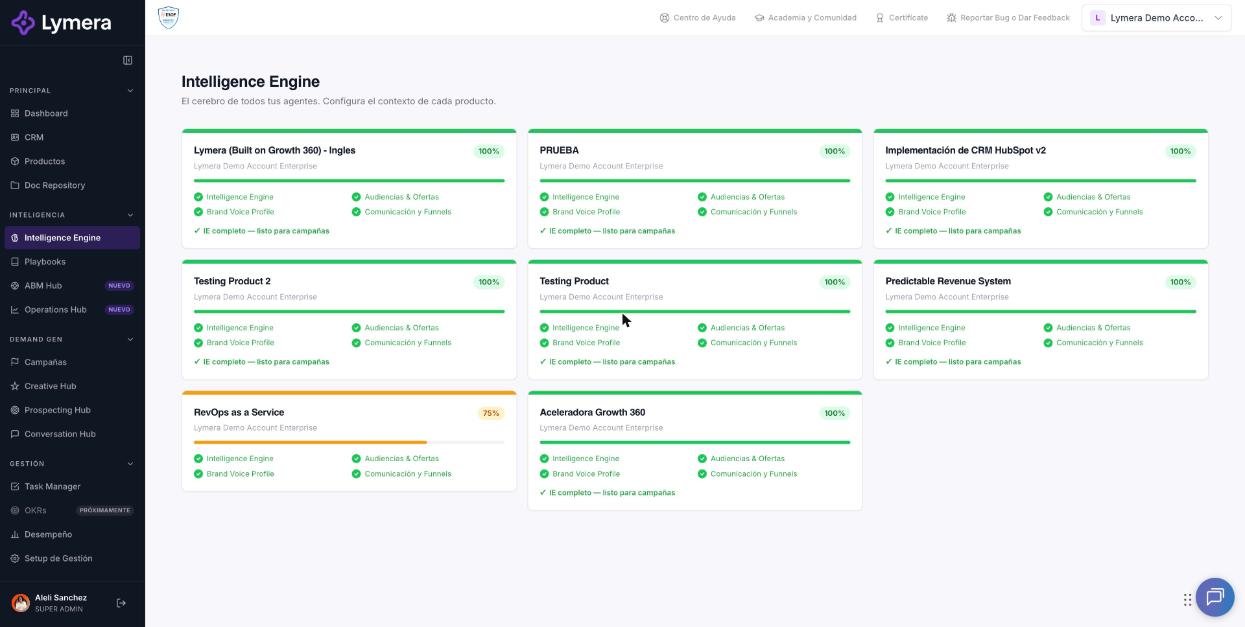
Screen: 2.2 How to complete the Intelligence Engine starter form
🛠️ How to do it
Before you start
- Create your product in Products (see article 2.1).
- Have your sales material on hand: sales presentation, website, success stories or previous proposals.
Fill in the form
- Go to Intelligence Engine and open your product's card.
- On the Diagnostic Form tab, expand each section.
- Fill in the fields. Required ones say "Required field" and some show a character counter with a recommended minimum.
- Click Save progress whenever you want. You can save with fields still pending: the notice tells you how many are missing and you can use View missing fields to jump to them.
- When everything is complete you'll see "✓ Form complete — ready to generate with AI".
Attach supporting files (Section 5)
- Click Attach file(s).
- Choose the category, for example: Corporate presentation, Success stories / Case studies, One-pager / Key benefits, Explainer video, Sales presentation / Deck, Previous sales proposals, FAQ / Quick-answer base, Objection handling playbook or Current ICP & Buyer Personas.
- Select the file. Formats such as PDF, PPTX, DOCX and MP4 are accepted, up to 50 MB per file.
- To remove or download a file, use the file's own actions.
Your files are saved in the Doc Repository, in your product's "Client Information" folder.
Submit for review and approve
When the content is ready, use Submit for review and then Approve in the module bar.
❓ Frequently asked questions
❓ Do I have to fill in all the sections at once?
No. Use Save progress and continue later. Keep in mind, though, that the form must be complete to generate Audiences & Offers.
❓ Can I generate Audiences with an incomplete form?
No. You'll see the notice "{N} required field(s) missing in the Diagnostic Form" and you'll be asked to save the module first.
❓ Does filling in the form use credits?
Filling in and saving the form does not use credits. Credits are used when you generate content with AI in the following tabs.
❓ Can I modify the form after approving it?
Yes, but an approved module is locked: you need to create a New version (see article 2.3 and the help on review and versions). The modules that depend on it will show "needs review".
❓ What files can I upload?
Supporting formats such as PDF, PPTX, DOCX and MP4, up to 50 MB per file. Each category accepts certain formats.
❓ Why does it reject a file with "The file content does not match its format"?
The file isn't really of that type (for example, it was renamed). Export it again from its original program.
🔧 If something doesn't work
| What you see | Likely cause | What to do |
|---|---|---|
| Fields in red when saving | Required data is missing or you exceeded a character limit | Review the marked fields; the notice says how many there are |
| "Format not allowed for this category" | The format doesn't match the chosen category | Change the category or upload another format |
| "Could not upload the file. Check your connection and try again." | Network outage, file too large (over 50 MB) or invalid format | Check your connection and the file size, and try again |
| You can't edit the form | The module is "Under review" or "Approved", or your role is read-only | Wait for the approval or rejection, create a New version, or ask your Account Admin to review your role |
| A valid file is rejected several times | Temporary failure | Write to support with: company, user, product, time, file name and type, and a screenshot of the message |