
📘 What it is
Account & Billing is where your Account Admin manages everything related to the company. It is a single menu entry with four tabs:
- Account & Users: company details and the team.
- Billing: active plan, credits and usage.
- Quotes & Invoices: proposals Lymera sent you.
- Security: advanced access rules (depending on your plan).
Your subscription includes a plan (Starter, Pro, Growth or Enterprise) and a pool of Lymera credits per cycle. Actions that use artificial intelligence or that have a cost deduct credits; actions that don't use AI don't. There are also add-ons: extra services you purchase separately, such as additional credits, WhatsApp, Apollo, LinkedIn profiles or more products and campaigns. Plans don't charge per user.
📍 Where to find it
Side menu → Setup group → Account & Billing. It is visible to the Account Admin; with other roles you will see "Your current role doesn't have access to the account" or "Your current role does not have access to billing information".
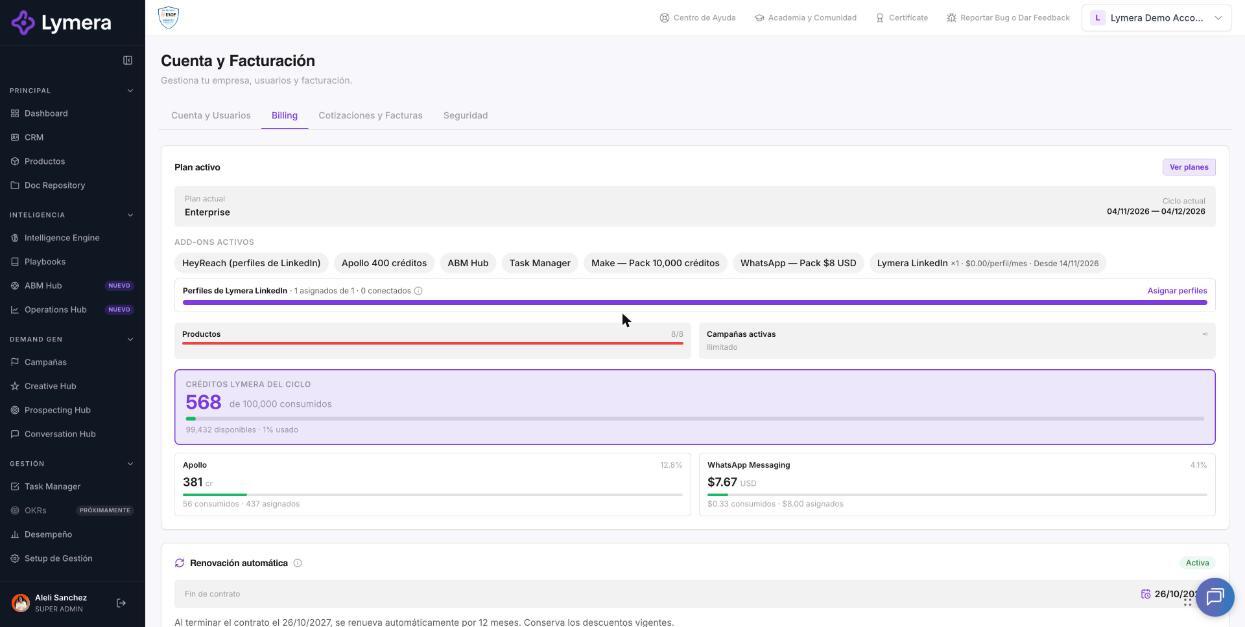
Screen: 1.12 My account and plan: How to view details and request billing changes
🛠️ How to do it
View or edit your company's details
- Go to the Account & Users tab. The company card shows trade name, legal name, country, state, industry, your country's tax ID (RFC, NIT, RUC, RUT, CIF or EIN), tax regime (in Mexico), "Account since", address, billing email and website.
- Click Edit.
- In "Edit company details" update what you need (Trade name \*, Legal name, Country, Industry, Account time zone, Website, Tax regime, Billing email and Billing address).
- Click Save changes.
If you need to correct your legal name or RFC so your invoice comes out right, edit them here and let your CSM know, since they issue and review the tax information.
Upload the Tax Status Certificate (companies in Mexico)
- In the certificate section, click Upload certificate. First enter the company's RFC; without it the button is disabled.
- Select a PDF of up to 5 MB. It stays in "Pending review".
- Your CSM reviews it and it changes to "Approved" or "Rejected". If it is rejected you will see "Rejection reason: …" and you will receive an email and Slack notice.
The certificate doesn't block use of the platform. If you change the RFC after it was approved, it goes back to "Pending review".
Check your plan and your credits
- Go to the Billing tab.
- Review the active plan, the current cycle, active add-ons and your active products and campaigns.
- In "Lymera credits for the cycle" you will see how many you have available and the percentage used. If there is no active cycle it says "No active credit cycle."
- If you have the Apollo or WhatsApp add-ons, you will see their own usage bars. LinkedIn profiles are also shown if you purchased them.
- In the Consumption history, choose to view by cycle or with a custom range.
- In "Your plan's features", the ones your plan doesn't include appear with a lock and the notice "This feature requires the {X} plan".
View plans and costs per operation
- In Billing, click View plans.
- In "Choose your Lymera plan", choose the payment frequency (Monthly, Quarterly, Semiannual or Annual) and compare each plan's cards.
- Review the credit packs, the add-ons and the "How much does each operation cost?" table, which shows how many credits each action deducts.
Request a plan, credits or add-on change
- In View plans, click the Contact us / Request a quote button.
- Your CSM prepares the change and Lymera sends you a quote.
- Review and accept it in the Quotes & Invoices tab ("View proposal" button) or from the link in the email.
Accept a quote
- Open the link in the email or click "View proposal".
- Review the plan, add-ons and services, and click "Accept this proposal".
- Enter the billing details and confirm your email with the verification code ("Confirm email"; if it doesn't arrive, "Resend code").
- Check the terms and choose the payment method. With monthly billing, payment is by credit card only.
- With a card, click "Complete payment"; your account is activated when you pay. With a bank transfer, the account stays in "Pending payment" until the payment is recorded.
You can save the proposal with "Print / PDF". Invoices are handled by your CSM: if you need one, request it from them.
❓ Frequently asked questions
❓ Why don't I see Account & Billing in my menu?
It is limited to the Account Admin. Ask your administrator to review your role from Account & Users.
❓ What happens when my credits run out?
Actions that cost credits are blocked and AI automations stop until there is a balance. Beforehand you receive email notices when you have used 80% and 90% of the cycle, and another when it runs out; each notice is sent once per cycle. Contact your CSM to top up with a pack.
❓ I can't create more products or campaigns.
Your plan has a limit. You can archive one you don't use or purchase additional capacity with your CSM.
❓ Are Apollo or WhatsApp credits the same as Lymera credits?
No. They are separate pools that exist only if you have the corresponding add-on.
❓ What is my account's status and what can I do in each one?
An account Onboarding is being implemented with your CSM; in Trial you see the remaining days; Active is normal use; Pending payment is waiting for the first payment and the team can't sign in until then; Suspended becomes read-only (no data is deleted; contact your CSM); Cancelled no longer allows access.
❓ Where do I see my invoices or request electronic invoicing (CFDI)?
In Quotes & Invoices or with your CSM. For electronic invoicing, your CSM will ask you for your Tax Status Certificate.
🔧 If something doesn't work
| What you see | Likely cause | What to do |
|---|---|---|
| "No active credit cycle" | Account with no active plan or a cycle that hasn't been generated | Contact support with your company name. |
| "No credit allocation — contact support" | The cycle's credits haven't been assigned | Contact support. |
| An action is rejected because of credits | Balance used up | Check Billing and request a pack from your CSM. |
| I accepted a plan and don't see the change | The quote isn't activated yet or the first payment is missing | Check Quotes & Invoices and your account's status. |
| Locked feature | Your plan doesn't include it | Click View plans or consult your CSM. |
| Edit or Upload certificate button disabled | The RFC is missing, your role lacks permission or the account is suspended | Enter the RFC and check your role and the account's status. |
| "Invalid RFC format…" | The tax ID doesn't have the right format | Check capitalization, length and country. |
| "Account suspended — read-only access." | Missing payment, contract end without renewal or manual suspension | Contact your CSM. |