
📘 What it is
My profile brings together your personal details and settings: name, photo, language, time zone, security, your companies and your work connections (email, calendar, signature and notifications). What you change here affects only you, not the rest of the team.
Unlike company-wide connections, this setup is individual. Each person connects their own Gmail and their own calendar. Google doesn't ask for administrator approval: you authorize your account directly.
📍 Where to find it
At the bottom of the side menu, click My profile (or your name). At the top you will see "My profile" and the chip "✦ Configuring profile for {your company}", which shows the active company for that tab.
Tabs:
- Profile: name, photo, roles, security and My accounts.
- Preferences: Lymera language and Time zone. Available depending on your account; if you don't see it, ask your Account Admin to check with their Customer Success Manager.
- Prospecting identity: email, aliases, calendar, signature and delegation.
- Notifications: which alerts you receive and through which channel.
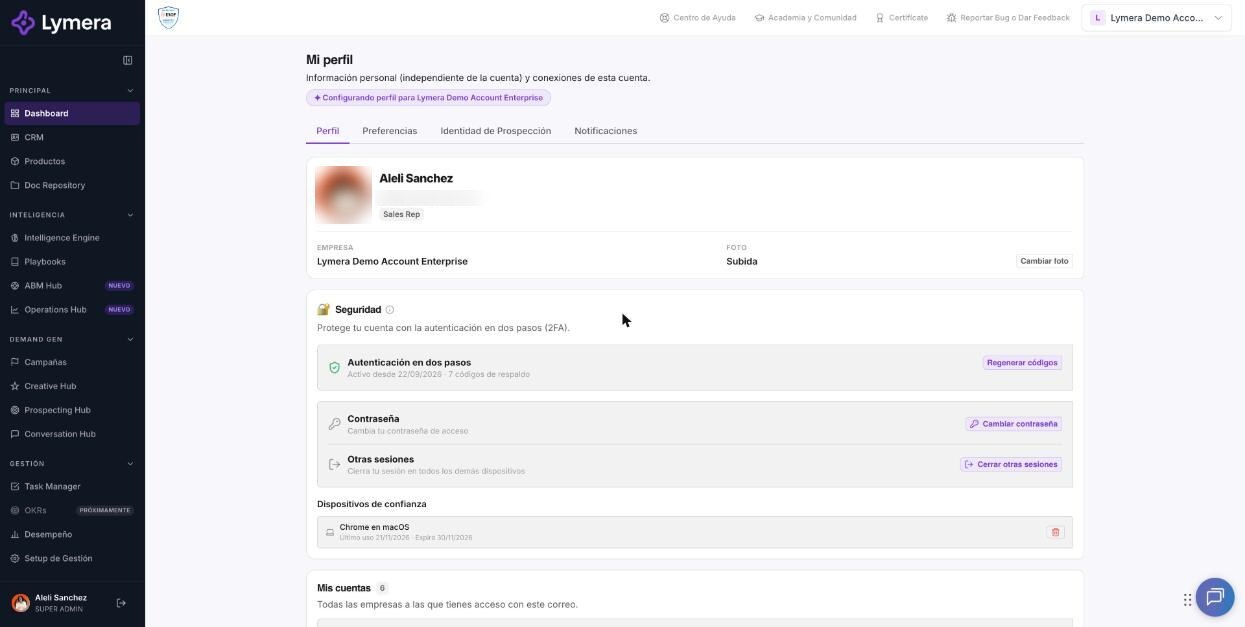
Screen: 1.09 How to set up your user profile and connect your Google Workspace account
🛠️ How to do it
Profile tab
- To change your name, click "✎ Edit" next to Your name, type it (up to 120 characters) and click Save.
- To change your photo, click Change photo and choose a PNG, JPG or WEBP image of up to 2 MB.
- In the security section you can turn on two-step verification (2FA) with an authenticator app, use Change password or Sign out other sessions.
- In My accounts you see all the companies you access with that email, your status and your roles.
Preferences tab
- Open Preferences.
- In Lymera language choose Spanish (Mexico) or English (United States).
- In Time zone, search with "Search time zone…" and choose yours.
- Click Save. You will see "Preferences saved".
The language changes what you see and the emails and alerts you receive. It doesn't translate your saved data (lead names, templates, AI texts). The time zone changes how you see dates and times, without modifying any data.
Prospecting identity tab
1. Connect your Gmail
- In the Gmail card, click + Connect account.
- Choose your Google account and accept all the permissions Lymera requests (send and read email).
- When you return you will see "Gmail account connected successfully" and the date "Connected on…".
You can connect more than one account. If you have several, choose the primary one with Make primary or in the Primary email card. If the account says "Token expired — reconnect to restore email sending", click Reconnect Gmail and authorize again. To remove it, click Disconnect in its row.
2. Sending aliases (Gmail only)
- In the Sending aliases card, click Load available Gmail aliases.
- Check the aliases you want to use and save.
- To assign accounts or aliases to specific products, use Email account per product and Usage order per product.
With no aliases checked, your regular Gmail address is used. Aliases don't apply with Outlook.
3. BCC address (sync with your CRM)
If you use an external CRM, paste in the BCC address card the blind copy address your CRM gives you and save. Every email you send will arrive as a blind copy at that address. See article 1.08 to learn how to get it.
4. Calendars
- First connect your Gmail.
- In the Calendars card, in your Google account's row, click Connect Calendar and authorize in Google.
- You will see "Google Calendar connected successfully" and the row changes to 📅 Calendar active.
With your calendar connected, Lymera shows your availability, creates the meetings you schedule in your calendar and generates the Google Meet link. If you also connect a Microsoft calendar, you can schedule with a Teams link. To disconnect it, click Disconnect in its row; meetings already scheduled stay in your calendar.
5. Personal meeting link
Paste the URL of your scheduling tool (for example Calendly). It must start with https://. It is used when the campaign is set up with the Sales Rep's link, and it feeds the variable.
6. Sales Rep information
Enter the details Lymera uses in your email and WhatsApp templates:
- Company: variable
. - Phone: variable
. - WhatsApp: variable
.
7. Email signature
- Write your signature in the text box (it accepts HTML) or click Import from Gmail.
- Check the result in the preview box.
- If you manage several products, turn on Use different signatures per product and define a global signature and one per product.
8. Delegated prospecting (for Account Executives)
It lets you "lend" your identity so your SDRs work the campaign's leads on your behalf.
- Check Delegate the prospecting of my leads. Emails, WhatsApp and LinkedIn go out with your identity, but the day's alerts and tasks are handled by the delegated SDRs. You remain the lead's AE.
- Choose the assignment mode: Even rotation, Weighted rotation or Specific user.
- In + Add SDR…, choose the members of your team. To remove someone, click Remove next to their name.
- Choose the meeting link behavior: My Link or The delegated SDR's.
- Click Save.
Notifications tab
Here you choose through which channel you receive your alerts. The system requires at least one channel to stay active.
- Email: check Active to receive alerts in your email.
- Slack (personal DM): check Active to receive them by direct message. You can test it with Send test DM and revoke access with Disconnect Slack.
❓ Frequently asked questions
❓ Why do I connect Google Calendar separately if I already connected Gmail?
The calendar is connected separately from email and is never turned on automatically when you connect Gmail. This way you authorize only what each feature needs.
❓ If I turn on delegated prospecting, will my customers see my SDRs' emails?
No. For the customer, messages go out with your name, your signature and your email. Your SDRs work on tasks and alerts in the background.
❓ What happens if I change my signature or my Calendly link?
The changes are saved in your profile and used in your next sends. You don't need to pause your campaigns.
❓ Does my Google administrator need to approve anything?
No. Only if your Google organization blocks external apps might you need to ask your Google administrator for permission.
❓ Can I have Gmail and Outlook at the same time?
Yes. You can connect both and choose which one is your primary email.
🔧 If something doesn't work
| What you see | Likely cause | What to do |
|---|---|---|
| "Token expired — reconnect to restore email sending" | You changed your Google password, revoked access or a long time has passed | Click Reconnect Gmail and accept the permissions. Paused sequences continue once you reconnect |
| "Required Gmail permissions are missing (send and read email)" | You didn't accept all the permissions when authorizing | Connect again and check all the boxes |
| "The connection session expired" | You took too long or closed the Google window | Click + Connect account again |
| "You have a pending invitation for this company" | You haven't accepted the invitation yet | Accept it from your email and then connect Gmail |
| The Connect Calendar button isn't enabled | No Gmail is connected | Connect your Gmail first |
| The meeting doesn't create an event in the calendar | The calendar is disconnected or its access expired | Check that it says "Calendar active"; if not, reconnect it |
| You don't see the Preferences tab | It isn't turned on for your account | Ask your Account Admin to check with their Customer Success Manager |
| Times don't match your clock | Wrong time zone | Fix it in Preferences |