
📘 What it is
The BCC address (blind carbon copy) is a unique email address your CRM gives you to log external emails. If you save it in your Lymera profile, every email you send from Lymera (sequences, manual emails and AI replies) is blind-copied to that address. Your CRM, such as HubSpot, Salesforce or Pipedrive, logs it on the contact's record.
Recipients don't see that copy. It is also useful for archiving your emails in another inbox or system.
📍 Where to find it
In Lymera: My profile (at the bottom of the side menu) › Prospecting identity tab › BCC address card.
In your CRM, the location depends on the platform. In HubSpot it is under Settings (the gear icon) › Objects › Activities › Email logging tab › BCC address section.
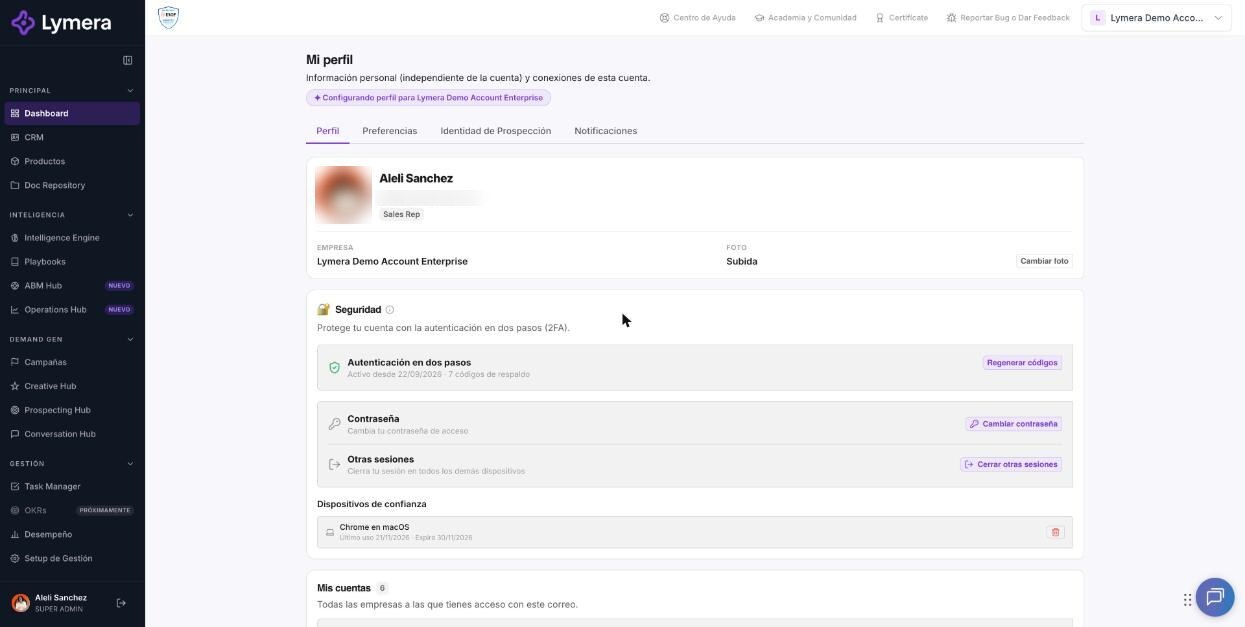
Screen: 1.08 How to set up CRM BCC address sync in your user profile
🛠️ How to do it
Step 1: Copy your CRM's BCC address (HubSpot example)
- Sign in to HubSpot.
- Click the Settings icon (the gear in the top right bar).
- In the left menu, go to Objects and click Activities.
- Open the Email logging tab.
- Scroll down to the BCC address section.
- Click Copy.
Step 2: Save it in your Lymera profile
- At the bottom of the side menu, click My profile.
- Open the Prospecting identity tab.
- In the BCC address card, paste the address you copied.
- Click Save.
Remove or change the address
To remove it, leave the field empty and save. To switch CRMs, generate the new BCC address in your new CRM and replace the old one in the same card.
❓ Frequently asked questions
❓ Why aren't emails being logged in my CRM if I already saved the BCC?
The most common reason is that the sender doesn't match. Many CRMs only accept the BCC if the email you send from in Lymera is the same one you use to sign in to your CRM. Also check that the address is typed correctly.
❓ Do my contacts see that long address?
No. The blind copy is invisible to the recipient. Your contacts only see your normal email.
❓ What do I do if I change CRMs?
Generate the new BCC address in your new CRM, go to My profile › Prospecting identity › BCC address and replace the old one.
❓ Who else receives the copy?
Only the address you enter. No one else on the team receives it.
🔧 If something doesn't work
| What you see | Likely cause | What to do |
|---|---|---|
| The copy doesn't reach your CRM | Address typed incorrectly or sender differs from the CRM user | Check the address and that the sender email is the same as your user in the CRM |
| The copy doesn't appear in the CRM even though the address is correct | The CRM sends it to spam or doesn't recognize it | Check the CRM's email settings; if it stays the same, contact your Customer Success Manager |
| You can't find the address in your CRM | Each CRM names it differently | Search for "Email to CRM", "BCC Email" or "Email sync" |