
# Integrations screen
📘 What it is
Integrations is the screen where you connect the tools Lymera works with: email and calendar, CRM, contact sources, WhatsApp, LinkedIn and the channels where your team receives notices (Slack and Microsoft Teams). The screen subtitle sums it up: "Connect the tools the agents use to operate. Organized by category."
Each category shows how many integrations are connected ("1 connected", "2 connected") and whether it allows only one active tool ("Only one active") or several ("Multiple allowed"). For example, in the CRM category you can only have one CRM connected at a time: if you try to connect another one, Lymera asks you to disconnect the current one first.
The categories you will see are:
- CRM: HubSpot CRM, Kommo CRM, GoHighLevel.
- List Building & Enrichment: Apollo.io, HubSpot (list import) and Lusha.
- LinkedIn: HeyReach and Lymera LinkedIn.
- WhatsApp: WhatsApp Cloud API · Meta.
- Email and calendar: Microsoft 365 and the Google summary (Gmail and Google Calendar).
- Platform notifications: Slack App, Gmail or Microsoft as the sender of system emails, and Microsoft Teams.
- Other categories (Email Marketing, Landing Pages, Digital Advertising) may appear with tools marked "Coming soon".
📍 Where to find it
Side menu › Setup group › Integrations.
Some connections are not made here but in your personal profile: your Gmail, your Google Calendar, your Outlook email and calendar, your LinkedIn and your personal Teams are connected in My profile (your user menu) › Prospecting identity tab (or Notifications for personal Slack and Teams).
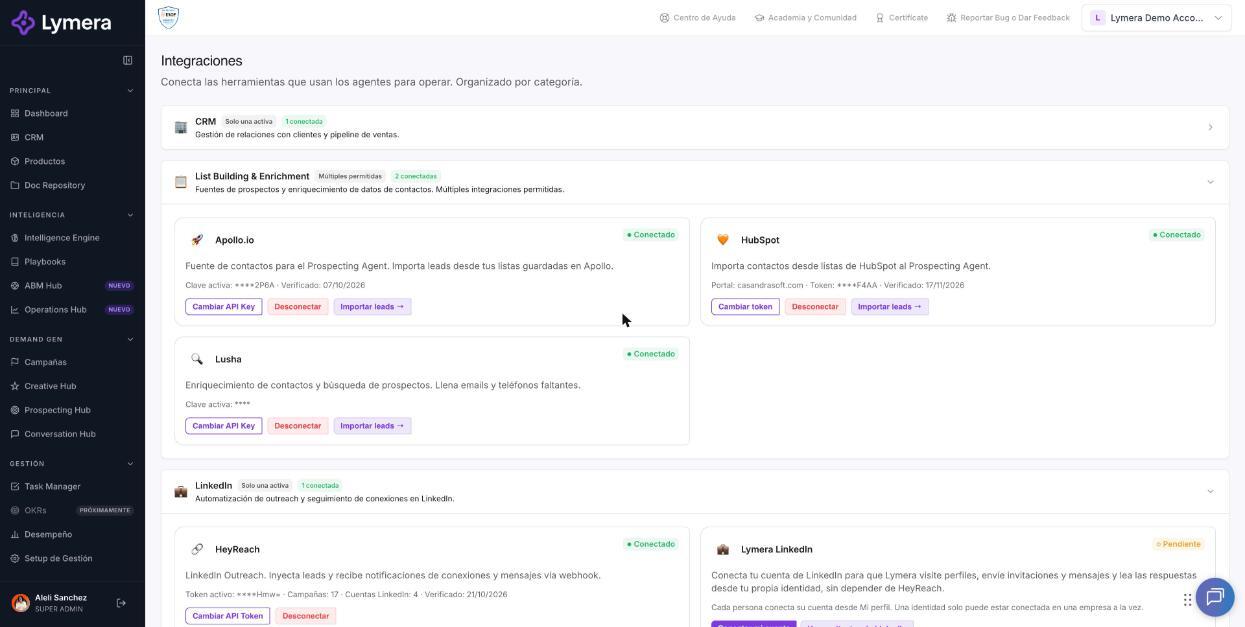
Screen: Integrations screen — what you can connect, who connects it and where
🛠️ How to do it
- Go to Setup › Integrations.
- Find the category of the tool you need.
- On the tool's card, click Connect (or the specific button: Connect Slack App, Connect Microsoft 365, Connect with Meta, etc.).
- Follow the instructions in the window: some take you to the other tool's page (Google, Microsoft, Slack, Meta, HubSpot) so you can authorize Lymera; others ask you to paste a key (Apollo, HeyReach, HubSpot).
- When you return to Lymera, the card changes to ● Connected. If something fails you will see ● Error or a message with the reason.
Statuses you can see on a card: ● Connected, ○ Pending, ● Error and Coming soon.
Who can connect
- Connecting, changing or disconnecting company integrations is done by the Account Admin. Other roles can see the status but not change it; you will see the message "Managing integrations is available only to the Account Admin of your company."
- Gmail, Outlook, Google Calendar, LinkedIn and personal Teams are connected by each person in their own profile.
- Apollo, HeyReach and WhatsApp may come as part of an add-on managed by your Customer Success Manager: the card says so with texts such as "This Apollo connection is managed by your CSM". In that case, ask your CSM for any changes.
- Some integrations are available depending on your plan or activation. If you do not see a card or button you expect, ask your Account Admin or your Customer Success to check.
❓ Frequently asked questions
Why don't I see the Connect button? Most likely your role does not manage integrations (only the Account Admin does) or the integration is not activated on your account. Ask your Account Admin for help.
Can I have two CRMs connected? No. An account connects only one CRM. Disconnect the current one before connecting another; opportunities keep their data and become editable again in Lymera.
Where do I connect my Gmail? In My profile › Prospecting identity › Gmail card, not on this screen. See the Gmail article.
Why does a tool say "Coming soon"? It is not available yet. Ask your Customer Success when it will be ready.
I switched companies and the integrations look different. Integrations are per company. Check in the company selector at the top that you are in the right company.
Does disconnecting an integration delete my data? No. What was already synced or imported is kept. What changes is that Lymera stops sending or receiving through that channel; for example, when you disconnect HubSpot (import), the active campaigns linked to that connection are paused and you are told which ones.
🔧 If something doesn't work
| Symptom | Common cause | What to check | When to escalate |
|---|---|---|---|
| The card says "Error" | The authorization expired or was revoked in the other tool | Click Reconnect and authorize again | If the error persists after reconnecting |
| "You can only have one active integration in the category…" | Another tool is already connected in that category | Disconnect the current one first | No need to escalate |
| A card does not appear | Your plan or activation does not include that integration | Confirm with your Account Admin or Customer Success | If your plan should include it |
| Message "The connection with … is not configured" | Configuration missing on Lymera's side | — | Always: ask support to review it |
Information to request from the customer when escalating: company name, user's email, affected integration, approximate time of the problem, steps they followed, exact text of the error message and a screenshot of the screen.