
# Contacts: list, search, filters, manual creation, and bulk actions
📘 What it is
The CRM Contacts tab shows all the people in your company in a paginated table, regardless of which campaign they are in. From there you can search, filter, sort, create a contact by hand, and apply actions to several contacts at once.
📍 Where to find it
Side menu → CRM → Contacts tab → List view (the Pipeline view shows the same set as a board).
Table columns: Contact, Company, Phone, Status, Temp., ICP, Priority, Campaign, Labels, Rep, Emails, and depending on your account also Opportunity, Buying role, and Language. You can sort by clicking the headers that allow it.
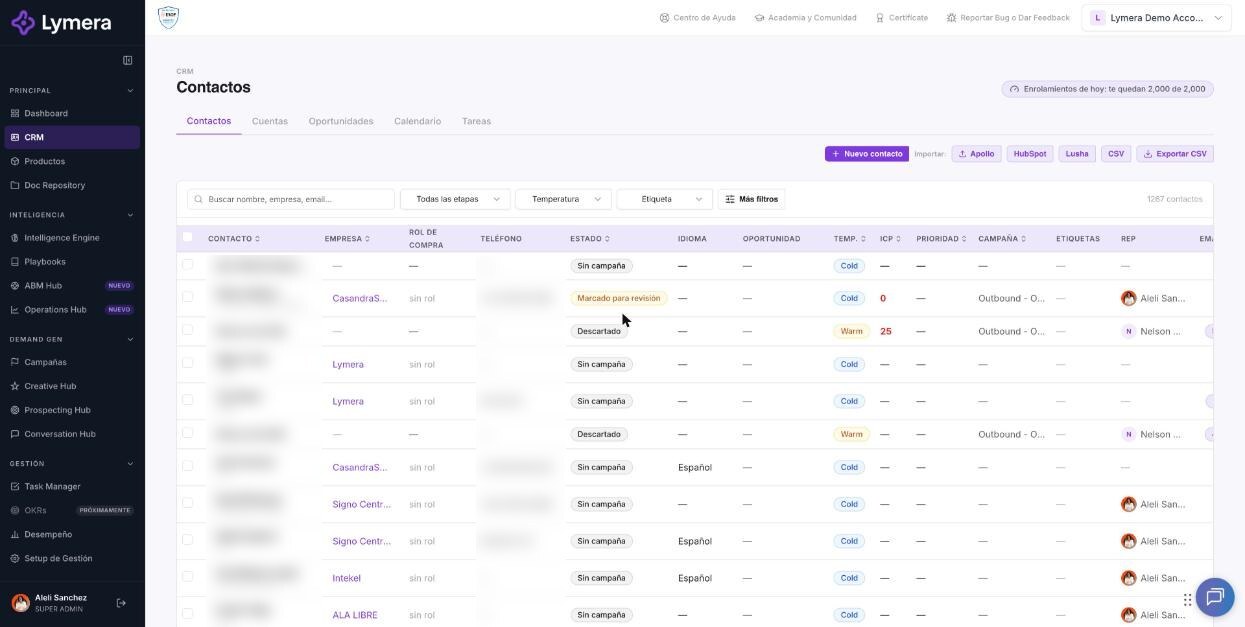
Screen: Contacts: list, search, filters, manual creation, and bulk actions
🛠️ How to do it
Search and filter
- Type in Search name, company, email…
- Use the quick selectors: stage, Temperature, Label, and Status.
- Click More filters to filter by Campaign, Assigned rep, Reply classification, Source, Industry, Company size, Country, City, Job title, Enriched, Revenue (USD), ICP Score, Priority (1 = highest), Sequence start, Creation date, Last activity, and With opportunity.
- Active filters are shown as tags; remove them one by one or with Clear all.
- The My leads button toggles between seeing only yours and All leads.
Create a contact by hand
- Click New contact.
- Fill in at least First name or Email (the rest is optional: last name, job title, company, phone, WhatsApp, LinkedIn, website, country, industry, size, and Temperature).
- Click Create contact. It is created with no campaign; you can enroll it later.
- If someone already exists with that email or that phone/WhatsApp, Lymera warns you and offers Go to existing or Create anyway.
Bulk actions
- Check the boxes of the contacts (or the header checkbox for the whole page).
- If you want everything that matches your filters, click Select all N in the notice that appears. The limit per action is 10,000 contacts; if there are more, narrow the filters.
- In the top bar choose an action. Depending on your role and the contacts' status you will see: Assign rep, Enroll, Remove from campaign, MQL, Move status, Escalate temperature, Discard, Associate to opportunity, Change language, or Delete.
- Each action shows a confirmation. Contacts that cannot make that move are skipped and you will see a Skipped contacts notice.
Useful details:
- Move status and Escalate temperature ask for a reason of at least 10 characters. Temperature only escalates forward (Cold → Warm → Hot).
- Enroll can only be used with contacts that have no active campaign and toward an active campaign. Before confirming, it shows how many credits will be deducted and how many you have available.
- There is a daily enrollment limit depending on your plan; those that don't fit today are queued and enter on their own, in order, the next day without using credits until then.
- Delete is permanent and also deletes their history, conversations, and tasks.
❓ Frequently asked questions
Can I move many contacts to another campaign at once? You can remove them with Remove from campaign and enroll them in another active campaign with Enroll.
Why is "Enroll" blocked? Only contacts that are not already in an active campaign can be enrolled. A message with that reason appears when you hover.
Who can delete contacts? Administrative roles. If you don't see Delete, your role doesn't include it.
What does "Low ICP" next to the priority mean? It is a contact that came in through a webhook without meeting the minimum ICP score; it's worth reviewing its quality.
What happens to skipped contacts in a bulk action? They are not modified. The notice tells you which ones they were and why.
How many rows can I see per page? Use the Rows selector at the bottom of the table.
🔧 If something doesn't work
- The New contact or Delete button doesn't appear: the usual cause is that your role doesn't have write permission. Check with your Account Admin.
- "Insufficient credits" when enrolling: reduce the selection or top up credits; the message says how many are missing.
- The bulk action skips everyone: check that the contacts are in a valid status for that action.
- Escalate to a person if a bulk action stays loading or the result doesn't match what you expected. Provide: company, user, URL, time, chosen action, how many contacts, and a screenshot.