
# ABM Hub - Target Accounts
📘 What it is
Target Accounts is the listing of the accounts you work for each product, with their lifecycle status and their four scores (Fit, Coverage, Interaction and Health). An account can be a target of several products and appears in each one.
Lifecycle statuses: Identified, Researched, Mapped, Engaged, In conversation, With opportunity, Won, Lost, Paused. The status advances by itself when there is evidence (opens, replies, opportunities) and it can always be corrected by hand by giving a reason. Won and Lost arrive only when the opportunity is closed; Paused is set only by hand.
📍 Where to find it
Intelligence > ABM Hub > Target Accounts. At the top you choose the Product. Filters: Level, Status, Owner, Vertical, List (includes "No list"), Low dimension (shows accounts where Fit, Coverage, Interaction or Health is below 40) and Sort by (Attention priority, Fit, Coverage, Interaction, Health). Columns: Account, Level, Status, Fit, Coverage, Interaction, Health, Prior., Owner.
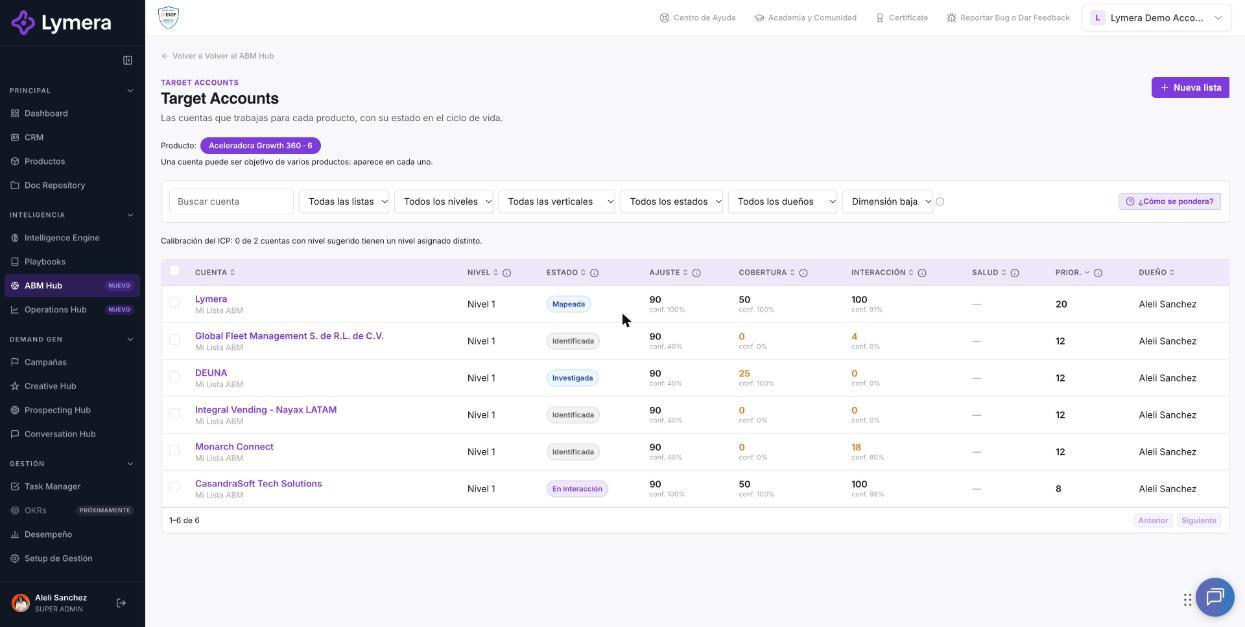
Screen: ABM Hub - Target Accounts - listing, record, lifecycle status and bulk actions
🛠️ How to do it
Open an account record
Click the account. The record shows product and level, owner and second owner, vertical, the Score dimensions and these sections: Summary, Entry plan, Research and signals, Learning, Committee map, Coverage and gaps, Deal health, Opportunities, Communications. There are also Signals and labels (those with a dot are calculated by Lymera; the others are set by your team) and the View account in CRM link.
Promote an account
In CRM > Accounts open the account and use Promote to Target Account. It asks for product, ICP level, vertical and owner, and the list (existing or new). The account will be able to be enrolled in a program once the list is approved.
Correct the status of one or several accounts
- Select the accounts and click Change status.
- Choose the New status and write the reason in Why (required; it is kept in the history).
- Click Save. Correcting by hand does not change the opportunity; only the account's status. The manual correction wins until evidence of a later status arrives.
Pause an account
Indicate the Reason and the date on which it should be reactivated. The account stops moving by itself; on that day an alert reaches the owner and it returns to the status it had.
Bulk actions (selected accounts)
Research in bulk, Find signals, Recalculate health, Enroll in program (still "Coming soon"), Change status, Remove as Target Account and Deselect. The AI actions show the total cost before you confirm and, if credits are not enough for all of them, none is run.
Remove as Target Account
The account leaves the listing and its lists, but its entire history is kept (committee map, learning, opportunities and audit log).
❓ Frequently asked questions
What is "Attention priority"? A value from 0 to 100 that rises with the account's urgent signals: replies waiting for a human, overdue tasks, hot contacts, missing contacts or owner, and days without activity. It does not use the four scores. Two Target Accounts of the same account share the priority.
What is the "ICP calibration" shown at the top? It shows how many accounts with a suggested level have a different assigned level; it helps fine-tune your ICP.
What is an "Orphan account"? An account with no owner assigned.
Why doesn't an account change status? The status advances with real evidence. If you need to correct it sooner, use Change status with a reason.
I can't find an account I promoted. Check the Product selector and the filters; accounts with no list are only visible with the No list filter.
🔧 If something doesn't work
- The score columns show "—". Common cause: the account has no open opportunity (Health) or there is not yet data to calculate. See the scores article.
- "Promote to Target Account" is disabled. Your plan doesn't include the ABM Hub or your role doesn't have access; ask your Customer Success for activation or your Account Admin for permission.
- I can't edit an account. Only the account owner, the RSO or the Account Admin can change certain things; the screen shows "Read only" when you don't have permission.
- Escalate to a person if a value seems incorrect. Provide: company, user, account name, product, URL, time, steps and a screenshot.