
📘 What it is
The Resource Library stores, by product, the materials you want to share with your leads: brochures, presentations, PDFs, videos, images and links. You can insert them in the emails of your sequences, and the AI uses them when a prospect asks for material, based on the description and labels you give them.
Resource types: PDF, Presentation, Video, Image, Link and Other.
Before you start, have ready:
- A file of up to 25 MB, or
- A direct URL with open viewing permissions.
📍 Where to find it
Side menu → Demand Gen → Creative Hub → choose the product → Resource Library. From the sequence screens you can also get there with Manage library.
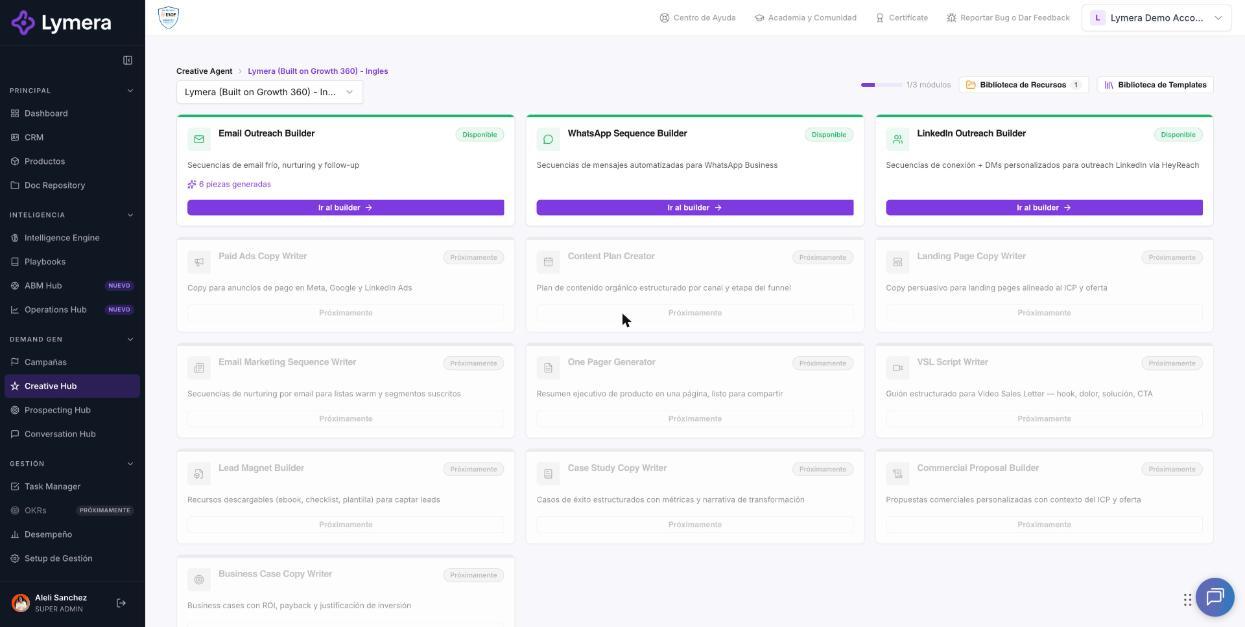
Screen: 4.4 How to upload and manage assets in the Resource Library
🛠️ How to do it
Add a resource
- In the Resource Library, check that you have the right product selected (you can change it with Change product).
- Click New resource (or Add first resource if the library is empty).
- Enter the Resource name and choose the Type.
- Enter the Description (for the AI engine): explain what it is about and who it is ideal for, so the AI knows when to send it.
- Add Labels separated by commas.
- Under "Resource file or URL", click Attach file to upload a document from your computer, or paste a URL that starts with http:// or https:// (Google Drive, Dropbox or a public URL).
- If the material should be shared when confirming or reminding about a meeting, check Meeting prep resource.
- Click Add resource.
Verify the resource
- Search for the name with Search resource….
- Click Open resource and check that it loads or downloads without restrictions.
Manage resources
- Copy URL copies the link.
- Clone resource creates "Copy of {name}".
- Edit resource and then Save changes to modify it.
- Delete resource asks you to confirm with Yes, delete.
Use a resource in an email
In the body of an email step, select text to link a resource or use Insert resource and choose one from the library.
❓ Frequently asked questions
❓ How do I verify that a resource with a URL is accessible to my prospects?
Open the link in an incognito window. If it asks you to sign in or request permissions, change the privacy setting on the source platform (Google Drive, Notion, etc.) to allow access through the link.
❓ What is the difference between uploading a file and pasting a URL?
Uploading a file stores it in Lymera. A URL links to a file that lives somewhere else: if you change it there, the link still points to the same place.
❓ Can I have resources in several languages?
Yes. When you insert a resource in an email, the selector shows those in the content's language. If there are none, you will see "There are no {language} resources in this product's library".
❓ Does the link of an uploaded file expire?
Uploaded files open with temporary secure links. If one expires, open it again from the library.
❓ Who can add and edit resources?
Account Admin, Revenue Strategy Owner, Marketing Strategy Owner and Creative Rep. Other roles can only view them.
🔧 If something doesn't work
| What you see | Likely cause | What to do |
|---|---|---|
| "The file exceeds the maximum" | The file is larger than 25 MB | Compress it or use a URL |
| "Attach a file or paste a resource URL" | The resource source is missing | Attach a file or paste a link |
| "The URL must start with http:// or https://" | The link is mistyped | Correct it |
| "The file could not be uploaded" | Connection problem | Check your connection and try again; try another browser |
| You don't see the resource when inserting it in an email | It belongs to another product or another language | Check the resource's product and language |
If a valid file won't upload, contact support with: company, user, product, name, type and size of the file, time and a screenshot.