
📘 What it is
The LinkedIn Outreach Builder creates outreach sequences with an initial connection request and up to 9 additional direct messages (DMs), for a maximum of 10 steps per sequence. Each sequence has a temperature:
- Cold: the lead enters the campaign cold. First contact, curious tone and no pitch.
- Warm: the lead arrives at or escalates to Warm. Direct, personal tone.
- Hot: the lead arrives at or escalates to Hot. High intent, geared toward booking a meeting.
Your campaign sends the steps with the LinkedIn provider you have configured: HeyReach or Lymera LinkedIn, depending on your plan and activation. If you don't know which one your campaign uses, check with your Account Admin or Customer Success.
Prerequisites to work with HeyReach:
- Have your HeyReach account linked in Integrations.
- Confirm that HeyReach is the LinkedIn provider of the campaign where you will use the sequence.
📍 Where to find it
Side menu → Demand Gen → Creative Hub → choose the product → LinkedIn Outreach Builder (the "LinkedIn sequences" screen). It has the Sequences and Templates tabs.
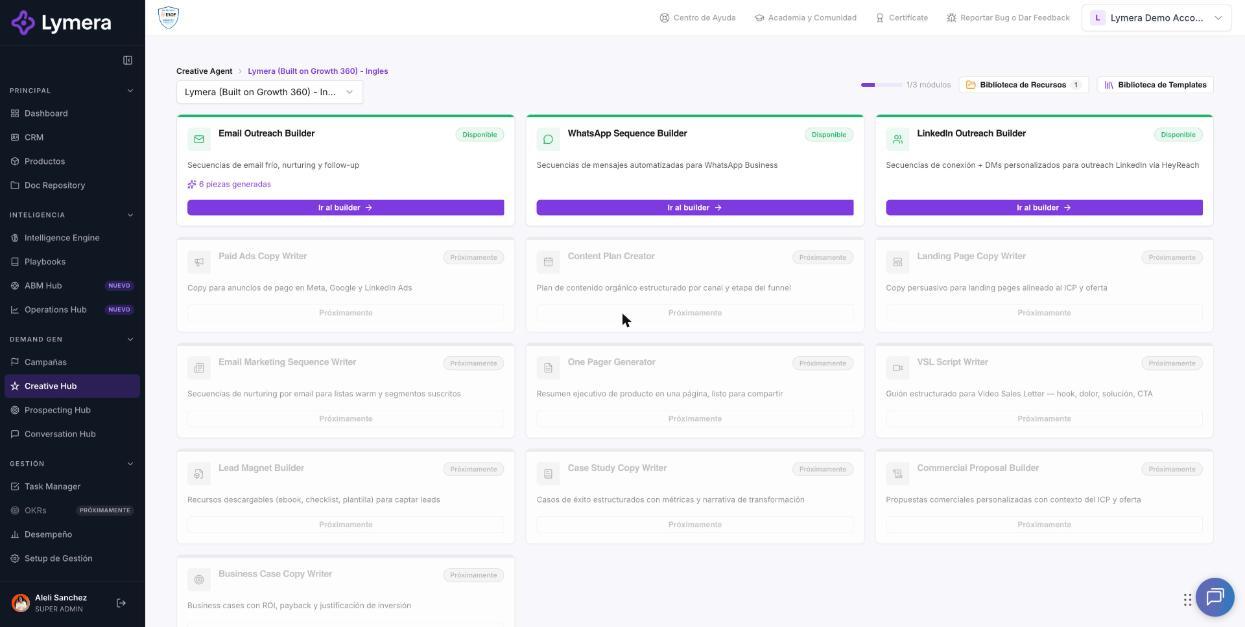
Screen: 4.3 How to create and edit LinkedIn sequences via HeyReach
🛠️ How to do it
Create the sequence
- Go to the LinkedIn Outreach Builder and check the product.
- Click New sequence.
- Choose the Lead temperature (Cold, Warm or Hot), enter an optional name and click + Create sequence.
Configure the connection request (step 1)
- Open the first step: it is sent on day 0, right away.
- Choose the mode:
- Send without a note (recommended): it usually gets a higher acceptance rate. - Send with a personalized note: a short message with a character limit, useful if you have something in common with the prospect. When you add a note, the platform asks you to confirm.
Configure the direct messages
- Click Add DM for each message.
- Set the Wait days. The first DM is sent one hour after the request is accepted.
- Enter the Message intent (required) and the Expected CTA.
- Write the Message text or click ✦ Generate to have the AI write it. You can use variables such as name or company.
- Keep an eye on the character counter: it warns you if you exceed LinkedIn's limit.
- With HeyReach, the connection note and the first DM are sent as lead variables to the external platform. Review the provider notice shown in the editor.
- If you need more steps, use Add DM. You can also move steps up, move them down or delete them.
Test, approve and link
- Click Send test to send a test DM to a lead who is already connected (with HeyReach).
- Click Approve sequence and confirm with ✓ Approve. All DMs must have text, and there must be at least one DM.
- Link it to a campaign with Link or + Campaign.
❓ Frequently asked questions
❓ What happens if I change the campaign's LinkedIn provider after creating the sequence?
Review each step again in the editor. Lymera applies different execution and variable rules for HeyReach and for Lymera LinkedIn.
❓ Why do you recommend sending the connection request without a note?
According to LinkedIn best practices, requests without a message usually have a higher acceptance rate.
❓ How many messages can I add?
A maximum of 10 steps per sequence: the connection request plus up to 9 DMs.
❓ What happens if I have no credits?
The step's template text is sent, without personalization.
❓ Can I clone a sequence?
Yes, with Clone sequence or the Clone button in the list. It creates an editable copy.
❓ What happens to leads in progress if I unlink the sequence?
They continue their course.
🔧 If something doesn't work
| What you see | Likely cause | What to do |
|---|---|---|
| You can't approve | A DM has no text or there are no DMs | Complete all the direct messages |
| "Exceeds LinkedIn's hard limit" | The message is too long | Shorten it before approving |
| "You have reached the maximum of 10 steps per sequence" | The sequence already has 10 steps | Delete a step before adding another |
| Send test fails | There is no connected lead or the LinkedIn account is not active | Use a connected lead and check your account |
| Messages don't go out | Sequence not approved or not linked, or inactive LinkedIn identity | Check the approval, the link and the campaign status |
If the LinkedIn queue doesn't move, contact support with: company, user, campaign, sequence, time and a screenshot.