
📘 What it is
On WhatsApp, the first messages to a lead are sent with templates that Meta must approve before they can be used. The WhatsApp Sequence Builder assembles sequences of steps where each step uses an approved template, with a wait between messages. Each sequence has a temperature: Cold, Warm or Hot.
Templates go through these statuses: Not submitted, Pending Meta, Approved by Meta and Rejected by Meta. Only approved ones can be used in a sequence.
Prerequisites:
- Have at least one WhatsApp Business account connected in Integrations → WhatsApp.
- Have templates with Approved by Meta status.
📍 Where to find it
- Sequences: side menu → Demand Gen → Creative Hub → choose the product → WhatsApp Sequence Builder.
- Templates: Creative Hub → Template Library → WhatsApp channel.
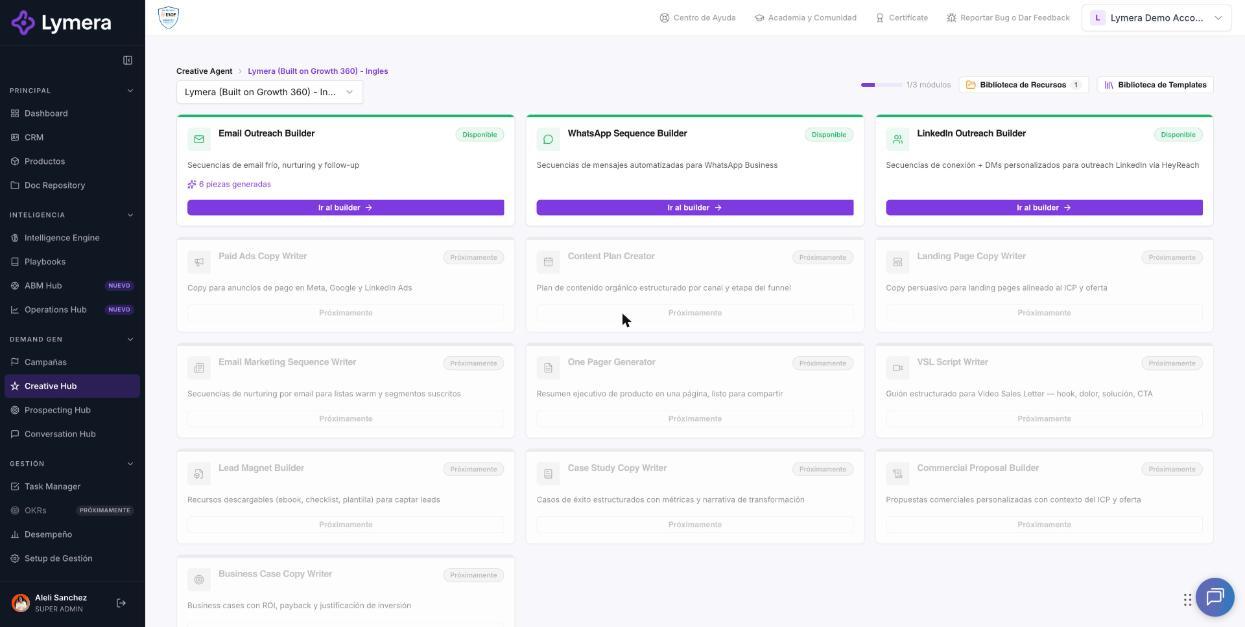
Screen: 4.2 How to create and edit WhatsApp sequences
🛠️ How to do it
Prepare an approved template
- In the Template Library (WhatsApp) click New template.
- Choose the Product, write the Template name, the Message body, the Meta category (Marketing, Utility or Authentication) and the language.
- Under "Dynamic variables", assign each variable to a Lymera field and write an example for Meta.
- Click Create template and then Send to Meta →. You will see "Template sent to Meta. Status: Pending".
- If you already have templates in your WhatsApp Business account, bring them in with ↓ Sync from WABA.
Create the sequence
- In the WhatsApp Sequence Builder, check the product and click New sequence.
- Choose the temperature (Cold, Warm or Hot) and write the Sequence name. If you want, add generation criteria.
- Click + Create sequence.
Add steps with templates
- Inside the editor, click Add step.
- Click + Select approved template and choose one from the list (only approved ones appear).
- Define the Wait days and review the Message preview.
- Repeat for the following steps.
- If you want to test a step, use Send test via WhatsApp.
Validate and approve
- Confirm that the autosave indicator has recorded your changes.
- Reopen the sequence from the list and review the order of the messages.
- Click Approve sequence (requires at least one step) and confirm with ✓ Approve.
- Link it to a campaign with Link or + Campaign, choosing the campaign and the temperature.
❓ Frequently asked questions
❓ What do I do if a template doesn't appear when adding a step?
Only templates approved by Meta are listed. Check their status in Template Library → WhatsApp and confirm that it matches the product you are editing.
❓ How long does Meta take to approve a template?
It depends on Meta. The status changes to "Approved by Meta" or "Rejected by Meta" when it responds.
❓ What do I do if Meta rejects the template?
Read the reason on the card, adjust the content or the category and send it again.
❓ Does the AI personalize WhatsApp messages?
No. WhatsApp sends approved templates, not messages written by AI for each lead.
❓ Why can't I send the test?
The destination number hasn't written to the WhatsApp Business number beforehand, or there is no active number.
🔧 If something doesn't work
| What you see | Likely cause | What to do |
|---|---|---|
| "There are no approved templates in the library" | No template is in "Approved by Meta" | Send them to Meta and wait for approval |
| "No WABA accounts are connected" | WhatsApp Business is not connected | Connect it in Integrations → WhatsApp |
| "Unmapped variables" | Some variables have no field assigned | Edit the template and assign each variable |
| "Could not send to Meta" | Problems with the content, category or language | Check those details and try again |
| You can't approve the sequence | It has no steps with an approved template | Add at least one step with an approved template |
If a template has been pending for a long time, contact support with: company, user, template name, WhatsApp Business account and a screenshot.