
📘 What it is
The Email Outreach Builder lets you design the email sequences that your campaigns send to your leads. Each sequence has a temperature, which defines when it is launched according to the lead's interest:
- Cold: leads with no prior contact. 5 emails, on days 0, 3, 7, 12 and 18, with an educational tone.
- Warm: leads with some prior contact. 3 emails, on days 0, 3 and 7, with a direct tone.
- Hot: high intent detected. 2 emails, on days 0 and 2, with an urgent tone focused on booking a meeting.
Each email is a step with its wait, angle, subject and body. The statuses of a sequence are: Configuration, Draft, In review, Approved, Active and Archived.
📍 Where to find it
Side menu → Demand Gen → Creative Hub → choose the product → Email Outreach Builder. The list has the Sequences and Templates tabs. You can also get in from a campaign's detail page.
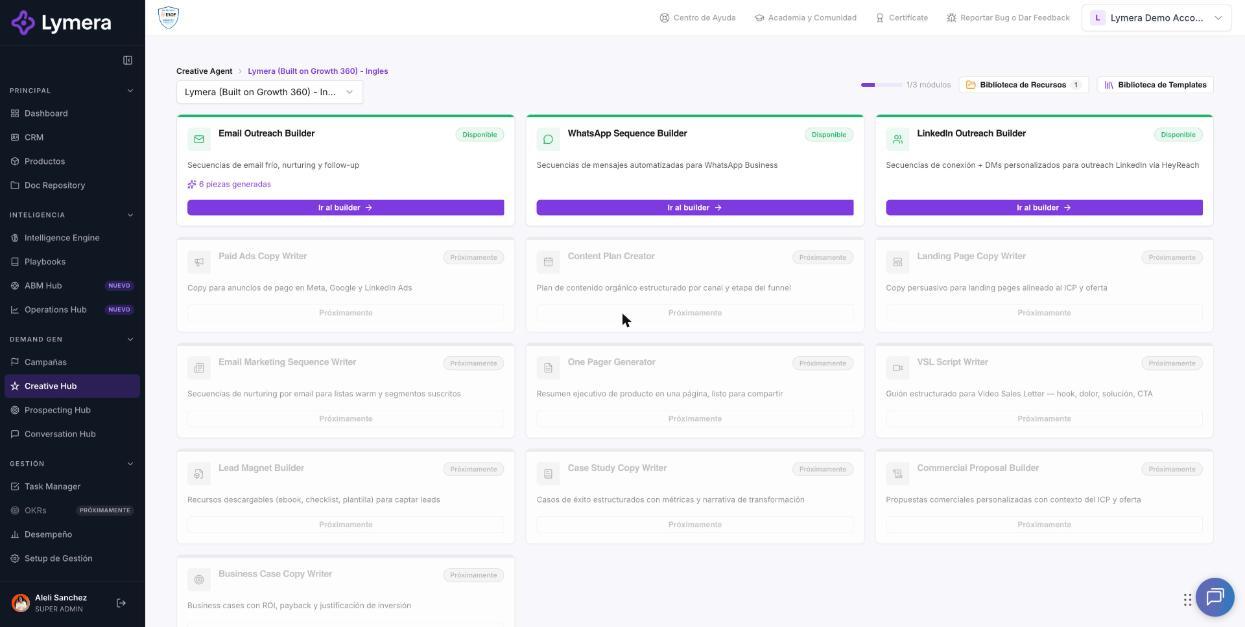
Screen: 4.1 How to create and edit Email sequences
🛠️ How to do it
Create a sequence
- In the list, select the Product (required) and, if you want, a Campaign to work in its context.
- Click New sequence.
- Choose the type (temperature) and, if you want, write a descriptive name. You can also start from a template with Load from template.
- Click + Create sequence.
Edit the steps
- In the editor, adjust the Sequence name and the Temperature.
- In each step define:
- Wait days (0 = immediate). - Send window (optional; if you leave it empty it uses the campaign's schedule). - Email angle / intent (required). - Expected CTA and Personalization note (optional).
- To write with AI, click ✦ Generate in the step, or Generate drafts for all steps at once.
- Review or write the Main subject, the A/B variant (optional) and the Email body.
- Insert variables such as Name, Company, Job title, Industry, Sender name or Meeting link. Check the preview with a real example.
- Use Add step, move steps up or down, or delete the ones you don't need.
- To test the result, click Send Test Email and check your inbox.
- Saving is automatic: you will see "Auto-save on" and "Saved".
Personalize with AI in each step
Each step has the Personalize with AI checkbox, checked by default. When checked, Lymera writes a different version for each contact. When unchecked, the email is sent as it is in the template, replacing only the variables, without using AI or credits.
Approve the sequence
- Go back to the list and, if you need to, use the search box or the temperature filter.
- Open the sequence and confirm the order and the wait times. All steps must have a subject and a body.
- Click Approve sequence and confirm with ✓ Approve.
Clone, archive or delete
- Clone creates "{name} (copy)" in Configuration, without inheriting the approval or the links.
- An archived sequence is read-only and is no longer used for sending.
- You can only delete a sequence if it is not linked to any campaign.
❓ Frequently asked questions
❓ Why won't Lymera let me create an Email sequence for my product?
The product needs its Prospecting Playbook approved. Go to Playbooks in the side menu, select your product, open the Prospecting tab and confirm that the document is in Approved status.
❓ Can I change the temperature after creating the sequence?
Yes, as long as it isn't approved. Once approved you can only edit the name.
❓ What is the difference between "Angle / Intent" and "CTA"?
The angle is the direction of the message, what you want to achieve. The CTA is the action you expect from the lead, for example booking a demo.
❓ Why is "Generate drafts" disabled?
The intent of some step is missing, or you don't have a Gmail or Outlook mailbox connected. Connect it in your Profile.
❓ Can I have several sequences per temperature?
Yes, but each campaign uses one per temperature.
❓ What happens if I run out of credits?
The AI turns off, but your campaigns keep going: emails are sent with each step's template, without personalization. Check your balance with your Account Admin.
🔧 If something doesn't work
| What you see | Likely cause | What to do |
|---|---|---|
| You can't create the sequence | The product's Prospecting Playbook is not approved | Approve it in Playbooks and try again |
| "Generate drafts" disabled | The intent is missing in some step or no Gmail/Outlook is connected | Complete the intents and connect your mailbox in your Profile |
| "Error while saving" | Connection problem | Check your connection; the editor retries. If it persists, copy your text and reload |
| The test email doesn't arrive | Your Gmail or Outlook account was disconnected | Reconnect it in your Profile |
| Empty or odd body after generating | Unclear angle or note | Detail the angle better and click ✦ Regenerate in that step |
| "Not enough credits" | Balance used up; the AI turns off | Check your balance with your Account Admin |
| You can't approve | A subject or body is missing in some step | Read the message that indicates the pending step |
If you can't save or generate, contact support with: company, user, product, sequence name, time and a screenshot.