
📘 What it is
The Sales Playbook is the guide that Lymera generates with AI from your product's Intelligence Engine (IE). It prepares the Closer for the sales meeting: how to open it, what to ask, how to respond to objections and how to agree on the next step.
It has a Human version (readable) and a YAML version (structured, for the agents).
When it is used
- To prepare the sales meeting after the handover (Handoff).
- So your whole closing team uses the same questions and responses to objections.
- To measure the Closer's performance with clear goals.
📍 Where to find it
- In the side menu, go to Intelligence → Playbooks.
- Open the product card.
- Choose the Sales tab, to the right of Handoff.
If a version already exists, click ⚙ Inputs to review the form.
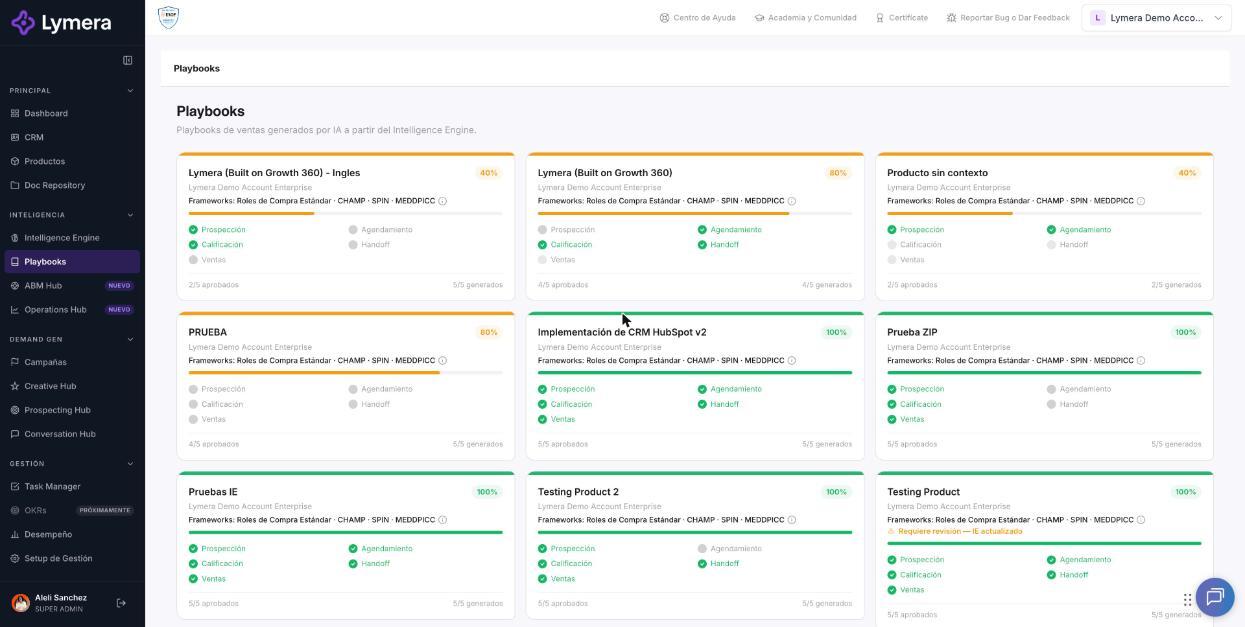
Screen: 3.5 How to set up, generate and approve the Sales Playbook
🛠️ How to do it
1. Complete the inputs
The form is pre-filled from your IE and saves automatically as you type. The Sales sections are:
- Identity and meeting specs: average monthly ticket, sales methodology, duration, tool used during the call (for example, the product presentation or a return-on-investment calculator) and meeting owner.
- Value proposition: a sentence of up to 15 words, the before and after with the prospect's pain, and a success story with four data points: company, problem, solution and measurable impact.
- Discovery questions: functional (understanding the business), need (digging into the pain) and power (who decides).
- Rapport openers: four or five ways to open the meeting with context.
- Common objections in the sales meeting: at least five, each with its response. For example, for "I need to consult it", ask who should take part and what information they need to decide.
- Closing and next steps: the four closing types according to the temperature check and the questions the Closer always asks before ending.
- Closer KPIs: goals such as close rate, proposal-to-sale conversion and sales cycle length.
If fields marked with an asterisk are missing, Lymera warns that the AI will have less context, but lets you generate.
2. Choose the next step
The four closing types help you decide what to do at the end of the meeting:
- Direct close: the prospect is ready and can decide. Confirm the agreement and the first step.
- Formal proposal: they need to evaluate scope or investment. Agree on what the proposal will include and when they will review it.
- Additional decision-maker: someone who approves is missing. Identify them and agree on a joint meeting.
- Reference: they need more trust. Offer a relevant case and agree on how to pick the conversation back up.
3. Generate the playbook
- Click ✦ Generate playbook.
- You will see "Generating your playbook (Ns)… this can take 1-3 minutes." You can go to another menu and come back.
- When you return to Sales, check that Draft appears with its version number.
4. Review the document
In the Human tab, check that the agenda, questions, objections and next step reflect what you configured. A good test is to simulate a meeting: open with the context from the handover, choose a diagnostic question and see what next step the guide proposes.
With the buttons in the bar you can switch between Human and YAML (check ✓ Valid YAML), go back to ⚙ Inputs, use ↺ Regenerate YAML, ↺ Regenerate Human or ↺ Regenerate both, and download with ⬇ Word.
5. Send to review and approve
- Click Send to review. The status changes to In review.
- Click Approve. To go back before approving, use Back to draft.
- The status changes to Approved next to the version number.
❓ Frequently asked questions
❓ What is the temperature check?
It is a question at the end of the meeting to measure how ready the prospect is to move forward. In the internal review, a scale from 1 to 10 was used. The Closer uses the answer to explore doubts or agree on the next step.
❓ How do I use the Handoff note during the meeting?
Review it before the session. Use the main pain and the context already gathered to tailor the opening and go deeper with the discovery questions.
❓ Does generating and regenerating consume credits?
Yes. If the generation fails, you are not charged. Check with your Customer Success contact how it is billed on your plan.
❓ Who can generate and approve?
Account Admin, Revenue Strategy Owner and Marketing Strategy Owner. Other roles can only view the playbooks or can't see them.
❓ Can I change an already approved playbook?
It is not edited. Adjust the ⚙ Inputs and regenerate: a new version is created in Draft that you must send to review and approve.
🔧 If something doesn't work
| What you see | Likely cause | What to do |
|---|---|---|
| Send to review doesn't appear | There is no draft, or you are on another product or tab | Confirm that you are in Sales of the right product and that the status is Draft |
| In review and you don't see Approve | Your role can't approve | Ask who approves on your team |
| "Generate playbook" disabled | The form is still loading or there is a notice | Wait for it to load and read the notice about the fields |
| Dimmed card with "IE incomplete — set up the IE first" | The product's IE is not at 100% | Approve the 4 IE modules |
| "The playbook has an incomplete structure" | Blocks are missing in the YAML | Click ↺ Regenerate YAML automatically before approving |
| "An APPROVED playbook cannot be modified" | You are trying to edit an approved one | Regenerate to create a new draft version |
If the error happens twice, contact support with: company, user, product, playbook type, time and a screenshot.
🚀 Next steps
- Review the playbook with your sales team using a sample meeting.
- ➡️ 4.1 How to create and edit Email sequences (Cold, Warm and Hot), in Creative Hub.