
📘 What it is
The Scheduling Playbook is the guide that Lymera generates with AI from your product's Intelligence Engine (IE). It establishes how to schedule a meeting with an interested prospect, how to confirm and remind them, and what to do if they don't show up.
It has a Human version (readable by your team) and a YAML version (structured, for the agents).
When it is used
- When a prospect shows interest and you need to propose a meeting.
- When the prospect raises logistical barriers ("I'm very busy", "send me information first").
- To protect attendance with reminders and recover no-shows.
📍 Where to find it
- In the side menu, go to Intelligence → Playbooks.
- Open the product card.
- Choose the Scheduling tab.
If it doesn't exist yet, you will see the status Not generated.
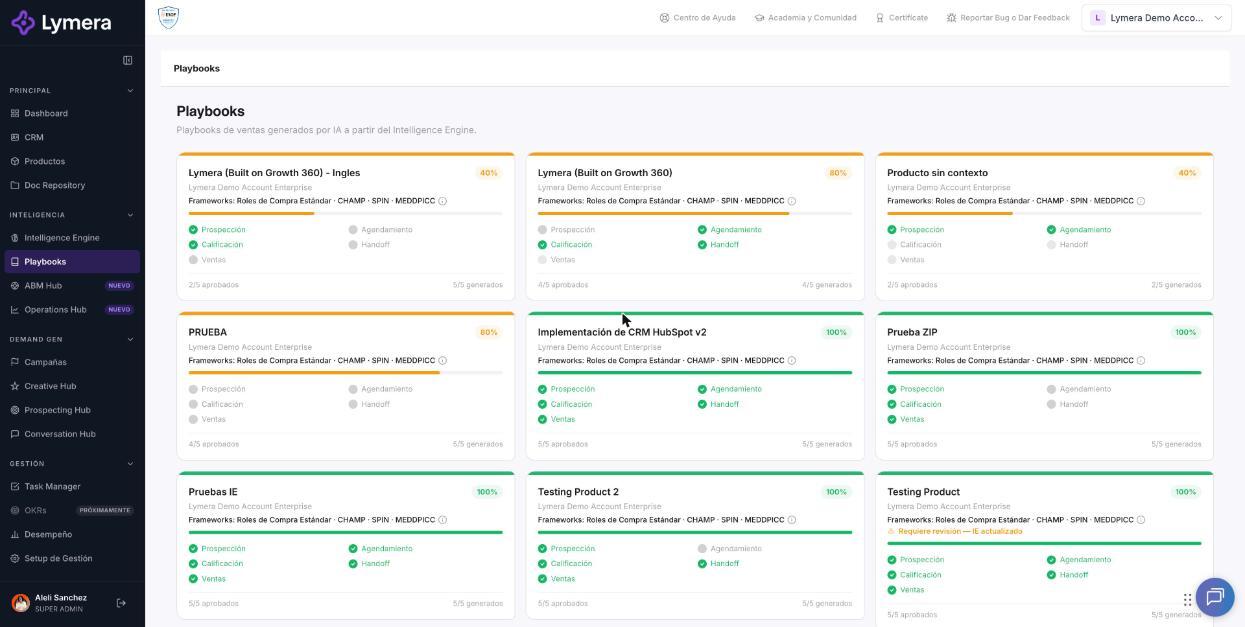
Screen: 3.2 How to set up, generate and approve the Scheduling Playbook
🛠️ How to do it
1. Complete the inputs
Click ⚙ Inputs. The form is pre-filled from your IE and saves automatically as you type. The Scheduling sections are:
- Product identity: average monthly ticket and one-line value proposition.
- Scheduling tool: your appointment platform and its link, and the required fields that must be in the CRM before scheduling.
- Common scheduling frictions: the logistical objections and the recommended response for each one.
- Pre-meeting preparation material: what material is sent depending on the prospect's profile.
- Confirmation and reminder protocol: the confirmation and reminder steps before the appointment.
- No-show protocol: what to do when the prospect doesn't attend.
- KPIs: the Setter's goals.
2. Generate the playbook
- Click ✦ Generate playbook.
- You will see "Generating your playbook (Ns)… this can take 1-3 minutes." You can go to another menu and come back.
- When it finishes, the playbook is left in Draft with the ✓ Valid YAML indicator.
3. Review the document
In the Human tab, look for these sections and compare them with what you configured:
- The recommended response speed according to your attention time.
- The classification of conversations (confirms the meeting, immediate escalation, manageable friction) and the action for each one.
- The confirmation and reminder cadence.
- The handling of scheduling frictions.
- The CRM statuses of the meeting.
With the buttons in the bar you can switch between Human and YAML, go back to ⚙ Inputs, use ↺ Regenerate YAML, ↺ Regenerate Human or ↺ Regenerate both, and download with ⬇ Word.
4. Send to review and approve
- Click Send to review. The status changes to In review.
- Click Approve. To go back before approving, use Back to draft.
- The status changes to Approved and the product counter is updated (for example, 1/5 approved).
If you are the only person who configures and authorizes, you can do all three steps in a row in the same session.
How to change an already approved playbook
An approved playbook is not edited. Adjust the ⚙ Inputs and regenerate: a new version is created in Draft that you must review and approve again.
❓ Frequently asked questions
❓ What do I do with a prospect who didn't attend?
Don't restart them in a cold sequence. Mark their meeting as not attended in the CRM so the no-show protocol is applied, or follow up manually.
❓ Are reminders sent when I move the lead to another stage?
No. Reminders are sent according to the date, time and time zone of the calendar event, not by changing stage in the CRM.
❓ Does generating and regenerating consume credits?
Yes. If the generation fails, you are not charged. Check with your Customer Success contact how it is billed on your plan.
❓ Who can generate and approve?
Account Admin, Revenue Strategy Owner and Marketing Strategy Owner. Other roles can only view the playbooks or can't see them.
❓ What happens if I see "Needs review — IE updated"?
An IE module was approved after your playbook was approved. Review the content, regenerate if needed, or click Mark as reviewed.
🔧 If something doesn't work
| What you see | Likely cause | What to do |
|---|---|---|
| Dimmed card with "IE incomplete — set up the IE first" | The product's IE is not at 100% | Approve the 4 IE modules and go back to Playbooks |
| "Your current plan does not include the Playbooks engine" | Your plan doesn't include playbooks or your role is read-only | Check with your Customer Success contact |
| "The playbook has an incomplete structure" | Blocks are missing in the YAML | Click ↺ Regenerate YAML automatically before approving |
| "The generation is taking longer than usual. Reload the page" | Slow process | Reload and check whether it has already finished before generating again |
| "An APPROVED playbook cannot be modified" | You are trying to edit an approved one | Regenerate to create a new draft version |
| "We are already generating this playbook" | A generation is in progress | Wait for it to finish |
If the error happens twice, contact support with: company, user, product, playbook type, time and a screenshot.