
📘 What it is
Lymera connects to Meta's official WhatsApp Business API to send and receive WhatsApp messages from the platform. Your WhatsApp Business account in Meta is called a WABA. Once connected, you choose which numbers are enabled for your campaigns and use templates approved by Meta to start conversations.
There are two ways to connect: the connection with Meta (recommended, guided) and the advanced (manual) connection, which you should use only if your Customer Success contact tells you to.
📍 Where to find it
- Connection and numbers: side menu › SETUP › Integrations › WhatsApp category › WhatsApp Cloud API · Meta card.
- Templates: Creative Hub, WhatsApp templates section.
- A campaign's sender number: campaign settings, Sender number block.
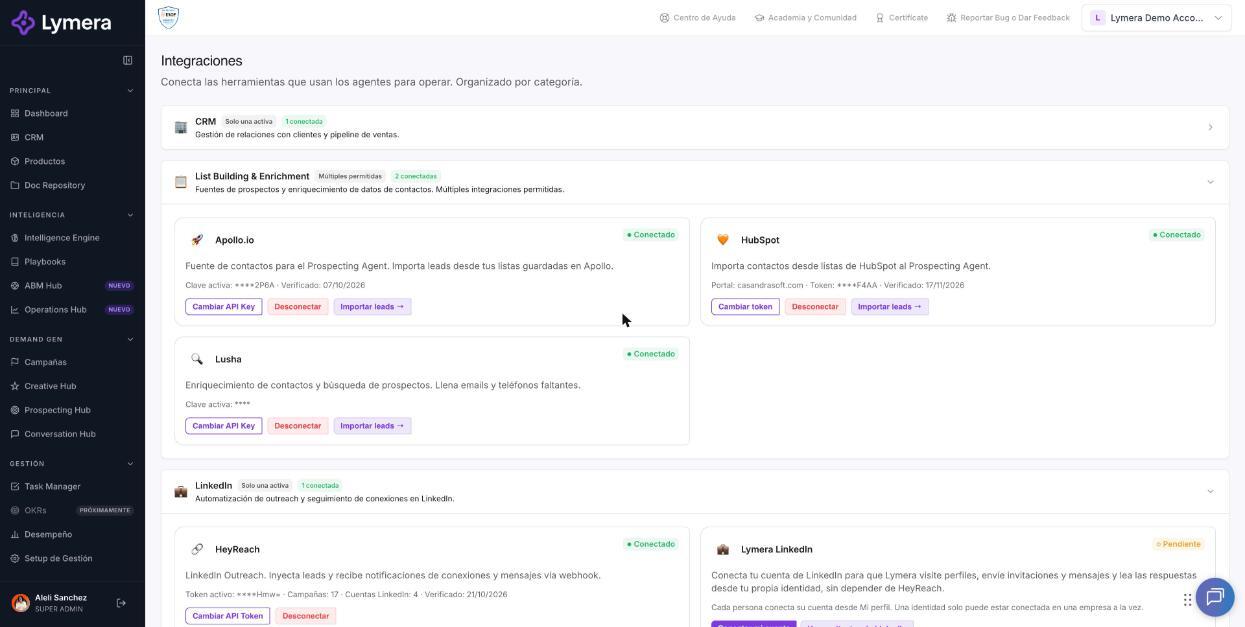
Screen: 1.06 WhatsApp Cloud API (Meta) integration and connection
🛠️ How to do it
Before you start
- Have an active business portfolio (Business Manager) in Meta, with administrator access.
- Have a number for WhatsApp Business that is not in use in the WhatsApp app on any phone, unless you use coexistence (see below).
- Have a payment method (card) in the billing of your Meta business portfolio.
Connect with Meta (recommended)
- Go to SETUP › Integrations and find the WhatsApp Cloud API · Meta card.
- Click Connect with Meta (or + Add another account if you already have one).
- A Meta window opens. If it doesn't appear, allow pop-ups for the site in your browser.
- Sign in with your Facebook user, accept the policies and choose your business portfolio.
- Choose an option:
- Existing account: select your WhatsApp Business account and the number. - New account: create a WhatsApp Business account, complete the business address, country and time zone, enter the number and verify it with the code that arrives by SMS or call.
- Wait while the card says “Waiting for authorization…” and then “Connecting WABA…”.
Advanced connection (manual)
It is meant for technical teams. It asks for the business name, the access token and other data obtained in Meta Business Manager › WhatsApp Manager › API Setup. Use it only if your Customer Success contact tells you to.
Enable numbers for campaigns
- On the card, click Enabled numbers.
- If you don't see numbers, click Sync to bring them from Meta.
- Check the numbers your campaigns will use and click Save.
- If a number needs to be registered, use Register numbers.
Other card actions
- Test: enter the destination phone number (without +) and click Send.
- Re-subscribe webhook or Retry webhook: restores the subscription so replies arrive. When everything is fine you will see “✓ Webhook subscribed automatically by Meta”.
- Import templates: brings in the approved templates from your WABA.
- Disconnect: not possible if the account is in use by campaigns. First change the number in those campaigns.
Templates
- In Creative Hub, click New template and define name, category (Marketing, Utility or Authentication), language, body and variables.
- Click Send to Meta →. If you have several accounts, choose which one to send it to.
- Check its status: Not submitted, Pending Meta, Approved by Meta or Rejected by Meta (with the reason).
- With Sync from WABA you import the ones that already exist. If you see “Unmapped variables”, edit the template and assign each variable to a Lymera field.
Use a number you already have in the WhatsApp Business app
With coexistence you can connect a number that stays in the WhatsApp Business app on your phone (recent version). It is available depending on your plan or activation.
- Click Connect with Meta.
- In the Meta window, choose to connect the WhatsApp Business app and scan the QR code from your phone.
- Wait until the number shows “Contacts and history synced”.
Meta only allows the initial sync during the first 24 hours. To disconnect a number in coexistence, do it from the app.
Account health
The card shows the account status: Active, Token expired, Unreachable, Suspended or Unverified.
❓ Frequently asked questions
❓ Can I connect a number I use in the WhatsApp app?
Yes, if you use coexistence with the WhatsApp Business app. It is not possible with the personal app at the same time. To use that number only with the API, first delete the account in the app (Settings › Account › Delete account).
❓ Why does it say “Connected” but my messages are not sent?
Meta may still be reviewing your number or display name, or you may not have a valid card in your business portfolio. Check in Meta Business Manager that the status is Approved.
❓ Who charges for WhatsApp messages?
Meta charges directly for the use of its API, to the card on your business portfolio. Connecting WhatsApp in Lymera does not use your credits by itself.
❓ Can I connect more than one WhatsApp Business account?
Yes. With several accounts, you are asked to choose which one when syncing or sending templates.
❓ Why did Meta reject my template?
Check the reason shown on the template (“Reason: …”) and adjust it according to Meta's rules.
🔧 If something doesn't work
| What you see | Likely cause | What to do |
|---|---|---|
| The Meta window doesn't open | Pop-ups are blocked | Allow them for the site and try again |
| “The authorization with Meta could not be completed.” | You canceled or Meta failed | Try again |
| “Meta already created the WABA… but the connection was not completed.” | Partial signup | Don't repeat the signup; write to support with the WABA ID |
| “Account connected, but Meta did not confirm the webhook subscription” | Webhook pending | Click Retry webhook |
| “Token expired”, “Unreachable” or “Suspended” status | Expired access, outage or suspension by Meta | Reconnect with Connect with Meta and check your Meta Business Manager |
| “Meta rejected the message: …” in the test | Invalid number, 24-hour window or template not approved | Read the message details |
| “Cannot disconnect: this account is in use…” | Campaigns use its numbers | Change the number in those campaigns |
| “This number is already connected in another account…” | Same number in two Lymera accounts | Check with your Customer Success contact |
| You don't see buttons to edit | Missing permission or your CSM manages it | Ask your Account Admin or CSM to make the change |
If the problem continues, write to support with your company, the affected WhatsApp number, the time, the exact message and a screenshot.