
📘 What it is
HubSpot can be connected to Lymera in two different ways:
- Import contacts from HubSpot lists. Uses the HubSpot card with a private app token. It is used to bring contacts into your campaigns.
- Sync your CRM. Uses the HubSpot CRM card, authorizing Lymera in HubSpot. It keeps deals (opportunities), pipelines, stages, contacts, companies and activities in sync. It is available depending on your plan or activation; if you don't see it, ask your Account Admin or your Customer Success contact.
With sync active, opportunities are managed by the CRM: they are created and edited in HubSpot and appear as read-only in Lymera, as long as the option “Do not allow creating or editing opportunities in Lymera” is checked (it is checked at the start). If you uncheck it, they can also be created and edited in Lymera and are synced in both directions. The notes, tasks, calls and meetings your team logs in Lymera are sent to HubSpot.
An account connects only one CRM at a time.
📍 Where to find it
Side menu › SETUP › Integrations.
- Import contacts: List Building & Enrichment category › HubSpot card.
- Sync your CRM: CRM category › HubSpot CRM card.
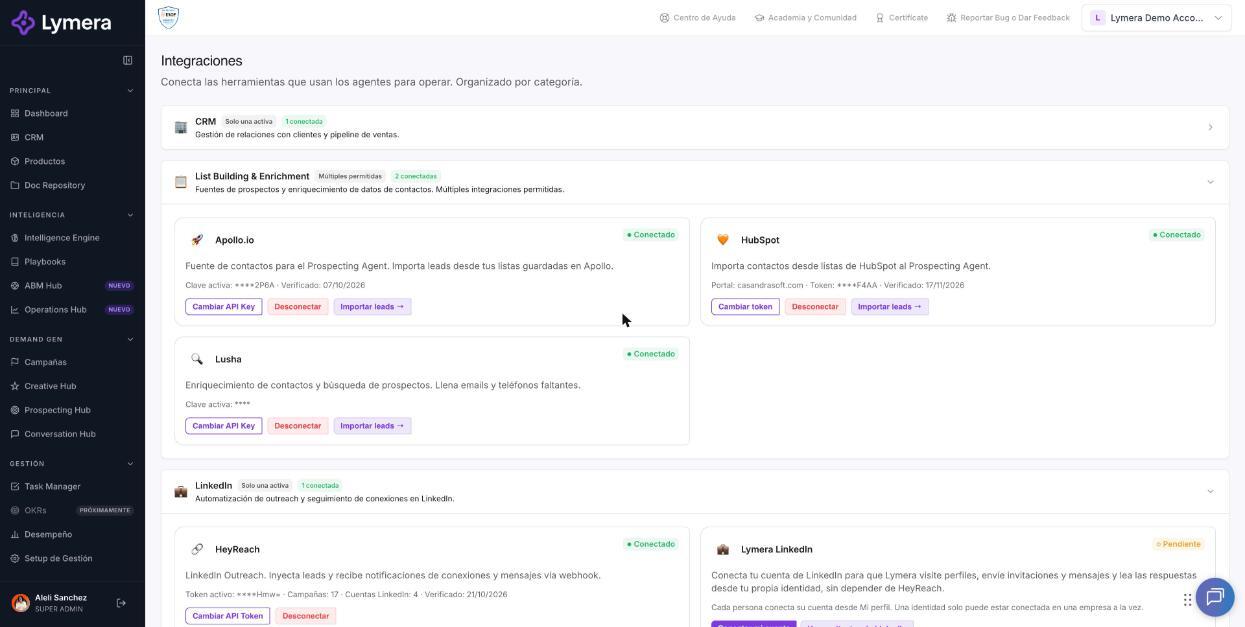
Screen: 1.04 How to connect HubSpot
🛠️ How to do it
Option 1: import contacts from HubSpot lists
Before you start
- Have administrator permissions in HubSpot.
- Have contact lists created in HubSpot. If there are no lists, you won't see anything to choose in Lymera.
Create the private app in HubSpot
- In HubSpot, click the Settings icon (the gear).
- Go to Integrations › Private Apps.
- Click Create a private app and enter a name, for example “Lymera Integration”.
- In the permissions tab (Scopes), check read and write for Lists and Contacts. Also enable read for Companies, Deals (without this permission, opportunities are not imported) and Owners (without it, imported opportunities come in with no owner).
- Click Create app.
- In the Auth tab, click Show token and copy it.
Connect in Lymera
- Go to SETUP › Integrations and find the HubSpot card.
- Click Connect HubSpot.
- Paste the token in Private App Token and confirm.
- Click Import leads → to choose the list.
Option 2: sync your CRM
- On the HubSpot CRM card, click Connect. The “Connect a CRM” wizard opens.
- Authorize: click Authorize and continue, sign in to HubSpot and accept the permissions.
- Pipelines: match each HubSpot pipeline with a Lymera one, create it in Lymera with + Create pipeline in Lymera with its stages, or mark it as Do not sync. At least one must be matched or created.
- Stages: match each CRM stage with a stage of the Lymera pipeline.
- Fields: choose which property stores the SDR and which one stores the business line. The business line value must have the same name as the product in Lymera.
- Users: they are matched by email automatically. Those that don't match are chosen by hand or stay “Unmatched”.
- Activities: define how activities travel and click Connect and start syncing.
Open opportunities from the matched pipelines and those closed in the last 24 months are imported.
After connecting
The CRM screen has the tabs Pipelines and stages, Fields, Users, Activities and Sync. There you see the status (Setting up, Connected, Paused, Error, Disconnected) and the last sync. Use:
- Sync now to bring the next run forward.
- Reconfigure to adjust the configuration.
- Reconnect if the authorization was lost.
- View sync log to review errors and notices.
❓ Frequently asked questions
❓ Why can't I edit an opportunity in Lymera?
Because your CRM manages it and the option “Do not allow creating or editing opportunities in Lymera” is checked. Edit it in HubSpot or ask your Account Admin to change that option.
❓ I changed something in HubSpot and it doesn't appear in Lymera.
Sync runs every 15 minutes. Wait for the next run or click Sync now.
❓ What happens if I disconnect the CRM?
What was already synced is kept and opportunities become editable in Lymera again.
❓ An opportunity arrives without a product or without an SDR. Why?
The property value doesn't match any active product, or the person has no match in Lymera. Correct the name and check the sync log.
🔧 If something doesn't work
| What you see | Likely cause | What to do |
|---|---|---|
| Lists appear empty when importing | There are no lists created in HubSpot | Create and fill your lists in HubSpot and try again |
| “Invalid HubSpot token.” | Incorrect token or app without the required permissions | Copy the token again and check the app's permissions |
| “HubSpot rejected Lymera's access (the authorization was revoked or expired)” | The app was revoked or access expired | Click Reconnect |
| “Read permissions Lymera needs are missing” | You didn't accept all the permissions | Authorize again and accept all of them |
| “Error” status | The last sync failed | Open the Sync tab and review the log |
| “We couldn't reach HubSpot” | HubSpot didn't respond | Try again in a few minutes |
| Opportunities not imported | Unmatched pipeline or deals outside the matched pipelines | Check the Pipelines and stages tab |
| “A sync is already in progress” | You clicked Sync now twice | Wait for it to finish |
If the problem continues, write to support with your company name, your HubSpot portal, the time of the last sync and the error text.