
📘 What it is
Lusha is a contact enrichment and search tool. Once you connect it in Lymera with your API Key, you can fill in missing emails and phone numbers and import leads using your filters.
Lymera validates your key and checks that it has available credits before saving it. It stores the key encrypted.
📍 Where to find it
Side menu › SETUP › Integrations › List Building & Enrichment category › Lusha card.
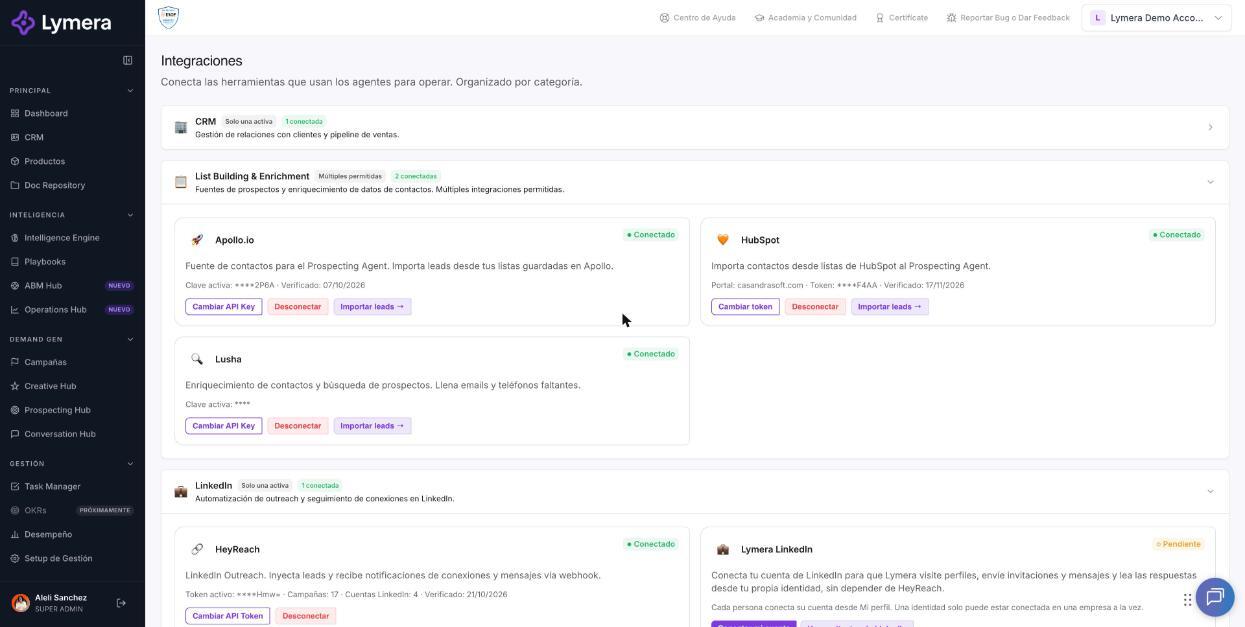
Screen: 1.03 How to connect your Lusha account
🛠️ How to do it
Before you start
- Have an active Lusha account with API access.
- Have an active session in Lymera with permission to connect integrations.
Step 1: Get the API Key in Lusha
- Sign in to Lusha and go to Settings.
- Open the API section.
- Generate a new key and copy it.
Step 2: Connect Lusha in Lymera
- In the side menu, go to SETUP › Integrations.
- On the Lusha card, click Connect Lusha.
- Paste the key in the Lusha API Key field.
- Click Connect.
- Wait for the message “Lusha connected successfully.”
Import leads
Click Import leads → on the card to search for contacts using filters from your ideal customer profile.
Change or remove the key
- To change it, click Change API Key and confirm with Update.
- To remove it, click Disconnect.
❓ Frequently asked questions
❓ Does connecting Lusha use Lymera credits?
No. The connection does not cost Lymera credits. The credits used when searching or revealing contacts are those of your Lusha account.
❓ Why won't it let me connect my key?
Lymera checks that the key is valid and has credits. If not, you will see “Invalid API Key.” Copy it again without spaces.
❓ Where do I see how many credits I have left?
On the Lusha card under SETUP › Integrations.
❓ Do some filters require a higher Lusha plan?
Yes. Some filters, such as SIC and NAICS codes, require a higher Lusha plan.
🔧 If something doesn't work
| What you see | Likely cause | What to do |
|---|---|---|
| “Invalid API Key.” | Key copied incorrectly, deleted or without credits | Copy a new key without spaces and connect again |
| “The credential could not be decrypted. Reconnect Lusha.” | The saved credential is corrupted | Use Change API Key and paste the key again |
| “No access to the Lusha API” when importing | Your Lusha plan doesn't include API access | Check your plan in Lusha |
| “Lusha credits have run out” | Balance is zero | Top up credits in Lusha |
If the problem continues, write to support with your company name, the time and the exact message. Never share the full key.